

Visual lane guidance
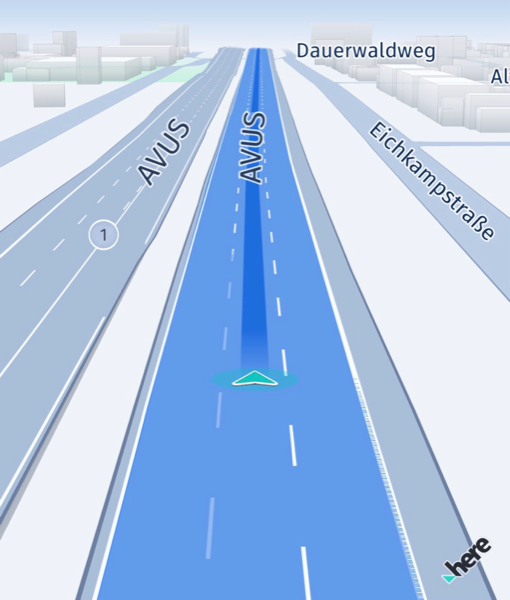
The HERE SDK supports visual lane guidance during turn-by-turn navigation to help drivers understand lane-level situations along a guided route.
This feature is intended for navigation scenarios where the application follows a Route with the VisualNavigator. It renders a route carpet that visualizes lane structure on the road and highlights the highly recommended lane (HLR) as a blue line to indicate where the driver should stay to follow the route.
If you are looking for lane data to build a custom lane UI, use the lane guidance APIs from the Get lane assistance chapter. Those APIs provide lane recommendations for the next maneuver (for example, recommended lanes and lane attributes), while physical lane-level road rendering comes from visual lane guidance. Visual lane guidance, in contrast, is a continuous on-road map rendering aid: it draws the route carpet and HLR directly on the road while guidance is active.
Note
Note that this is a beta release of this feature, so there could be a few bugs and unexpected behaviors. Related APIs may change for new releases without a deprecation process.
Visual lane guidance builds on a running turn-by-turn navigation session. To use it, make sure the following requirements are met:
- Make sure you have a Navigate license and a separate visual lane guidance license.
- Set a map scheme that supports lane rendering.
MapScheme.CLUSTER_DAYis recommended. - Make sure
MapFeatureModes.TERRAIN_3Dis disabled. - Set a supported camera behavior on the
VisualNavigator:TransitionCameraBehaviororAutomotiveCameraBehavior.AutomotiveCameraBehavioris recommended. - If you use offline maps, enable
LayerConfiguration.HD_LANES.
Visual lane guidance has the following limitations:
- Road types: Lane-level visualization is available on highways and freeways, including highway or freeway segments within cities.
- Roadworks: Lane-level visualization is not available on segments with road construction works. In this case, the guidance view can fall back to the standard navigation view.
- Coverage: The feature is available in North America (
NAR), West Europe (WEU), and East Europe (EEU).
The VisualLaneGuidance example app on GitHub shows a possible implementation.
Step 1: Provide a route for guidance
Make sure guidance has a Route instance available before enabling visual lane guidance. Route calculation itself is covered in Calculate routes.
Step 2: Choose and initialize camera behaviors
Before implementing this step, choose how camera behavior should work for your guidance :
TransitionCameraBehaviorlets the HERE SDK automatically switch between lane-level visualization and the standard navigation view, based on route context and map data availability.AutomotiveCameraBehavioruses an automotive-style camera model and can be configured from a JSON asset for external tuning.
In this example, camera behavior setup is centralized in a dedicated CameraBehaviors class. The constructor creates both behaviors, sets AutomotiveCameraBehavior as default, and applies the active behavior to the VisualNavigator.
public CameraBehaviors(Context context, VisualNavigator visualNavigator) {
	this.visualNavigator = visualNavigator;
	transitionCameraBehavior = createTransitionCameraBehavior();
	automotiveCameraBehavior = createAutomotiveCameraBehavior(context);
	activeCameraBehavior = automotiveCameraBehavior;
	this.visualNavigator.setCameraBehavior(activeCameraBehavior);
}
Use TransitionCameraBehavior
Use TransitionCameraBehavior when you want the HERE SDK to switch automatically between lane-level visualization and the standard navigation view, based on the guided route and available map content.
Note
Note that
TransitionCameraBehavioris a beta release of this feature, so there could be a few bugs and unexpected behaviors. Related APIs may change for new releases without a deprecation process.
private TransitionCameraBehavior createTransitionCameraBehavior() {
	TransitionCameraBehavior cameraBehavior = new TransitionCameraBehavior();
	return cameraBehavior;
}

public void useTransitionCameraBehavior() {
	activeCameraBehavior = transitionCameraBehavior;
	visualNavigator.setCameraBehavior(activeCameraBehavior);
}
Use AutomotiveCameraBehavior
Use AutomotiveCameraBehavior when you want to apply an automotive-style camera model. This behavior can be created from a JSON asset so that the camera tuning is configured externally.
Note
Note that
AutomotiveCameraBehavioris a beta release of this feature, so there could be a few bugs and unexpected behaviors. Related APIs may change for new releases without a deprecation process.
Create the camera behavior like below:
private static final String AUTOMOTIVE_CAMERA_CONFIG_ASSET_NAME = "AutomotiveCameraConfig.json";

private AutomotiveCameraBehavior createAutomotiveCameraBehavior(Context context) {
	String configJson = loadAutomotiveCameraConfig(context);

	try {
		AutomotiveCameraBehavior cameraBehavior = new AutomotiveCameraBehavior(configJson);
		cameraBehavior.setActiveCameraType(AutomotiveCameraBehavior.ActiveCameraType.TRACKING);
		return cameraBehavior;
	} catch (InstantiationErrorException e) {
		Log.e(TAG, "Failed to create automotive camera behavior from config: " + e.error.name());
		throw new RuntimeException("Failed to create AutomotiveCameraBehavior from config", e);
	}
}

private String loadAutomotiveCameraConfig(Context context) {
	try (InputStream inputStream = context.getAssets().open(AUTOMOTIVE_CAMERA_CONFIG_ASSET_NAME);
		 BufferedReader bufferedReader = new BufferedReader(new InputStreamReader(inputStream, StandardCharsets.UTF_8))) {
		StringBuilder stringBuilder = new StringBuilder();
		String line;
		while ((line = bufferedReader.readLine()) != null) {
			stringBuilder.append(line).append('\n');
		}
		return stringBuilder.toString();
	} catch (IOException e) {
		throw new RuntimeException("Failed to load automotive camera config: "
				+ AUTOMOTIVE_CAMERA_CONFIG_ASSET_NAME, e);
	}
}
Apply AutomotiveCameraBehavior like below:
public void useAutomotiveCameraBehavior() {
	automotiveCameraBehavior.setActiveCameraType(AutomotiveCameraBehavior.ActiveCameraType.TRACKING);
	activeCameraBehavior = automotiveCameraBehavior;
	visualNavigator.setCameraBehavior(activeCameraBehavior);
}
The JSON asset used by this example is AutomotiveCameraConfig.json. This allows you to tune the automotive camera behavior externally instead of hardcoding all values in Java. The loading code is shown above in the loadAutomotiveCameraConfig() method.
Step 3: Start guidance with the VisualNavigator
Once a route is available and a camera behavior is selected, guidance can be started.
public void startGuidance() {
	visualNavigator.startRendering(mapView);
	visualNavigator.setRoute(route);
}
This is the point where visual lane guidance can become visible, provided that guidance is active and the route enters supported coverage.
Step 4: Feed location updates into the navigator
Forward each new location update to the VisualNavigator (from your positioning source or from a LocationSimulator).
private void onLocationUpdated(Location location) {
	visualNavigator.onLocationUpdated(location);
}
Without location updates, route progress cannot be detected and no guidance-related visualization can be updated.
The VisualLaneGuidance example app on GitHub shows how to calculate a route, start simulated guidance, use TransitionCameraBehavior for automatic mode switching based on map data availability, and switch to AutomotiveCameraBehavior configured from JSON.
Updated 9 hours ago