

Get started with Maps
The HERE SDK offers robust mapping capabilities, allowing developers to seamlessly integrate map views into their applications. Key features include adding and customizing map views, adjusting the displayed location, and modifying map properties. At the heart of the mapping API is the MapView, a subclass of UIView, which provides vector-based and raster-based representations of maps with various configurable properties.
HERE map data is updated on a weekly basis to ensure you always get the freshest map data available. By integrating the map view you can automatically benefit from this.
For the HERE SDK (Navigate), the MapView and non-satellite-based map schemes are based on Data IO in combination with OCM vector tiles. This is applicable during online use when no map data has been cached, prefetched or installed. Data IO is also counted when downloading or updating offline maps with the MapDownloader or the MapUpdater. Applicable only for the HERE SDK (Navigate).
Note
For information about the pricing of these features, see the HERE Base Plan Pricing. If you have questions about pricing, contact us.
Show a map
Before you can show a map view, you need to integrate the MapView as shown here. You can use storyboards or SwiftUI.
Add the following code to load the scene with a map scheme representing a normalDay map render style:
mapView.mapScene.loadScene(mapScheme: MapScheme.normalDay, completion: onLoadScene)As completion handler we can optionally implement a method that notifies us if loading the scene has succeeded:
// Completion handler when loading a map scene.
private func onLoadScene(mapError: MapError?) {
    guard mapError == nil else {
        print("Error: Map scene not loaded, \(String(describing: mapError))")
        return
    }

    // Configure the map.
    let camera = mapView.camera
    let distanceInMeters = MapMeasure(kind: .distanceInMeters, value: 1000 * 10)
    camera.lookAt(point: GeoCoordinates(latitude: 52.518043, longitude: 13.405991),
                  zoom: distanceInMeters)
}
Note that the above shows only isolated code snippets. To learn how to build a simple map application, including the integration and initialization of the HERE SDK, see our Get started section.
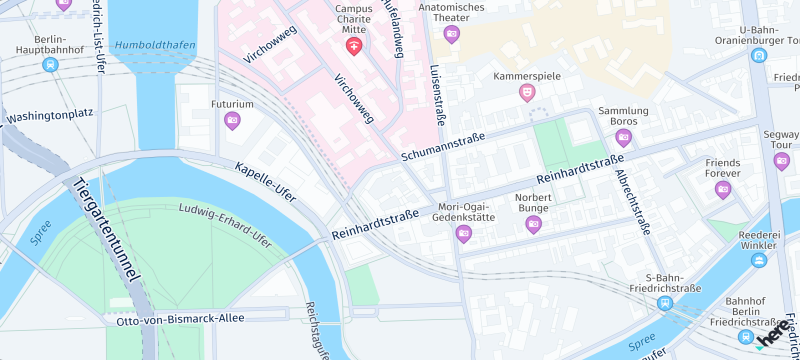
Pick embedded POIs
By default, the map displays several icons for restaurants, public transit, and other places of interest. These points of interest (POIs), known as Carto POIs, can be selected by the user to obtain more details. You also have the option to control the visibility of these embedded POIs.
Embedded POIs are preconfigured Carto POI markers that are displayed on the MapView by default. Unlike MapMarker items, their content and visual appearance cannot be modified without using the HERE Style Editor. However, users can tap on these icons to retrieve information such as location, PlaceCategory, and the name of the POI.
Embedded POIs can be picked in parallel to other MapMarker items shown on the map, unless they are currently hidden by another map item.
// Conforming to TapDelegate protocol.
func onTap(origin: Point2D) {
    // You can also use a larger area to include multiple map icons.
    let rectangle2D = Rectangle2D(origin: origin,
                                  size: Size2D(width: 50, height: 50))
    // Creates a list of map content type from which the results will be picked.
    // The content type values can be mapContent, mapItems and customLayerData.
    var contentTypesToPickFrom = Array<MapScene.MapPickFilter.ContentType>();

    // mapContent is used when picking embedded Carto POIs, traffic incidents, vehicle restriction etc.
    // mapItems is used when picking map items such as MapMarker, MapPolyline, MapPolygon etc.
    // Currently we need Carto POIs so adding the mapContent filter.
    contentTypesToPickFrom.append(MapScene.MapPickFilter.ContentType.mapContent);
    var filter = MapScene.MapPickFilter(filter: contentTypesToPickFrom);
    mapView.pick(filter:filter,inside: rectangle2D, completion: onMapItemsPicked)
}

// Completion handler to receive picked map icons.
func onMapItemsPicked(mapPickResults: MapPickResult?) {
    guard let mapPickResults = mapPickResults else {
        print("Pick operation failed.")
        return
    }
    guard let pickedMapContent =  mapPickResults.mapContent else {
        print("Pick operation failed.")
        return
    }
    handlePickedCartoPOIs(pickedMapContent.pickedPlaces)
    handlePickedVehicleRestrictions(pickedMapContent.vehicleRestrictions)
    // ... handle also other map content types.
}
private func handlePickedCartoPOIs(_ cartoPOIList: [PickedPlace]) {
    if cartoPOIList.count == 0 {
        // No results found at pick location.
        return
    }

    let topmostCartoPOI = cartoPOIList.first!
    let name = topmostCartoPOI.name
    let lat = topmostCartoPOI.coordinates.latitude
    let lon = topmostCartoPOI.coordinates.longitude
    showDialog(title: "Carto POI picked",
               message: "Name: \(name). Location: \(lat), \(lon). See log for more place details.")

    // Now you can use the SearchEngine or the OfflineSearchEngine (if available for your license)
    // to retrieve the Place object containing more details.
}
Optionally, you can now use the SearchEngine or the OfflineSearchEngine (not available for all licenses) to retrieve the Place object containing more details: use the PickMapContentResult to get a PickedPlace object that can be used to search for the Place.
Pick embedded vehicle restriction icons
Make sure to enable MapFeatures.vehicleRestrictions to render vehicle restriction icons on the map.
Once a single or multiple vehicle restriction icons have been picked, you get a MapPickResult containing a PickMapContentResult object from where you can call pickMapContentResult.vehicleRestrictions to get the details on the picked restrictions.
This object can be used to access the icon as bitmap and to retrieve other optional properties such as TruckType.
private func handlePickedVehicleRestrictions(_ vehicleRestrictions: [PickMapContentResult.VehicleRestrictionResult]) {
    if vehicleRestrictions.count == 0 {
        return
    }

    let topmostVehicleRestriction = vehicleRestrictions.first!

    createVehicleRestrictionIcon(vehicleRestrictionResult: topmostVehicleRestriction)
}
With the VehicleRestrictionResult you can use the IconProvider to generate an image representation as shown on the map. Use iconProvider.createVehicleRestrictionIcon(..) to generates an image.
The method requires the following parameters:
- vehicleRestrictionResult: The result of picking a vehicle restriction object from
PickMapContentResult. - currentMapScheme: The current map scheme of the
MapView. - IconProviderAssetType: Specifies icon optimization for either ui or map.
- size: The size of the generated image in the callback.
- iconProviderCallback: The callback object that receives the generated icon.
Here’s how to achieve this:
private func createVehicleRestrictionIcon(vehicleRestrictionResult: PickMapContentResult.VehicleRestrictionResult){
    let iconProvider = IconProvider(self.mapView.mapContext)
    print("Mapview validity: \(self.mapView.isValid)")
    let iconCallback: IconProviderCallback = { icon, description, error in
        if let error = error {
            return
        }
        // Now you can make use of the bitmap representation.
    }
    let size = Size2D(width: 20.0, height: 20.0)

    iconProvider.createVehicleRestrictionIcon(pickingResult: vehicleRestrictionResult, mapScheme: currentMapScheme, assetType: IconProviderAssetType.ui, sizeConstraintsInPixels: size, completion: iconCallback)

}
See the "CartoPOIPicking" app for an example on GitHub (only relevant for the Navigate).
Control the visibility of embedded POIs
The visibility of embedded POIs on the map can be controlled with MapContentSettings.setPoiCategoriesVisibility(...) that allows to set a VisibilityState for a list of POI categories (only available for the Navigate).
// Note: You can change the visibility of individual embedded POI categories. This allows hiding specific categories of carto POIs.
var categoryIds: [String] = []
categoryIds.append(String(describing: PlaceCategory.eatAndDrinkRestaurant))
MapContentSettings.setPoiCategoriesVisibility(categoryIds: categoryIds, visibility: .hidden)
The visibility of embedded POIs on the map can be controlled with Navigate, but not with Explore.
Note that not all POI categories are available for all map schemes.
A list of supported categories can be found in the documentation of the HERE Style Editor.
On top, Explore does not support all PlaceCategory fields to be shown as embedded POI. For example, eatAndDrink and shopping are only visible when using the HERE SDK (Navigate).
Note that the following embedded POI category groups currently do not appear on the MapView of Explore:
- Accommodation
- Automotive
- Eat & Drink
- Shopping
Set a map language
You can customize the language that is used on the map to show labels for streets, cities and other map data. By default, the local language of a region is used.
Call MapView.primaryLanguage = languageCode to set the language for the world - or set nil to switch back to the default behavior. This will set the language for all instances of MapView. If a language is not supported in any region of the world, the local language for that region is shown instead.
Use MapView.secondaryLanguage = languageCode to set a secondary map language to support places that can show dual labels. If the text for primary and secondary language is the same, then only the primary language will be shown. If a requested language is not supported, then the local language is used. For example, some cities in India show a dual label with Latin (English) & Hindi text - at the same time.
Handle disputed territories
The HERE SDK supports multiple geographic political views and disputed borders to show the map boundaries based on an international view (default) or a local country view. The local view affects only particular areas on the map when a border and possession or control is claimed by two or more political entities - usually a country.
You can change the default geopolitical view by setting a three-letter country code for the politicalView member accessible via SDKOptions. The supported country codes are accessible on the coverage page.
When set, the map view will show all country boundaries according to the geopolitical view of the country that has been set and the MapView will show the borders accordingly.
Note that this is released as a beta feature.
If you want to change the geopolitical view at runtime, use the following code snippet:
// Optionally, clear the cache, so that changing the options has an immediate effect.
SDKCache.fromEngine(SDKNativeEngine.sharedInstance!).clearCache { (error) in
    if error == nil {
        // ...
    }

    var options: SDKOptions? = SDKNativeEngine.sharedInstance?.options
    options?.politicalView = "ARG"

    // Now, initialize the HERE SDK again using the updated options.
}
Make sure to call this not during any ongoing HERE SDK operation, as setting new options requires also to create a new shared instance. Ideally, set the options and the politicalView only once before initializing the HERE SDK for the first time during the app's lifecycle.
Manage the HERE watermark
When using the HERE SDK, it is required that the HERE logo is always visible on the map view. By default, the HERE logo is located at the bottom right corner of the map. However, you can easily customize its location to meet your app design by calling setWatermarkLocation() on your map view instance. It is recommended to change the default placement only when it is required due to overlapping UI elements. Note for very small views: if both edges of the map are less than 250 density independent pixels in size, the watermark will be hidden automatically.
Note
Only upon special agreement with HERE it is possible to remove the HERE logo.
Updated 13 days ago