

Examples and use cases
Explore practical examples and use cases to effectively utilize indoor maps and venues with the HERE SDK. This section covers a range of topics to help you get the most out of our indoor mapping capabilities.
List all indoor maps
The HERE SDK for iOS (Navigate) allows you to list all private venues that are accessible for your account and the selected collection. VenueMap contains a list which holds VenueInfo elements containing venue Identifier, venue ID and venue Name.
let venueInfo:[VenueInfo]? = venueEngine?.venueMap.getVenueInfoList()
if let venueInfo = venueInfo {
  for venueInfo in venueInfo {
      print("Venue Identifier: \(venueInfo.venueIdentifier)." + " Venue Id: \(venueInfo.venueId)." + " Venue Name: \(venueInfo.venueName).")
  }
}
For maps with venue identifier as UUID, venueId would return 0.
Load and show a venue
The HERE SDK for iOS (Navigate) allows you to load and visualize venues by identifier. You must know the venue's identifier for the current set of credentials. There are several ways to load and visualize the venues.
A VenueMap has two methods to add a venue to the map: selectVenueAsync() and addVenueAsync(). Both methods use getVenueService().addVenueToLoad() to load the venue by Identifier and then add it to the map. The method selectVenueAsync() also selects the venue:
venueEngine.venueMap.selectVenueAsync(venueIdentifier: String);venueEngine.venueMap.addVenueAsync(venueIdentifier: String);Note
For legacy maps with an
intbased venue ID,VenueMapstill supportsselectVenueAsync(venueID: Int)andaddVenueAsync(venueID: Int)to load the venue by venue ID.
Once the venue is loaded, the VenueService calls the VenueDelegate.onGetVenueCompleted() method:
// Delegate for the venue loading event.
extension ViewController: VenueDelegate {
    func onGetVenueCompleted(venueIdentifier: String, venueModel: VenueModel?, online: Bool, venueStyle: VenueStyle?) {
        if venueModel == nil {
            print("Loading of venue \(venueIdentifier) failed!")
        }
    }
}Note
For legacy maps with an
intbased venue ID,VenueServicecalls theVenueListener.onGetVenueCompleted(venueID: Int, venueModel: VenueModel?, online: Bool, venueStyle: VenueStyle?)method.
Once the venue is loaded successfully, if you are using the addVenueAsync() method, only the VenueLifecycleDelegate.onVenueAdded() method will be triggered. If you are using the selectVenueAsync()method, the VenueSelectionDelegate.onSelectedVenueChanged() method will also be triggered.
// Delegate for the venue selection event.
extension ViewController: VenueSelectionDelegate {
    func onSelectedVenueChanged(deselectedVenue: Venue?, selectedVenue: Venue?) {
        if let venueModel = selectedVenue?.venueModel {
            if moveToVenue {
                // Move camera to the selected venue.
                let center = GeoCoordinates(latitude: venueModel.center.latitude,
                                            longitude: venueModel.center.longitude,
                                            altitude: 500.0)
                mapView.camera.lookAt(point: center)
                // This functions is used to facilitate the toggling of topology visibility.
                // Setting isTopologyVisible property to true will render the topology on scene and false will lead to hide the topology.
                selectedVenue?.isTopologyVisible = true;
            }
        }
    }
}
A Venue can also be removed from the VenueMap, which triggers the VenueLifecycleDelegate.onVenueRemoved(venueIdentifier: String) method:
venueEngine.venueMap.removeVenue(venue: venue)Note
For legacy maps with an
intbased venue ID, if you are using theaddVenueAsync()method, theVenueLifecycleListener.onVenueAdded()method will be triggered.
When removing anintbased venue ID fromVenueMap, theVenueLifecycleListener.onVenueRemoved(venueID: Int)is triggered.
Label text preference
You can override the default label text preference for a venue.
Once the VenueEngine is initialized, a callback is called. From this point on, there is access to the VenueService. The optional method setLabeltextPreference() can be called to set the label text preference during rendering. Overriding the default style label text preference provides an opportunity to set the following options as a list where the order defines the preference:
- "OCCUPANT_NAMES"
- "SPACE_NAME"
- "INTERNAL_ADDRESS"
- "SPACE_TYPE_NAME"
- "SPACE_CATEGORY_NAME"
These can be set in any desired order. For example, if the label text preference does not contain "OCCUPANT_NAMES" then it will switch to "SPACE_NAME" and so on, based on the order of the list. Nothing is displayed if no preference is found.
private func onVenueEngineInit() {
    // Get VenueService and VenueMap objects.
    let venueMap = venueEngine.venueMap
    let venueService = venueEngine.venueService

    // Add needed delegates.
    venueService.addServiceDelegate(self)
    venueService.addVenueDelegate(self)
    venueMap.addVenueSelectionDelegate(self)

    // Start VenueEngine. Once authentication is done, the authentication completion handler
    // will be triggered. Afterwards VenueEngine will start VenueService. Once VenueService
    // is initialized, VenueServiceListener.onInitializationCompleted method will be called.
    venueEngine.start(callback: {
        error, data in if let error = error {
            print("Failed to authenticate, reason: " + error.localizedDescription)
        }
    })

    if (hrn != "") {
        // Set platform catalog HRN
        venueService.setHrn(hrn: hrn)
    }

    // Set label text preference
    venueService.setLabeltextPreference(labelTextPref: LabelPref)
}
Select venue drawings and levels
A Venue object allows you to control the state of the venue.
The property Venue.selectedDrawing allows you to get and set a drawing which is visible on the map. When a new drawing is selected, the VenueDrawingSelectionDelegate.onDrawingSelected() method is triggered.
The following provides an example of how to select a drawing when an item is clicked in a UITableView:
extension DrawingSwitcher: UITableViewDelegate {
    public func tableView(_ tableView: UITableView, didSelectRowAt indexPath: IndexPath) {
        let drawingIndex: Int = indexPath.row
        if let venue = venueMap?.selectedVenue {
            // Set the selected drawing when a user clicks on the item in the table view.
            let drawing: VenueDrawing = venue.venueModel.drawings[drawingIndex]
            venue.selectedDrawing = drawing
            ...
        }
    }
}
The properties Venue.selectedLevel, Venue.selectedLevelIndex and Venue.selectedLevelZIndex allow you to get and set a level which will be visible on the map. If a new level is selected, the VenueLevelSelectionDelegate.onLevelSelected() method is triggered.
The following provides an example of how to select a level based on a reversed levels list from UITableView:
extension LevelSwitcher: UITableViewDelegate {
    public func tableView(_ tableView: UITableView, didSelectRowAt indexPath: IndexPath) {
        // Rows in the LevelSwitcher's table view are presented in the reversed way
        currentLevelIndex = Int32(levels.count - indexPath.row - 1)
        updateLevel(currentLevelIndex)
    }
}func updateLevel(_ levelIndex: Int32) {
if let venue = venueMap?.selectedVenue {
venue.selectedLevelIndex = currentLevelIndex
}
}A full example of the UI switchers to control drawings and levels is available in the "IndoorMap" example app, available on GitHub.
Customize the style of a venue
You can change the visual style of VenueGeometry objects. Geometry style and/or label style objects must be created and provided to the Venue.setCustomStyle() method:
// Create geometry and label styles for the selected geometry.
geometryStyle = VenueGeometryStyle(
    mainColor: selectedColor, outlineColor: selectedOutlineColor, outlineWidth: 1)
labelStyle = VenueLabelStyle(
fillColor: selectedTextColor, outlineColor: selectedTextOutlineColor, outlineWidth: 1, maxFont: 28)venue.setCustomStyle(geometries: [geometry], style: geometryStyle, labelStyle: labelStyle)Select space by identifier
The ID of spaces, levels and drawings can be extracted using getIdentifier(), e.g. for spaces call: spaces.getIdentifier(). Then, for using those id values, a specific space can be searched in a level or a drawing with getGeometryById(id:).
var geometriesID : [String] = [];
var geometries : [VenueGeometry] = [];
for id in geometriesID
{
    VenueGeometry geometry = selectedVenue?.getSelectedDrawing().getGeometryById(id);
    geometries.append(geometry);
}
geometryStyle = VenueGeometryStyle(
    mainColor: selectedColor, outlineColor: selectedOutlineColor, outlineWidth: 1)
labelStyle = VenueLabelStyle(
    fillColor: selectedTextColor, outlineColor: selectedTextOutlineColor, outlineWidth: 1, maxFont: 28)
selectedVenue.setCustomStyle(geometries: geometries, style: geometryStyle, labelStyle: labelStyle)
Handle tap gestures on a venue
You can select a venue object by tapping it. First, set the tap delegate:
// Create a venue tap handler and set it as default tap delegate.
mapView.gestures.tapDelegate = VenueTapHandler(venueEngine: venueEngine,
                                               mapView: mapView,
                                               geometryLabel: geometryNameLabel)
Inside the tap delegate, you can use the tapped geographic coordinates as parameter for the VenueMap.getGeometry() and VenueMap.getVenue() methods:
public func onTap(origin: Point2D) {
    deselectGeometry()

    let venueMap = venueEngine.venueMap
    // Get geo coordinates of the tapped point.
    if let position = mapView.viewToGeoCoordinates(viewCoordinates: origin) {
        // If the tap point was inside a selected venue, try to pick a geometry inside.
        // Otherwise try to select an another venue, if the tap point was on top of one of them.
        if let selectedVenue = venueMap.selectedVenue, let geometry = venueMap.getGeometry(position: position) {
            onGeometryPicked(venue: selectedVenue, geometry: geometry)
        } else if let venue = venueMap.getVenue(position: position) {
            venueMap.selectedVenue = venue
        }
    }
}

func deselectGeometry() {
    // If a map marker is already on the screen, remove it.
    if let currentMarker = marker {
        mapView.mapScene.removeMapMarker(currentMarker)
    }
}

func onGeometryPicked(venue: Venue,
                      geometry: VenueGeometry) {
    // If the geomtry has an icon, add a map marker on top of the geometry.
    if geometry.lookupType == .icon {
        if let image = getMarkerImage() {
            marker = MapMarker(at: geometry.center,
                               image: image,
                               anchor: Anchor2D(horizontal: 0.5, vertical: 1.0))
            if let marker = marker {
                mapView.mapScene.addMapMarker(marker)
            }
        }
    }
}
HERE recommends that you deselect the tapped geometry when the selected venue, drawing, or level has changed:
public init(venueEngine: VenueEngine, mapView: MapView, geometryLabel: UILabel) {
    ...
    let venueMap = venueEngine.venueMap
    venueMap.addVenueSelectionDelegate(self)
    venueMap.addDrawingSelectionDelegate(self)
    venueMap.addLevelSelectionDelegate(self)
}

deinit {
    let venueMap = venueEngine.venueMap
    venueMap.removeVenueSelectionDelegate(self)
    venueMap.removeDrawingSelectionDelegate(self)
    venueMap.removeLevelSelectionDelegate(self)
}extension VenueTapHandler: VenueSelectionDelegate {
public func onSelectedVenueChanged(deselectedVenue: Venue?, selectedVenue: Venue?) {
self.deselectGeometry()
}
}
extension VenueTapHandler: VenueDrawingSelectionDelegate {
public func onDrawingSelected(venue: Venue, deselectedDrawing: VenueDrawing?, selectedDrawing: VenueDrawing) {
self.deselectGeometry()
}
}
extension VenueTapHandler: VenueLevelSelectionDelegate {
public func onLevelSelected(venue: Venue, drawing: VenueDrawing, deselectedLevel: VenueLevel?, selectedLevel: VenueLevel) {
self.deselectGeometry()
}
}A full example showing usage of the map tap event with venues is available in the "IndoorMap" example app, available on GitHub.
Indoor Routing
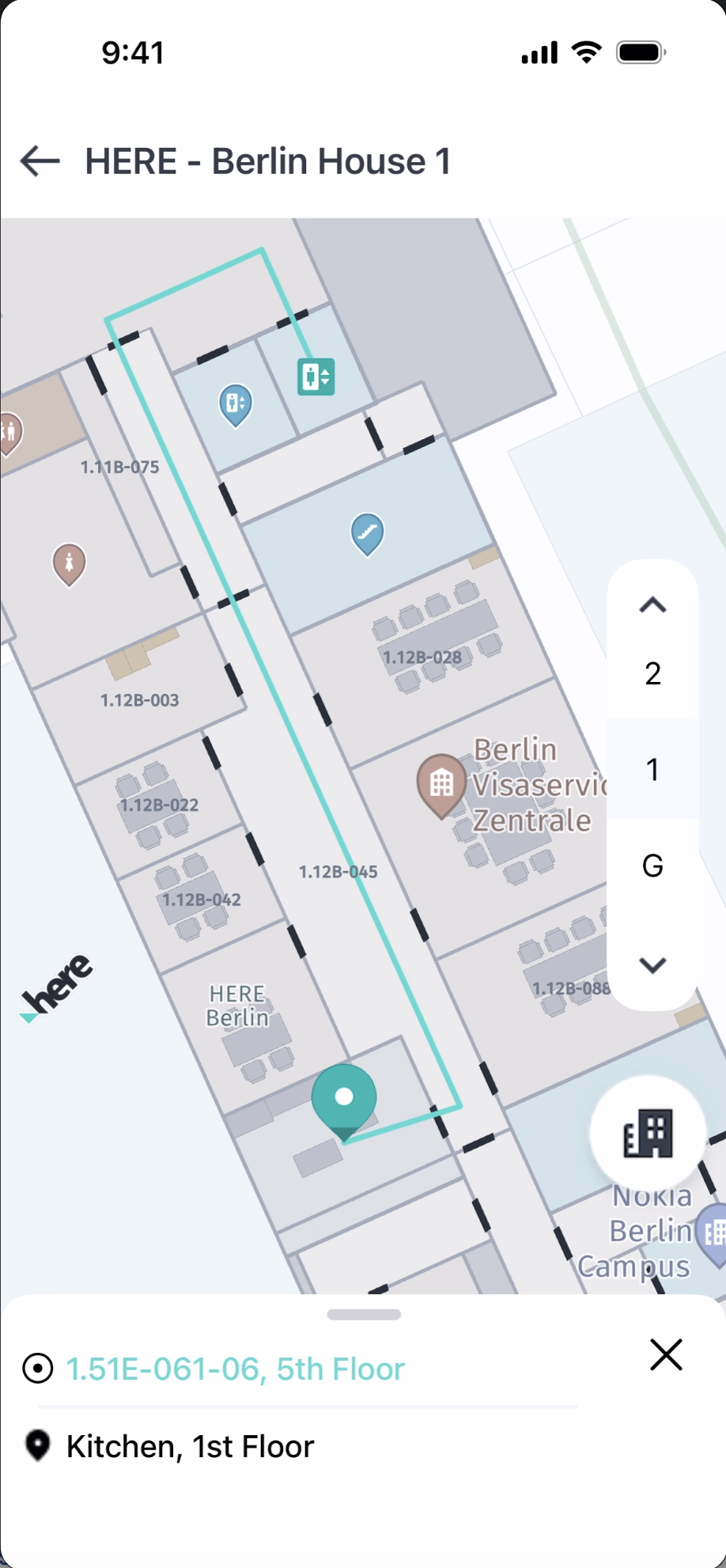
The HERE SDK for iOS (Navigate) provides comprehensive indoor routing capabilities, allowing you to calculate and visualize routes within venues. This section covers how to set up and use indoor routing features.
Indoor Route calculation
To calculate an indoor route, you need to create an IndoorRoutingEngine and specify waypoints with venue and level information. A waypoint would be created for each departure and arrival locations.
First, create the routing engine:
let routingEngine = IndoorRoutingEngine(_: venueService)Create waypoints for the start and destination locations. For indoor locations, specify the venue ID and level ID:
let startPoint = IndoorWaypoint(
    coordinates: position,
    venueId: String(venueModel.identifier),
    levelId: String(venue.selectedLevel.identifier))

let destinationPoint = IndoorWaypoint(
    coordinates: position,
    venueId: String(venueModel.identifier),
    levelId: String(venue.selectedLevel.identifier))
Calculate the route using the routingEngine:
let routeOptions = IndoorRouteOptions()
routingEngine?.calculateRoute(
    from: startPoint,
    to: destinationPoint,
    routeOptions: routeOptions) { error, routes, routeNotices in
        if error == nil, let routes = routes {
            let route = routes[0]
            // Use the calculated route
        }
    }
Multilevel route calculation
Indoor routes can span multiple levels within a venue. The SDK automatically handles level transitions and provides information about level changes in the route.
To access indoor section details and level information:
for section in route.sections {
    // Check if section has indoor details
    if let indoorDetails = section.indoorSectionDetails {
        print("Indoor Section - Departure: \(indoorDetails.departurePlace.venueId ?? "")")
        print("Indoor Section - Arrival: \(indoorDetails.arrivalPlace.venueId ?? "")")

        // Iterate through indoor maneuvers
        for indoorManeuver in indoorDetails.indoorManeuvers {
            if let action = indoorManeuver.action {
                print("IndoorManeuver Action: \(action)")
            }
            print("IndoorManeuver Location Info: Level_Z_Index: \(indoorManeuver.levelZIndex)")

            // Check for level change data
            if let levelChangeData = indoorManeuver.indoorLevelChangeData {
                print("IndoorManeuver Level change using: \(levelChangeData.connector)")
                print("changeInLevel: \(levelChangeData.deltaZ)")
            }
        }
    }
}
The IndoorLevelChangeData provides information about:
connector: The type of level connector used (elevator, stairs, escalator, ramp, etc.)deltaZ: The change in level (positive for going up, negative for going down)
Error handling and route notices
The route calculation callback provides both error information and route notices. Route notices provide detailed information about issues or warnings during route calculation, while routing errors indicate failures in the routing process itself.
Handling Route Notices
Route notices are provided in the callback even when routing succeeds. They contain important information about the calculated route:
routingEngine?.calculateRoute(
    from: startPoint,
    to: destinationPoint,
    routeOptions: routeOptions) { error, routes, routeNotices in
        // Handle route notices first (available even on success)
        if let routeNotices = routeNotices, !routeNotices.isEmpty {
            for notice in routeNotices {
                let logMessage = notice.title

                // Log based on severity
                if notice.severity == .critical {
                    print("CRITICAL: \(logMessage)")
                } else {
                    print("INFO: \(logMessage)")
                }

                // Handle specific notice codes
                switch notice.code {
                    // CRITICAL notices - route calculation failed
                    case .noRouteFound:
                        // No Route was found
                        break
                    case .couldNotMatchOrigin:
                        // Origin waypoint could not be matched
                        break
                    case .couldNotMatchDestination:
                        // Destination waypoint could not be matched
                        break

                    // INFO notices - vehicle usage violations
                    case .violatedRouteHeadCondition:
                        // Cannot provide route with the given vehicle routeHead condition
                        print("Cannot provide route with the given vehicle routeHead condition")
                    case .violatedRouteTailCondition:
                        // Cannot provide route with the given vehicle routeTail condition
                        print("Cannot provide route with the given vehicle routeTail condition")
                    case .violatedEntireRouteCondition:
                        // Cannot provide route with the given vehicle entireRoute condition
                        print("Cannot provide route with the given vehicle entireRoute condition")
                    default:
                        break
                }

                // Access additional details
                if let details = notice.details, !details.isEmpty {
                    for detail in details {
                        print("Detail - Type: \(detail.type), Cause: \(detail.cause), Title: \(detail.title)")
                    }
                }
            }
        }

        // Handle routing errors
        if let error = error {
            var errorMessage: String
            switch error {
                case .mapNotFound:
                    errorMessage = "Requested map not found"
                case .parsingError:
                    errorMessage = "Routing response not in correct format"
                case .unknownError:
                    errorMessage = "Unknown error encountered"
                default:
                    errorMessage = "Unknown error encountered"
            }
            print("Routing error: \(errorMessage)")
            return
        }

        // Process successful route
        if let routes = routes, !routes.isEmpty {
            let route = routes[0]
            // Use the calculated route
        }
    }
Route-level Notice Codes
The following route-level notices appear at the top level of the response and generally indicate a high-level failure or condition violation:
| Notice Code | Severity | Category | Description |
|---|---|---|---|
noRouteFound | CRITICAL | Route Failure | No Route was found |
couldNotMatchOrigin | CRITICAL | Route Failure | Origin waypoint could not be matched |
couldNotMatchDestination | CRITICAL | Route Failure | Destination waypoint could not be matched |
noRouteFoundWithWaypoint | CRITICAL | Route Failure | No route available between given origin and destination with given waypoint |
couldNotMatchWaypoint | CRITICAL | Route Failure | Waypoint could not be matched. Nearest routing node not found |
violatedRouteHeadCondition | INFO | Vehicle Violation | Cannot provide route with the given vehicle routeHead condition |
violatedRouteTailCondition | INFO | Vehicle Violation | Cannot provide route with the given vehicle routeTail condition |
violatedEntireRouteCondition | INFO | Vehicle Violation | Cannot provide route with the given vehicle entireRoute condition |
ignoredVehicleEnable | INFO | Ignored Parameter | Vehicle enable option is ignored for the given transport mode |
ignoredVehicleSpeed | INFO | Ignored Parameter | Vehicle speed is ignored for the given transport mode |
ignoredVehicleAvoidFeatures | INFO | Ignored Parameter | LevelConnectors associated with vehicle are ignored which are received as a part of avoid features |
violatedTransportMode | INFO | Transport Mode | Cannot provide route with the selected transport mode. |
Note: CRITICAL notices indicate route calculation failure. INFO notices provide warnings about parameter violations or ignored options but routing may still succeed.
Section-level Notice Codes
The following section-level notices appear within an individual route section and indicate that a route restriction could not be avoided for that section:
| Notice Code | Severity | Category | Description |
|---|---|---|---|
violatedAvoidStairs | INFO | Avoidance Violation | Route violates avoid constraint for stairs |
violatedAvoidElevator | INFO | Avoidance Violation | Route violates avoid constraint for elevator |
violatedAvoidRamp | INFO | Avoidance Violation | Route violates avoid constraint for ramp |
violatedAvoidEscalator | INFO | Avoidance Violation | Route violates avoid constraint for escalator |
violatedAvoidPedestrianRamp | INFO | Avoidance Violation | Route violates avoid constraint for pedestrian ramp |
violatedAvoidCarLift | INFO | Avoidance Violation | Route violates avoid constraint for car lift |
violatedAvoidDriveRamp | INFO | Avoidance Violation | Route violates avoid constraint for drive ramp |
violatedAvoidElevatorBank | INFO | Avoidance Violation | Route violates avoid constraint for elevator bank |
Note: Section-level violatedAvoid... notices are informational and have severity info.
Avoidance option for level connector
You can configure the routing engine to avoid specific types of level connectors based on user preferences or accessibility requirements when calculating the Indoor Route.
let routeOptions = IndoorRouteOptions()

// Add features to avoid
routeOptions.indoorAvoidanceOptions.indoorFeatures.append(.elevator)
routeOptions.indoorAvoidanceOptions.indoorFeatures.append(.escalator)
routeOptions.indoorAvoidanceOptions.indoorFeatures.append(.stairs)
Available level connector types that can be avoided:
.elevator: Elevators.escalator: Escalators.stairs: Stairs.ramp: General ramps.pedestrianRamp: Pedestrian-specific ramps.driveRamp: Drive ramps.carLift: Car lifts.elevatorBank: Elevator banks.connector: Generic connectors
To remove an avoidance option:
if let index = routeOptions.indoorAvoidanceOptions.indoorFeatures.firstIndex(of: .elevator) {
    routeOptions.indoorAvoidanceOptions.indoorFeatures.remove(at: index)
}
Route Preferences
Configure route calculation preferences using the IndoorRouteOptions object.
Route Optimization Mode
Choose between fastest and shortest route:
let routeOptions = IndoorRouteOptions()

// For fastest route
routeOptions.routeOptions.optimizationMode = OptimizationMode.fastest

// For shortest route
routeOptions.routeOptions.optimizationMode = OptimizationMode.shortest
Multi-Modal Transport Support
The HERE SDK supports multiple transport modes for indoor routing: pedestrian, car, taxi, and scooter. You can configure transport-specific parameters using VenueTransportSpecification.
Pedestrian Routes
For pedestrian routes, use VenuePedestrianSpecification to set walking speed:
// Create pedestrian specification
let pedestrianSpec = VenuePedestrianSpecification()
pedestrianSpec.walkingSpeedInMetersPerSecond = 1.5 // Valid range: 0.5 to 2.0 m/s

// Create transport specification using Builder
let transportSpec = VenueTransportSpecification.PedestrianBuilder()
    .withPedestrianSpecification(pedestrianSpec)
    .build()

// Create route options
let routeOptions = IndoorRouteOptions()
routeOptions.transportMode = .pedestrian
routeOptions.venueTransportSpecification = transportSpec
Vehicle Routes (Car, Taxi, Scooter)
For vehicle-based routes, configure vehicle-specific parameters:
// Create car specification
let carSpec = VenueCarSpecification()
carSpec.speedInMetersPerSecond = 3.0 // Valid range: 2.0 to 5.0 m/s
carSpec.enableOption = .routeHead // Use car only at route start

// Also set pedestrian spec for walking portions
let pedestrianSpec = VenuePedestrianSpecification()
pedestrianSpec.walkingSpeedInMetersPerSecond = 1.4

// Create transport specification using Builder
let transportSpec = VenueTransportSpecification.CarBuilder()
    .withCarSpecification(carSpec)
    .build()

// Create route options
let routeOptions = IndoorRouteOptions()
routeOptions.transportMode = .car
routeOptions.venueTransportSpecification = transportSpec
The same pattern applies to VenueTaxiSpecification and VenueScooterSpecification.
Vehicle Enable Options
The EnableOption enum controls where a vehicle can be used along the route:
.routeHead: Use vehicle only at the start of the route (e.g., park car near entrance, then walk).routeTail: Use vehicle only at the end of the route (e.g., walk first, then drive from parking).entireRoute: Use vehicle for the entire route
Example with scooter at route tail:
let scooterSpec = VenueScooterSpecification()
scooterSpec.speedInMetersPerSecond = 5.0
scooterSpec.enableOption = .routeTail

let transportSpec = VenueTransportSpecification.ScooterBuilder()
    .withScooterSpecification(scooterSpec)
    .build()

let routeOptions = IndoorRouteOptions()
routeOptions.transportMode = .scooter
routeOptions.venueTransportSpecification = transportSpec
Section-Based Routes with Transport Mode Changes
Routes with vehicle transport modes may have multiple sections with different transport modes:
for section in route.sections {
    // Get transport mode for this section
    let sectionMode = section.sectionTransportMode

    switch sectionMode {
    case .pedestrian:
        print("Walking section")
    case .car:
        print("Driving section")
    case .taxi:
        print("Taxi section")
    case .scooter:
        print("Scooter section")
    default:
        break
    }

    print("Section distance: \(section.lengthInMeters) meters")
}
Waypoint Support
The HERE SDK supports waypoints for indoor routing, allowing you to specify intermediate points that the route must pass through between the origin and destination. Waypoints are processed in the exact order provided.
Creating waypoints
Waypoints are created using IndoorWaypoint and added to the IndoorRouteOptions.viaWaypoints list. A maximum of 5 waypoints are allowed.
IndoorWaypoint represents an indoor waypoint used as input for indoor route calculation. It can specify the origin, destination, and waypoints in a route request. Each waypoint type has different constraints on the supported properties:
Origin Waypoint:
- Does NOT support
stopDuration - Does NOT support
passThrough - Use the basic initializer:
IndoorWaypoint(coordinates:venueId:levelId:)
Destination Waypoint:
- Supports
stopDuration(e.g., for specifying arrival/waiting time) - Does NOT support
passThrough - Use
IndoorWaypoint(coordinates:venueId:levelId:)orIndoorWaypoint(coordinates:venueId:levelId:stopDuration:)
Indoor Waypoint:
- Supports both
stopDurationandpassThrough - Use
IndoorWaypoint(coordinates:venueId:levelId:),IndoorWaypoint(coordinates:venueId:levelId:stopDuration:), orIndoorWaypoint(coordinates:venueId:levelId:passThrough:) - When
passThroughistrue, the route continues without stopping - When
passThroughisfalseornil, the route stops at the waypoint - When
stopDurationis specified, the route stops for the given duration
ValidationWhen a route request is made, the waypoints are validated according to the rules above. If validation fails (e.g., origin has
stopDurationorpassThrough, or destination haspassThrough), the route request returns an error withIndoorRoutingError.badRequest.
There are two types of waypoints:
- Stopover Point: The route stops at the waypoint. Optionally, a
stopDuration(in seconds) can be specified to indicate a waiting time. Stopover Points create separate section in route. - Passthrough Point: The route passes through the waypoint without stopping. Passthrough Points do not create section and appear in the section's passthrough points list.
Note
A waypoint cannot have both
passThroughenabled andstopDurationset. These options are mutually exclusive.
Stopover Points
To create a waypoint where the route stops, use the default constructor or the constructor with stopDuration:
// Basic stopover point (creates a section in route response)
let waypointStop = IndoorWaypoint(
    coordinates: position,
    venueId: String(venueModel.identifier),
    levelId: String(venue.selectedLevel.identifier))

// Stopover point with a duration (in seconds, range: 1-49999)
let waypointStopWithDuration = IndoorWaypoint(
    coordinates: position,
    venueId: String(venueModel.identifier),
    levelId: String(venue.selectedLevel.identifier),
    stopDuration: Int32(60)) // Stop for 60 seconds
Passthrough Points
To create a waypoint that the route passes through without stopping, use the initializer with passThrough set to true:
// Passthrough point (does not create a section in route response)
let waypointPassThrough = IndoorWaypoint(
    coordinates: position,
    venueId: String(venueModel.identifier),
    levelId: String(venue.selectedLevel.identifier),
    passThrough: true)
Setting waypoints in route options
Add waypoints to IndoorRouteOptions before calculating the route:
let routeOptions = IndoorRouteOptions()

// Create waypoints
var waypoints: [IndoorWaypoint] = []
waypoints.append(waypoint1)
waypoints.append(waypoint2)

// Set waypoints in route options
routeOptions.viaWaypoints = waypoints;

// Calculate the route
routingEngine?.calculateRoute(
    from: startPoint,
    to: destinationPoint,
    routeOptions: routeOptions) { error, routes, routeNotices in
        if error == nil, let routes = routes {
            let route = routes[0]
            // Use the calculated route
        }
    }
Accessing passthrough points in the route
When passthrough points are used, they appear in the IndoorSectionDetails.passthroughWaypoints list along with their offset within the section polyline:
for section in route.sections {
    if let indoorDetails = section.indoorSectionDetails {
        // Access passthrough points within this section
        for passthrough in indoorDetails.passthroughWaypoints {
            print("Passthrough point at offset: \(passthrough.offset)")
            print("Venue ID: \(passthrough.place.venueId)")
            print("Level ID: \(passthrough.place.levelId)")
        }
    }
}
Accessing post actions for stopover points
When stopover points with stopDuration are used, a WAIT action is added to the section's post actions list:
for section in route.sections {
    if let indoorDetails = section.indoorSectionDetails {
        // Access post actions (e.g., WAIT actions at waypoints)
        for postAction in indoorDetails.postActions {
            if postAction.action == .wait {
                print("Wait action at waypoint")
            }
        }
    }
}
Waypoint error handling
The route calculation may return specific notice codes related to waypoints:
| Notice Code | Severity | Category | Description |
|---|---|---|---|
.couldNotMatchWaypoint | CRITICAL | Route Failure | Waypoint could not be matched. Nearest routing node not found |
.noRouteFoundWithWaypoint | CRITICAL | Route Failure | No route available between given origin and destination with given waypoint |
routingEngine?.calculateRoute(
    from: startPoint,
    to: destinationPoint,
    routeOptions: routeOptions) { error, routes, routeNotices in
        if let routeNotices = routeNotices {
            for notice in routeNotices {
                switch notice.code {
                case .couldNotMatchWaypoint:
                    print("Waypoint could not be matched. Nearest routing node not found")
                case .noRouteFoundWithWaypoint:
                    print("No route available between given origin and destination with given waypoint")
                default:
                    break
                }
            }
        }
    }
Turn by turn actions
Indoor routes provide detailed turn-by-turn maneuver information through the IndoorManeuver class.
for section in route.sections {
    if let indoorDetails = section.indoorSectionDetails {
        for indoorManeuver in indoorDetails.indoorManeuvers {
            // Get the maneuver action
            if let action = indoorManeuver.action {
                print("Action: \(action)")
            }

            // Get the level information
            print("Level Z-Index: \(indoorManeuver.levelZIndex)")

            // Check for level change information
            if let levelChangeData = indoorManeuver.indoorLevelChangeData {
                print("Level change via: \(levelChangeData.connector)")
                print("Change in levels: \(levelChangeData.deltaZ)")
            }

            // Get space information (room/area details)
            if let spaceData = indoorManeuver.indoorSpaceData {
                print("Space Category: \(spaceData.spaceCategory)")
                print("Space Type: \(spaceData.spaceType)")
            }
        }
    }
}
The IndoorManeuver provides:
- Action: The type of maneuver to perform
- Level Z-Index: The vertical level of the maneuver
- Indoor Level Change Data: Information about level transitions including the connector type and change in level
- Indoor Space Data: Details about the space being entered or traversed, including category and type
Route ETA and distance covered
You can retrieve the estimated time of arrival (ETA) and total distance from the calculated route.
let route = routes[0]

// Get the total duration in seconds
let durationInSeconds = route.duration.seconds

// Get the total length in meters
let lengthInMeters = route.lengthInMeters

// Format for display
print("Route duration: \(durationInSeconds) seconds")
print("Route distance: \(lengthInMeters) meters")

// Convert to more readable format
let minutes = durationInSeconds / 60
let seconds = durationInSeconds % 60
let kilometers = Double(lengthInMeters) / 1000.0

print(String(format: "ETA: %d min %d sec", minutes, seconds))
print(String(format: "Distance: %.2f km", kilometers))
For section-level details:
for section in route.sections {
    let sectionDuration = section.duration.seconds
    let sectionLength = section.lengthInMeters

    print("Section duration: \(sectionDuration) seconds")
    print("Section distance: \(sectionLength) meters")
}
Route rendering
The IndoorRoutingController handles the visualization of indoor routes on the map.
First, create the controller:
let routingController = IndoorRoutingController(_: venueMap, mapView: mapView)Polyline rendering
To display a route on the map, use the showRoute() method.
// Create route style
let routeStyle = IndoorRouteStyle()

// Show the route
routingController?.showRoute(route: route, style: routeStyle)
To hide the route:
routingController?.hideRoute()Level change icons placing
Configure custom markers for different route elements and level change indicators:
let routeStyle = IndoorRouteStyle()

// Set start and destination markers
let middleBottomAnchor = Anchor2D(horizontal: 0.5, vertical: 1.0)

if let startImage = UIImage(named: "ic_route_start.png"),
   let startPngData = startImage.pngData() {
    let markerImage = MapImage(pixelData: startPngData, imageFormat: .png)
    let startMarker = MapMarker(
        at: GeoCoordinates(latitude: 0.0, longitude: 0.0),
        image: markerImage,
        anchor: middleBottomAnchor)
    routeStyle.startMarker = startMarker
}

if let endImage = UIImage(named: "ic_route_end.png"),
   let endPngData = endImage.pngData() {
    let markerImage = MapImage(pixelData: endPngData, imageFormat: .png)
    let endMarker = MapMarker(
        at: GeoCoordinates(latitude: 0.0, longitude: 0.0),
        image: markerImage,
        anchor: middleBottomAnchor)
    routeStyle.destinationMarker = endMarker
}

// Set transport mode markers
if let walkImage = UIImage(named: "indoor_walk.png"),
   let walkPngData = walkImage.pngData() {
    let markerImage = MapImage(pixelData: walkPngData, imageFormat: .png)
    let walkMarker = MapMarker(
        at: GeoCoordinates(latitude: 0.0, longitude: 0.0),
        image: markerImage,
        anchor: Anchor2D(horizontal: 0.5, vertical: 0.5))
    routeStyle.walkMarker = walkMarker
}

if let driveImage = UIImage(named: "indoor_drive.png"),
   let drivePngData = driveImage.pngData() {
    let markerImage = MapImage(pixelData: drivePngData, imageFormat: .png)
    let driveMarker = MapMarker(
        at: GeoCoordinates(latitude: 0.0, longitude: 0.0),
        image: markerImage,
        anchor: Anchor2D(horizontal: 0.5, vertical: 0.5))
    routeStyle.driveMarker = driveMarker
}
Configure markers for level change features with directional indicators:
// Configure markers for each level change feature
let features: [IndoorLevelChangeFeatures] = [
    .elevator,
    .escalator,
    .stairs,
    .ramp
]

for feature in features {
    // Create markers for up, down, and neutral directions
    let upMarker = createMarker(for: feature, deltaZ: 1)       // Going up
    let downMarker = createMarker(for: feature, deltaZ: -1)    // Going down
    let neutralMarker = createMarker(for: feature, deltaZ: 0)  // No vertical change

    routeStyle.setIndoorMarkersFor(
        feature: feature,
        upMarker: upMarker,
        downMarker: downMarker,
        exitMarker: neutralMarker)
}
Helper method to create markers based on feature type and direction:
private func createMarker(for feature: IndoorLevelChangeFeatures, deltaZ: Int) -> MapMarker? {
    let imageName = getImageName(for: feature, deltaZ: deltaZ)

    guard let image = UIImage(named: imageName),
          let pngData = image.pngData() else {
        return nil
    }

    let markerImage = MapImage(pixelData: pngData, imageFormat: .png)
    return MapMarker(
        at: GeoCoordinates(latitude: 0.0, longitude: 0.0),
        image: markerImage,
        anchor: Anchor2D(horizontal: 0.5, vertical: 0.5))
}

private func getImageName(for feature: IndoorLevelChangeFeatures, deltaZ: Int) -> String {
    var baseName: String

    switch feature {
    case .elevator:
        baseName = "indoor_elevator"
    case .escalator:
        baseName = "indoor_escalator"
    case .stairs:
        baseName = "indoor_stairs"
    case .ramp:
        baseName = "indoor_ramp"
    default:
        return ""
    }

    if deltaZ > 0 {
        return "\(baseName)_up.png"
    } else if deltaZ < 0 {
        return "\(baseName)_down.png"
    } else {
        return "\(baseName).png"
    }
}
The deltaZ parameter indicates the direction:
1(positive): Going up to a higher level-1(negative): Going down to a lower level0: No vertical level change
The showRoute() method only supports limited customization for rendering a route, if you wish to apply advanced level customization you can do so by using a MapPolyline that is drawn between each coordinate of the route; refer to Show the route on the map.
A full example showing usage of indoor routing with venues is available in the "IndoorMap" example app, available on GitHub.
Updated 13 days ago