
Navigate trucks
The HERE SDK supports truck routing and guidance with a variety of features. For example, during navigation you can attach a listener to get notified on truck restrictions ahead, such as narrow tunnels. Other examples of possible restrictions can be bridges that are not high enough to be passed by a bigger truck or roads where the weight of the truck is beyond the permissible weight of the road.
See the following code snippet:
// Notifies truck drivers on road restrictions ahead. Called whenever there is a change.
visualNavigator.setTruckRestrictionsWarningListener(new TruckRestrictionsWarningListener() {
    @Override
    public void onTruckRestrictionsWarningUpdated(@NonNull List<TruckRestrictionWarning> list) {
        // The list is guaranteed to be non-empty.
        for (TruckRestrictionWarning truckRestrictionWarning : list) {
            if (truckRestrictionWarning.distanceType == DistanceType.AHEAD) {
                Log.d(TAG, "TruckRestrictionWarning ahead in: "+ truckRestrictionWarning.distanceInMeters + " meters.");
                if (truckRestrictionWarning.timeRule != null && !truckRestrictionWarning.timeRule.appliesTo(new Date())) {
                  // For example, during a specific time period of a day, some truck restriction warnings do not apply.
                  // If truckRestrictionWarning.timeRule is null, the warning applies at anytime.
                  Log.d(TAG, "Note that this truck restriction warning currently does not apply.");
                }
            } else if (truckRestrictionWarning.distanceType == DistanceType.REACHED) {
                Log.d(TAG, "A restriction has been reached.");
            } else if (truckRestrictionWarning.distanceType == DistanceType.PASSED) {
                // If not preceded by a "REACHED"-notification, this restriction was valid only for the passed location.
                Log.d(TAG, "A restriction just passed.");
            }

            // One of the following restrictions applies ahead, if more restrictions apply at the same time,
            // they are part of another TruckRestrictionWarning element contained in the list.
            if (truckRestrictionWarning.weightRestriction != null) {
                WeightRestrictionType type = truckRestrictionWarning.weightRestriction.type;
                int value = truckRestrictionWarning.weightRestriction.valueInKilograms;
                Log.d(TAG, "TruckRestriction for weight (kg): " + type.name() + ": " + value);
            } else if (truckRestrictionWarning.dimensionRestriction != null) {
                // Can be either a length, width or height restriction of the truck. For example, a height
                // restriction can apply for a tunnel. Other possible restrictions are delivered in
                // separate TruckRestrictionWarning objects contained in the list, if any.
                DimensionRestrictionType type = truckRestrictionWarning.dimensionRestriction.type;
                int value = truckRestrictionWarning.dimensionRestriction.valueInCentimeters;
                Log.d(TAG, "TruckRestriction for dimension: " + type.name() + ": " + value);
            } else {
                Log.d(TAG, "TruckRestriction: General restriction - no trucks allowed.");
            }
        }
    }
});
The DistanceType.REACHED notifies when a truck restriction has been reached. The event is followed by PASSED, when the restriction has been passed. If the restriction has no length, then REACHED is skipped and only a PASSED event is sent. Note that the AHEAD event is always sent first.
Note that a restriction for each distance type is exactly given only one time. If you want to continuously notify a driver with updated distance information, you can do so, by tracking the RouteProgress which includes a frequent distance update to the destination.
If all restrictions are nil, then a general truck restriction applies.
When comparing the restriction warnings with the MapFeatures.VEHICLE_RESTRICTIONS layer on the map, note that some restrictions may be valid only for one direction of a road.
NoteWhen guidance is stopped by setting a null route or a new route, then any restriction that was announced with an
AHEADnotification, will instantly result in aPASSEDevent to clear pending restriction warnings. While following a route - any restriction that lies not on the route is filtered out, but as soon as a driver deviates far enough (more than 15 meters) from a route, then supported restrictions ahead on the current road will lead again to restriction warnings.
The notification thresholds for truck restrictions differ slightly from other warners, find the thresholds listed here.
The TruckRestrictionWarning event is based on the map data of the road network ahead. It delivers restrictions regardless of the currently set TransportMode.
NoteWhen calculating a route, you can specify
TruckOptionsincludingTruckSpecifications. This may have an influence on the resultingRoute. However, it does not influence theTruckRestrictionWarningevent: most restrictions found in the map data ahead are forwarded. Therefore, it may make sense for an application to filter out restriction warnings that are not relevant for the current vehicle. Note that this event is also delivering events in tracking mode when there is no route to follow.
More details on truck routing are given in the routing section. For example, there you can find how to calculate a route specifically for trucks. In general, if a route contains the Truck transportation type, it is optimized for trucks.
In addition, you can specify several avoidance options, for example, to exclude certain city areas. All this can be specified before the route gets calculated and passed into the Navigator or VisualNavigator.
Worth to mention are also the following features:
- You can specify vehicle restrictions such as truck dimensions or if a truck is carrying hazardous goods via
TruckOptionsthat can containTruckSpecificationsandHazardousGoodlists. With this information you can shape the truck route. To get notified on upcoming truck restrictions, listen to theTruckRestrictionWarningevent as shown above. - You can listen for certain
RoadAttributesas explained above. - When transport mode is set to
TRUCK,SpeedLimitevents will indicate the commercial vehicle regulated (CVR) speed limits that may be lower than for cars. Consider to specify also theTruckSpecificationsinside theRouteOptionswhen calculating the route. For tracking mode, callnavigator.setTrackingTransportProfile(vehicleProfile)and set aVehicleProfilewithTRUCKtransport mode. By default, for tracking,CARis assumed: Make sure to specify other vehicle properties like weight according to your truck. - Worth to mention,
grossWeightInKilogramsandweightInKilogramswill effect CVR speed limits, as well as route restrictions and the estimated arrival time. Without setting properTruckSpecifications, routes and notifications may be inappropriate. - You can exclude emission zones to not pollute the air in sensible inner city areas via
AvoidanceOptions. With this you can also avoid certainRoadFeatureslike tunnels. Those can be set viaTruckOptionsand are then excluded from route calculation. - You can enable a map layer scheme that shows safety camera icons on the map:
MapScene.Layers.SAFETY_CAMERAS. Note: This layer is also suitable for cars. - You can enable a map layer scheme that is optimized to show truck-specific information on the map:
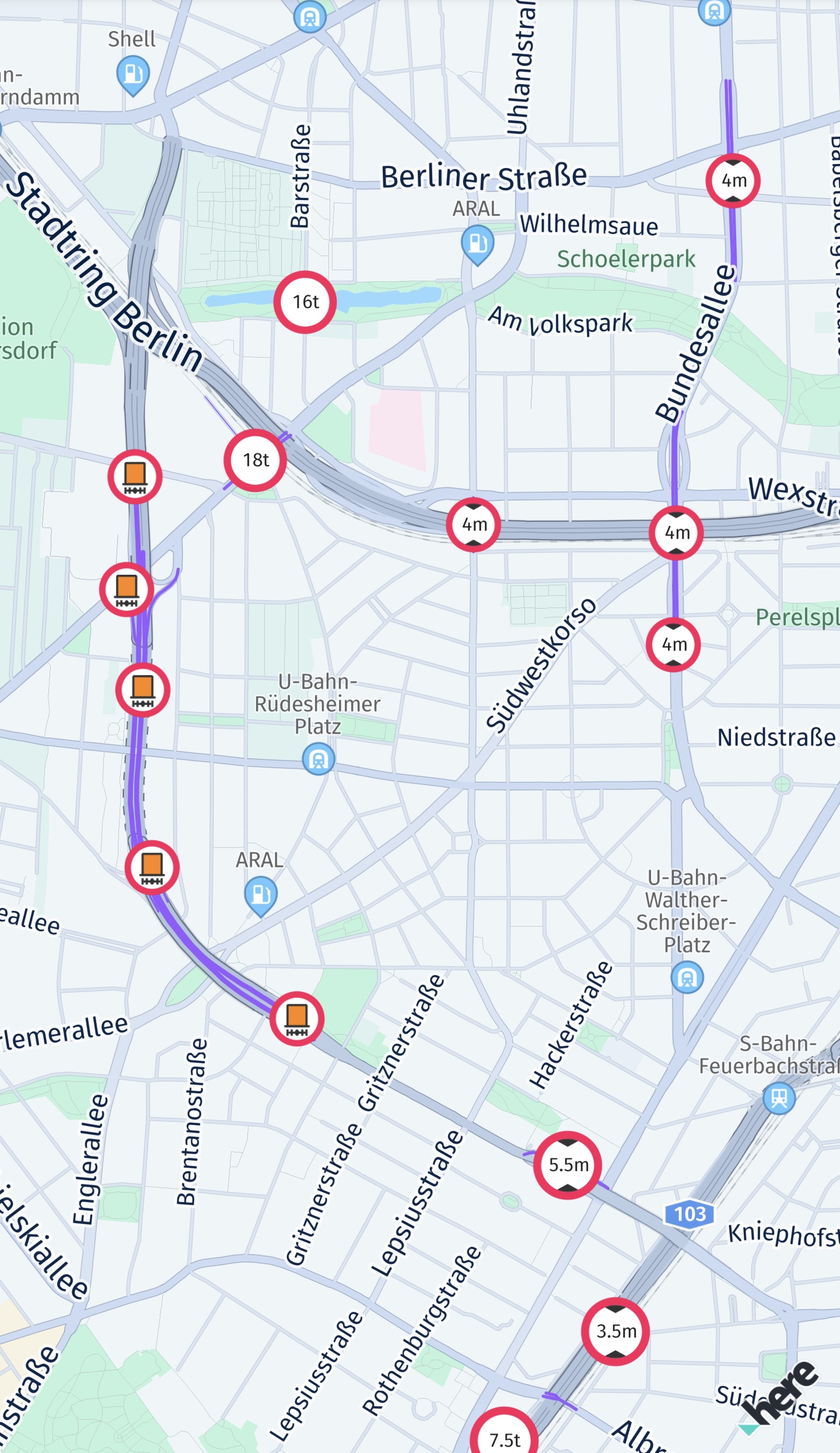
MapScene.Layers.VEHICLE_RESTRICTIONS. It offers severalMapFeatureModes, for example, to highlight active and inactive restrictions as purple lines on an affected road - a gray line or a gray icon means that the restriction is inactive. If a road is crossing such a purple line - and the road itself is not indicated as purple - then this restriction does not apply on the current road. Note that an icon does not necessarily indicate an exact location: For example, in case of a restricted road an icon may be placed centered on the restricted road - or, if the restriction is longer, the icon may be repeated several times for the same restriction along one or several roads. The icon itself is localized per country and represents the type of restriction. For most restrictions, the location and the type of the restriction is also indicated through theTruckRestrictionWarningevent (as shown above). - Use
TruckAmenitieswhich contains information on showers or rest rooms in theDetailsof aPlace. Search along a route corridor and check if a place contains truck amenities. For online use, obtainingTruckAmenitiesrequires enabling the closed-alpha feature by callingsearchEngine.setCustomOption()with"show"asnameand"truck"asvalue. Additionally, an extra license is required. For use with theOfflineSearchEngine(if available for your license), no license is required. Please contact us to receive online access. If your credentials are not enabled, aSearchError.forbiddenerror will indicate the missing license.
Configure the vehicle restriction layer
The screenshot below shows a selection of available vehicle restriction icons that are shown on the map when the VEHICLE_RESTRICTIONS map feature is enabled.
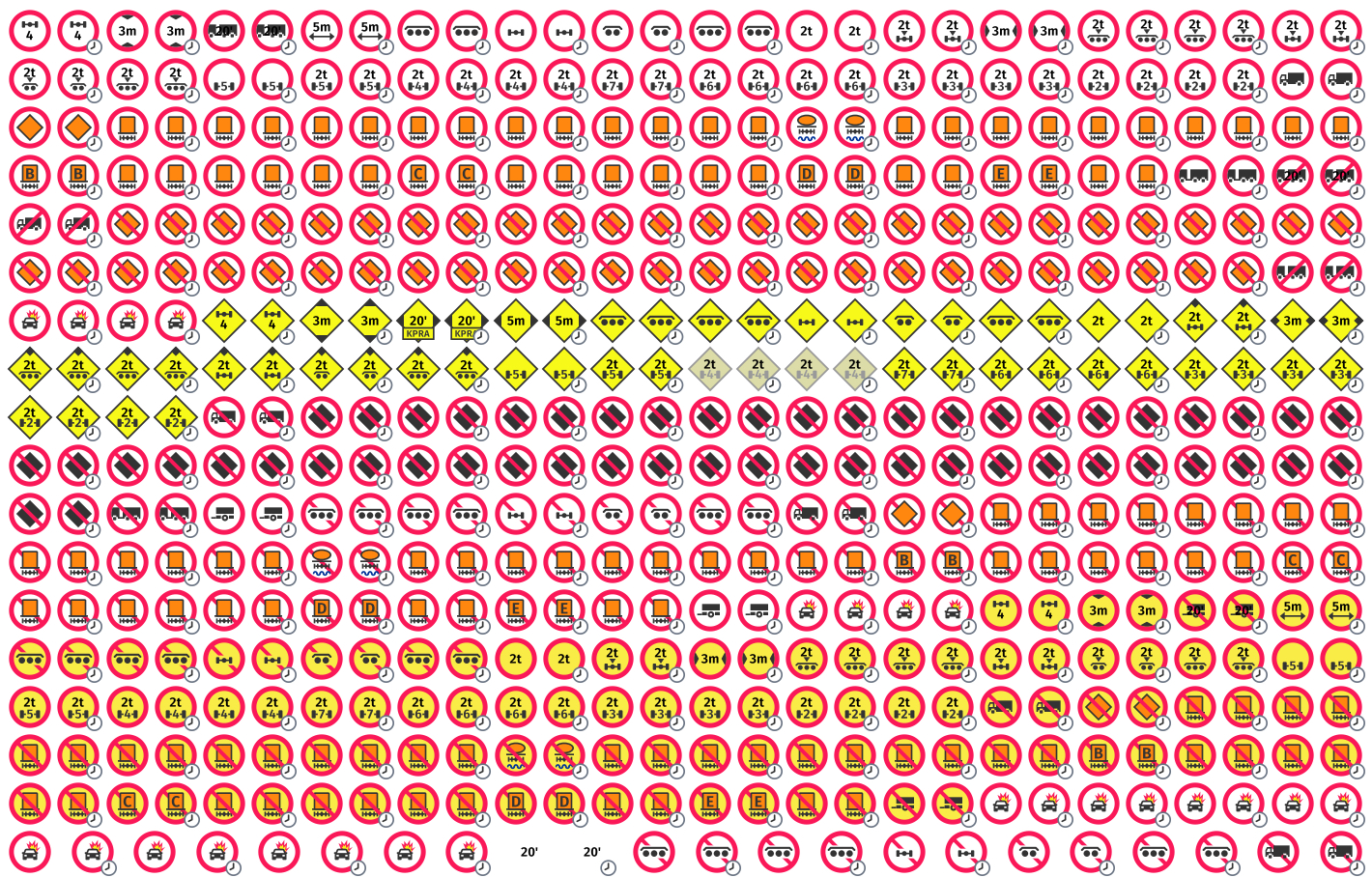
You can configure a filter for MapFeatures.VEHICLE_RESTRICTIONS via MapContentSettings.configureVehicleRestrictionFilter(...) to show only the icons matching the specified criteria when vehicle restrictions are enabled. The display of vehicle restrictions can be enabled by enabling feature using MapScene.enableFeatures and map feature layer MapFeatures.VEHICLE_RESTRICTIONS with setting layer visibility using MapScene.setLayerVisibility.
You can create vehicle restriction icons via IconProvider.createVehicleRestrictionIcon(...) which creates icons from a given set of parameters. The resulting icon con be configured to either representing a vehicle restriction as shown on the map, based on map content picking result or as shown on the map.
The HERE SDK also provides IconProviderAssetType.MAP for loading icons with map optimized icons and IconProviderAssetType.UI for loading icons with UI optimized icons.
Also, you can find all icons available in SVG format under the geoviz/assets/oslo directory, which is present inside the extracted binaries of the HERE SDK.
See the following code snippet for an implementation details:
// Configure the displayed vehicle restrictions.
// Only the specified types will be shown. For example, when TRUCK is set, then only
// icons applicable for trucks are displayed.
// TunnelCategory are closely related to the HazardousMaterial.
// Tunnels are categorized from B (low risk, few restrictions) to E (high risk)
// based on their safety features and the potential danger posed by the goods
// transported through them.
private void configureVehicleRestrictionFilter() {
        List<HazardousMaterial> hazardousMaterials = new ArrayList<>();
        hazardousMaterials.add(HazardousMaterial.EXPLOSIVE);
        hazardousMaterials.add(HazardousMaterial.FLAMMABLE);

        TruckSpecifications truckSpecifications = createTruckSpecifications();

        VehicleSpecification.TruckBuilder truckBuilder = new VehicleSpecification.TruckBuilder()
                .withGrossWeightInKilograms(truckSpecifications.grossWeightInKilograms)
                .withHeightInCentimeters(truckSpecifications.heightInCentimeters)
                .withWidthInCentimeters(truckSpecifications.widthInCentimeters)
                .withLengthInCentimeters(truckSpecifications.lengthInCentimeters)
                .withTruckCategory(MyTruckSpecs.truckCategory)
                .withTunnelCategory(TunnelCategory.B)
                .withHazardousMaterials(hazardousMaterials);

        if (truckSpecifications.weightPerAxleInKilograms != null) {
            truckBuilder.withWeightPerAxleInKilograms(truckSpecifications.weightPerAxleInKilograms);
        }
        if (truckSpecifications.axleCount != null) {
            truckBuilder.withAxleCount(truckSpecifications.axleCount);
        }
        if (truckSpecifications.trailerCount != null) {
            truckBuilder.withTrailerCount(truckSpecifications.trailerCount);
        }

        VehicleSpecification vehicleSpecification = truckBuilder.build();

        TransportSpecification transportSpecification = new TransportSpecification.TruckBuilder()
                .withVehicleSpecification(vehicleSpecification)
                .build();

        MapContentSettings.configureVehicleRestrictionFilter(transportSpecification);
    }

private TruckSpecifications createTruckSpecifications() {
    TruckSpecifications truckSpecifications = new TruckSpecifications();
    // When weight is not set, possible weight restrictions will not be taken into consideration
    // for route calculation. By default, weight is not set.
    // Specify the weight including trailers and shipped goods (if any).
    truckSpecifications.grossWeightInKilograms = MyTruckSpecs.grossWeightInKilograms;
    truckSpecifications.heightInCentimeters = MyTruckSpecs.heightInCentimeters;
    truckSpecifications.widthInCentimeters = MyTruckSpecs.widthInCentimeters;
    // The total length including all trailers (if any).
    truckSpecifications.lengthInCentimeters = MyTruckSpecs.lengthInCentimeters;
    truckSpecifications.weightPerAxleInKilograms = MyTruckSpecs.weightPerAxleInKilograms;
    truckSpecifications.axleCount = MyTruckSpecs.axleCount;
    truckSpecifications.trailerCount = MyTruckSpecs.trailerCount;
    truckSpecifications.truckType = MyTruckSpecs.truckType;
    return truckSpecifications;
}
While creating a vehicle restriction filter, below filtering rules should be kept in mind:
- Restrictions applicable to the only supplied
TruckSpecificationswill be shown. For example, if the height intruckSpecificationsis set to 200cm, then height restriction icons with a height greater than 200cm will not be displayed. If the trailer count intruckSpecificationsis set to 2, then trailer restriction icons for a count greater than 2 will not be displayed. - Restrictions applicable only to the specified list of
HazardousMaterialwill be shown. If at least one hazardous material of any type is present in the list, all availableTunnelCategoryrestrictions will be displayed. To filter-out non-applicable tunnel categories, aTunnelCategory, that applies to the vehicle, can be specified additionally. For example, if thehazardousMaterialscontainsHazardousMaterial.EXPLOSIVEandHazardousMaterial.FLAMMABLE, then only material restrictions for explosive and flammable will be displayed. If thehazardousMaterialslist is empty, then no material restrictions will be shown. However, if thehazardousMaterialscontains at least one hazardous material of any type andtunnelCategoryisnull, then only corresponding material restrictions will be displayed together with all available tunnel categories. - Restrictions for
TunnelCategoryare labeled and rated based on the level of restriction they provide. The lowest level of restriction isTunnelCategory.B, whereas, the highest and most restrictive one isTunnelCategory.E. For example, ifTunnelCategoryis set toTunnelCategory.D, then restrictions for tunnel categoryTunnelCategory.EandTunnelCategory.Dwill be displayed, but not the categoriesTunnelCategory.BandTunnelCategory.C.
Updated yesterday