
Additional traffic features
Enhance your map applications with real-time traffic data using HERE SDK's advanced traffic features. Display live traffic flow and incidents on the map to keep users informed and help them navigate efficiently. Additionally, you can pick and highlight specific traffic incidents for a detailed view.
For the HERE SDK (Navigate) you can also incorporate traffic information from radio stations.
Show real-time traffic flow and incidents on the map
You can easily visualize traffic incidents on the map by enabling the map layer state TRAFFIC_INCIDENTS. The HERE SDK also supports a separate layer to see the current traffic situation. See the example below for how to show or hide a layer on the map.
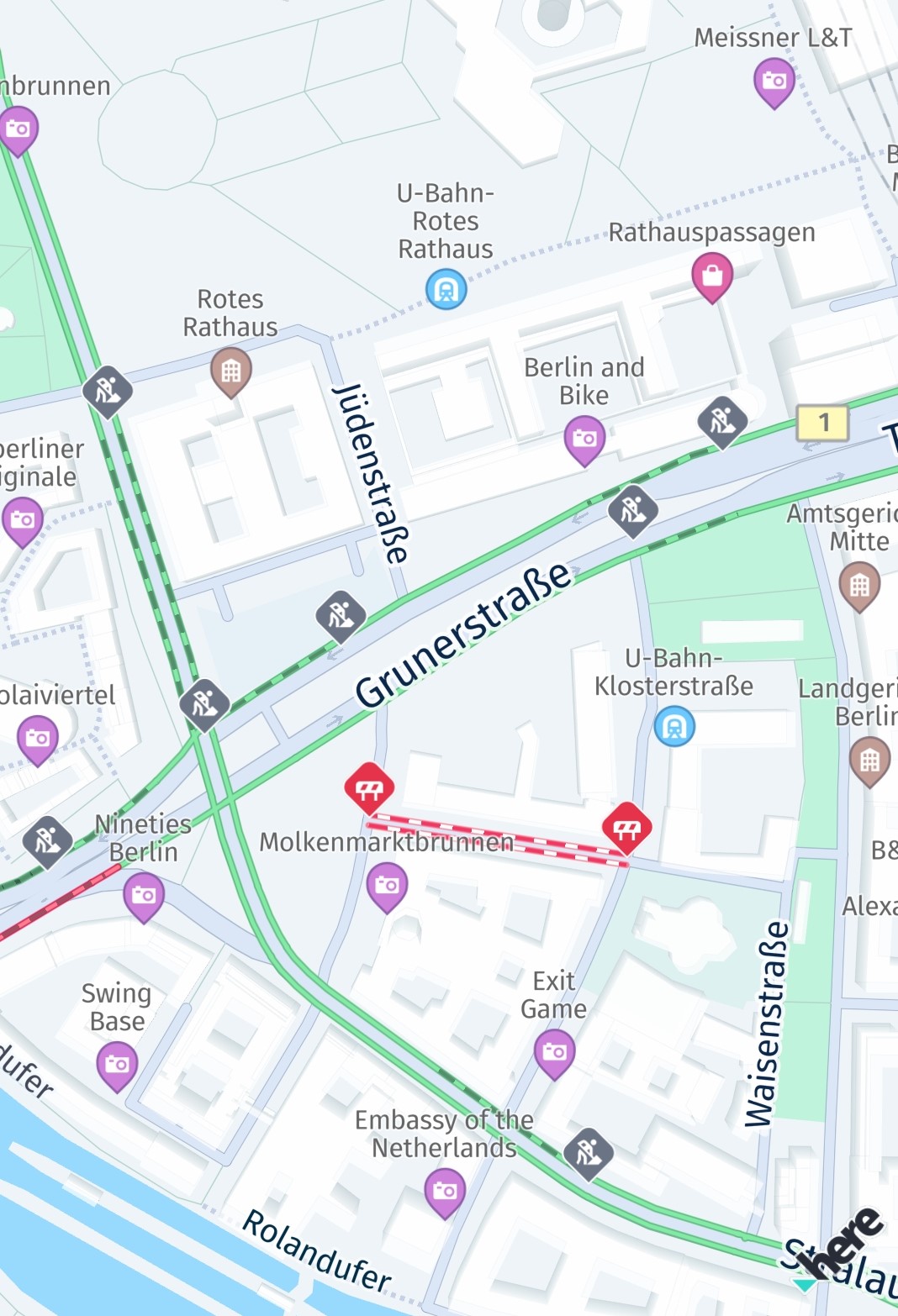
Screenshot: Traffic incidents visualized on the map.
After a layer is set, the visible area of the map is automatically updated. So you can freely pan the map in all directions to see the latest traffic incidents.
In many situations, drivers are interested in finding the fastest route based on the current traffic jams in a city - or outside a city. The HERE SDK allows you to show a layer holding all the current traffic jams, visualized by lines in different colors to indicate the severity of the jam - always updated in real-time. This feature requires an online connection and consumes slightly more data. However, the traffic lines are shown as part of the map tiles and are therefore highly performant.
Together - or independently - you can visualize such traffic information on the map with just a few lines of code:
private void enableTrafficVisualization() {
    // Try to refresh the TRAFFIC_FLOW vector tiles 5 minutes.
    // If MapFeatures.TRAFFIC_FLOW is disabled, no requests are made.
    try {
        MapContentSettings.setTrafficRefreshPeriod(Duration.ofMinutes(5));
    } catch (MapContentSettings.TrafficRefreshPeriodException e) {
        throw new RuntimeException("TrafficRefreshPeriodException: " + e.error.name());
    }

    Map<String, String> mapFeatures = new HashMap<>();
    // Once these traffic layers are added to the map, they will be automatically updated while panning the map.
    mapFeatures.put(MapFeatures.TRAFFIC_FLOW, MapFeatureModes.TRAFFIC_FLOW_WITH_FREE_FLOW);
    // MapFeatures.TRAFFIC_INCIDENTS renders traffic icons and lines to indicate the location of incidents.
    mapFeatures.put(MapFeatures.TRAFFIC_INCIDENTS, MapFeatureModes.DEFAULT);
    mapView.getMapScene().enableFeatures(mapFeatures);
}
private fun enableTrafficVisualization() {
// Try to refresh the TRAFFIC_FLOW vector tiles 5 minutes.
// If MapFeatures.TRAFFIC_FLOW is disabled, no requests are made.
//
// Note: This code initiates periodic calls to the HERE Traffic backend. Depending on your contract,
// each call may be charged separately. It is the application's responsibility to decide how
// often this code should be executed.
try {
MapContentSettings.setTrafficRefreshPeriod(Duration.ofMinutes(5))
} catch (e: TrafficRefreshPeriodException) {
throw RuntimeException("TrafficRefreshPeriodException: " + e.error.name)
}
val mapFeatures: MutableMap<String, String> = HashMap()
// Once these traffic layers are added to the map, they will be automatically updated while panning the map.
mapFeatures[MapFeatures.TRAFFIC_FLOW] = MapFeatureModes.TRAFFIC_FLOW_WITH_FREE_FLOW
// MapFeatures.TRAFFIC_INCIDENTS renders traffic icons and lines to indicate the location of incidents.
mapFeatures[MapFeatures.TRAFFIC_INCIDENTS] = MapFeatureModes.DEFAULT
mapView.mapScene.enableFeatures(mapFeatures)
}Optionally, for MapFeatures.TRAFFIC_FLOW and MapFeatures.TRAFFIC_INCIDENTS you can also specify how often a request should be initiated in order to fetch the latest traffic data from the backend. Setting this via MapContentSettings.setTrafficRefreshPeriod(Duration.ofMinutes(5)) is most useful in a scenario where the map view remains static.
Regardless of the traffic refresh period setting, when a viewport change occurs, the HERE SDK may need to fetch new traffic data to render the updated viewport correctly.
NoteDuring turn-by-turn navigation, viewport changes can happen multiple times per second and may result in a high number of Traffic Vector Tile requests when these features are enabled. As an alternative, consider using TrafficOnRoute to update only the traffic visualization along the route itself.
For disabling the traffic layers, you can call:
private void disableTrafficVisualization() {
    List<String> mapFeatures = new ArrayList<>();
    mapFeatures.add(MapFeatures.TRAFFIC_FLOW);
    mapFeatures.add(MapFeatures.TRAFFIC_INCIDENTS);
    mapView.getMapScene().disableFeatures(mapFeatures);
}
private fun disableTrafficVisualization() {
val mapFeatures: MutableList<String> = ArrayList()
mapFeatures.add(MapFeatures.TRAFFIC_FLOW)
mapFeatures.add(MapFeatures.TRAFFIC_INCIDENTS)
mapView.mapScene.disableFeatures(mapFeatures)
}The traffic flow lines are color coded as follows:
- Green: Normal traffic
- Amber/Yellow: High traffic
- Red: Very high traffic
- Black: Blocking traffic
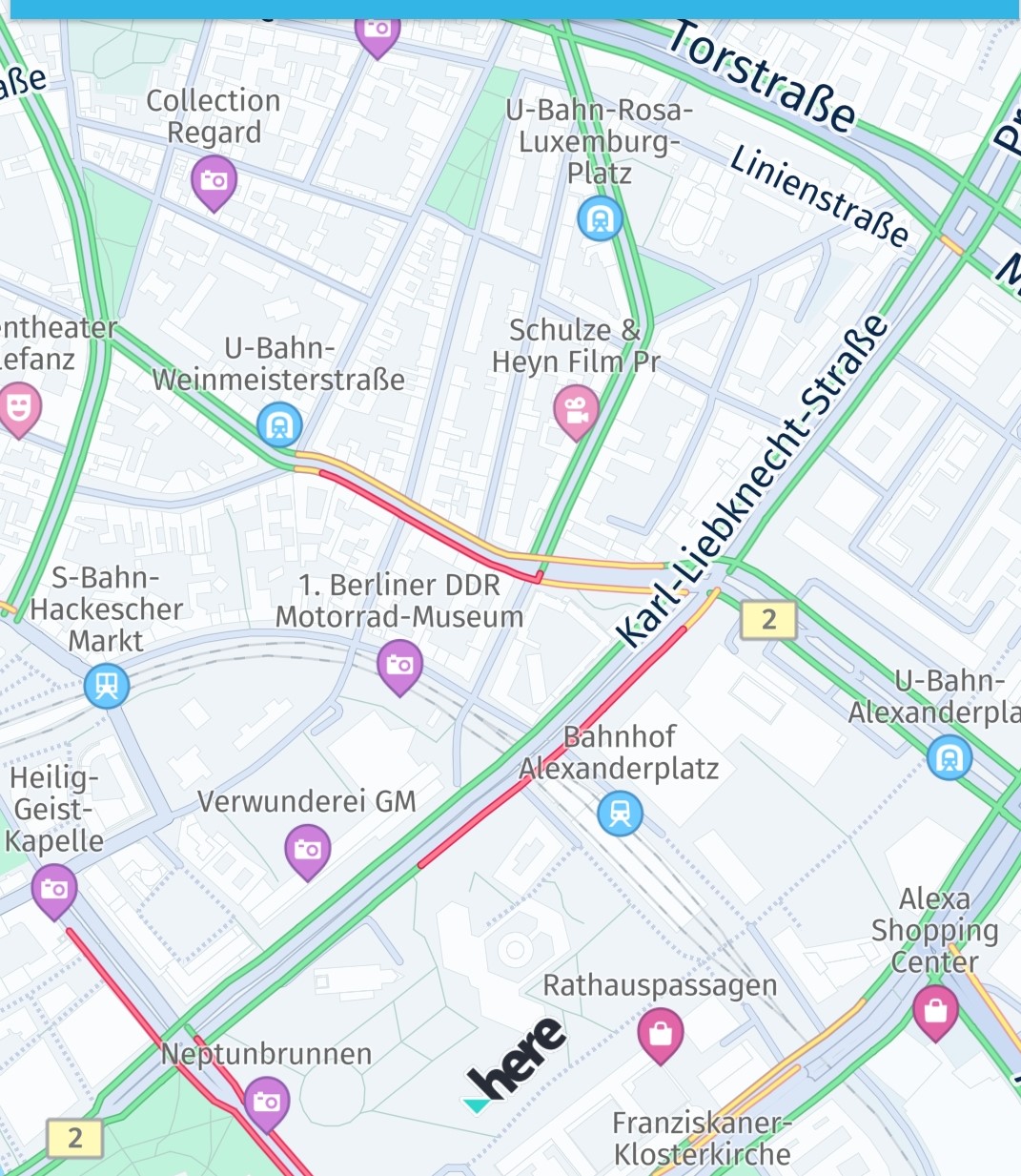
Screenshot: Traffic flow visualized on the map together with incidents.
Pick traffic incidents
When the TRAFFIC_INCIDENTS is shown on the MapView, you can set up a tap handler and pick the traffic incidents to get more information.
private void setTapGestureHandler() {
    mapView.getGestures().setTapListener(touchPoint -> {
        GeoCoordinates touchGeoCoords = mapView.viewToGeoCoordinates(touchPoint);
        // Can be null when the map was tilted and the sky was tapped.
        if (touchGeoCoords != null) {
            // Pick incidents that are shown in TRAFFIC_INCIDENTS.
            pickTrafficIncident(touchPoint);
        }
    });
}

// Traffic incidents can only be picked, when TRAFFIC_INCIDENTS is visible.
private void pickTrafficIncident(Point2D touchPointInPixels) {
    Point2D originInPixels = new Point2D(touchPointInPixels.x, touchPointInPixels.y);
    Size2D sizeInPixels = new Size2D(1, 1);
    Rectangle2D rectangle = new Rectangle2D(originInPixels, sizeInPixels);

    // Creates a list of map content type from which the results will be picked.
    // The content type values can be MAP_CONTENT, MAP_ITEMS and CUSTOM_LAYER_DATA.
    ArrayList<MapScene.MapPickFilter.ContentType> contentTypesToPickFrom = new ArrayList<>();

    // MAP_CONTENT is used when picking embedded Carto POIs, traffic incidents, vehicle restriction etc.
    // MAP_ITEMS is used when picking map items such as MapMarker, MapPolyline, MapPolygon etc.
    // Currently we need traffic incidents so adding the MAP_CONTENT filter.
    contentTypesToPickFrom.add(MapScene.MapPickFilter.ContentType.MAP_CONTENT);
    MapScene.MapPickFilter filter = new MapScene.MapPickFilter(contentTypesToPickFrom);

    // If you do not want to specify any filter you can pass filter as NULL and all of the pickable contents will be picked.
    mapView.pick(filter, rectangle, new MapViewBase.MapPickCallback() {
        @Override
        public void onPickMap(@Nullable MapPickResult mapPickResult) {
            if (mapPickResult == null) {
                // An error occurred while performing the pick operation.
                return;
            }

            List<PickMapContentResult.TrafficIncidentResult> trafficIncidents =
                    mapPickResult.getMapContent().getTrafficIncidents();
            if (trafficIncidents.isEmpty()) {
                Log.d(TAG, "No traffic incident found at picked location");
            } else {
                Log.d(TAG, "Picked at least one incident.");
                PickMapContentResult.TrafficIncidentResult firstIncident = trafficIncidents.get(0);
                showDialog("Traffic incident picked:", "Type: " +
                        firstIncident.getType().name());

                // Find more details by looking up the ID via TrafficEngine.
                findIncidentByID(firstIncident.getOriginalId());
            }

            // Optionally, look for more map content like embedded POIs.
        }
    });
}
private fun setTapGestureHandler() {
mapView.gestures.tapListener =
TapListener { touchPoint: Point2D ->
val touchGeoCoords = mapView.viewToGeoCoordinates(touchPoint)
// Can be null when the map was tilted and the sky was tapped.
if (touchGeoCoords != null) {
// Pick incidents that are shown in TRAFFIC_INCIDENTS.
pickTrafficIncident(touchPoint)
}
}
}
// Traffic incidents can only be picked, when TRAFFIC_INCIDENTS is visible.
private fun pickTrafficIncident(touchPointInPixels: Point2D) {
val originInPixels = Point2D(touchPointInPixels.x, touchPointInPixels.y)
val sizeInPixels = Size2D(1.0, 1.0)
val rectangle = Rectangle2D(originInPixels, sizeInPixels)
// Creates a list of map content type from which the results will be picked.
// The content type values can be MAP_CONTENT, MAP_ITEMS and CUSTOM_LAYER_DATA.
val contentTypesToPickFrom = ArrayList<MapPickFilter.ContentType>()
// MAP_CONTENT is used when picking embedded Carto POIs, traffic incidents, vehicle restriction etc.
// MAP_ITEMS is used when picking map items such as MapMarker, MapPolyline, MapPolygon etc.
// Currently we need traffic incidents so adding the MAP_CONTENT filter.
contentTypesToPickFrom.add(MapPickFilter.ContentType.MAP_CONTENT)
val filter = MapPickFilter(contentTypesToPickFrom)
// If you do not want to specify any filter you can pass filter as NULL and all of the pickable contents will be picked.
mapView.pick(filter, rectangle, MapPickCallback { mapPickResult ->
if (mapPickResult == null) {
// An error occurred while performing the pick operation.
return@MapPickCallback
}
val trafficIncidents =
mapPickResult.mapContent!!.trafficIncidents
if (trafficIncidents.isEmpty()) {
Log.d(TAG, "No traffic incident found at picked location")
} else {
Log.d(TAG, "Picked at least one incident.")
val firstIncident = trafficIncidents[0]
showDialog(
"Traffic incident picked:", "Type: " +
firstIncident.type.name
)
// Find more details by looking up the ID via TrafficEngine.
findIncidentByID(firstIncident.originalId)
}
// Optionally, look for more map content like embedded POIs.
})
}With the tap handler, we get the touched location in view coordinates that can be passed to mapView.pickMapContent(). Here, we just use a point-sized rectangle, but you can also enlarge the pick area to include more content at once.
The callback provides a PickMapContentResult which can contain a TrafficIncidentResult, but also other embedded types like default POI markers, that are always visible on the map. The TrafficIncidentResult type already provides most information about the incident, but to get all available information, we can use the TrafficEngine (see also below) to search for the picked incident by ID:
private void findIncidentByID(String originalId) {
    TrafficIncidentLookupOptions trafficIncidentsQueryOptions = new TrafficIncidentLookupOptions();
    // Optionally, specify a language:
    // the language of the country where the incident occurs is used.
    // trafficIncidentsQueryOptions.languageCode = LanguageCode.EN_US;
    trafficEngine.lookupIncident(originalId, trafficIncidentsQueryOptions, new TrafficIncidentLookupCallback() {
        @Override
        public void onTrafficIncidentFetched(@Nullable TrafficQueryError trafficQueryError, @Nullable TrafficIncident trafficIncident) {
            if (trafficQueryError == null) {
                Log.d(TAG, "Fetched TrafficIncident from lookup request." +
                        " Description: " + trafficIncident.getDescription().text);
            } else {
                showDialog("TrafficLookupError:", trafficQueryError.toString());
            }
        }
    });
}
private fun findIncidentByID(originalId: String) {
val trafficIncidentsQueryOptions = TrafficIncidentLookupOptions()
// Optionally, specify a language:
// the language of the country where the incident occurs is used.
// trafficIncidentsQueryOptions.languageCode = LanguageCode.EN_US;
trafficEngine.lookupIncident(originalId, trafficIncidentsQueryOptions,
TrafficIncidentLookupCallback { trafficQueryError, trafficIncident ->
if (trafficQueryError == null) {
Log.d(
TAG, "Fetched TrafficIncident from lookup request." +
" Description: " + trafficIncident!!.description.text
)
} else {
showDialog("TrafficLookupError:", trafficQueryError.toString())
}
})
}A usage example is available on GitHub as part of the "Traffic" example app, provided in both Java and Kotlin.
Get traffic broadcasts from radio stations (only available for Navigate)
With the TrafficDataProvider interface the HERE SDK allows to integrate radio station signals providing traffic broadcasts.
A TrafficBroadcast expects traffic data in the RDS-TMC format and can be used without an internet connection. In such cases, the OfflineRoutingEngine can utilize traffic data received over the radio channel, provided the RDS_TRAFFIC layer is enabled using LayerConfiguration. For more information on how to use LayerConfiguration, see here.
The trafficBroadcast.activate() method needs to be called to receive traffic data events.
A TrafficBroadcast continuously reacts to new locations provided from a location source and acts as a LocationListener. The location must be updated regardless of calling activate().
NoteIn order to adopt the interface special hardware is required. Talk to your HERE representative for more details. Note that this feature is released as a beta feature.
Updated yesterday