
Examples
Most code snippets in this guide can also be found as part of small, focused example apps. You have two ways to access them:
- Find the latest example apps for your product bundled within the downloaded package you can find on the HERE platform.
Example apps
-
Find the latest example apps for Explore on GitHub.
-
Find the latest example apps for Navigate on GitHub.
NoteMost example apps are written in a consistent way where a "XYExample.java/kt" file contains the relevant code. UI elements are mostly left out or kept minimal to not shadow the important parts of the code. Note that the HERE SDK itself does offer most APIs headless without UI.
For this guide and the accompanying example apps, we preferably avoid the use of lambda notations to show the full type of information and other details, such as callback or listener name. Since Android Studio supports one-click conversion between anonymous classes and lambdas, adapting the examples to suit your personal preference should be simple.
Following the popular POJO (Plain-Old-Java-Object) principle, the example code is kept free of most Android dependencies - instead it's mostly pure Java / Kotlin code that shows how the HERE SDK can be used.
Available example apps


The "HelloMapAndroidAuto" app shows how to integrate Android Auto to show a map on an in-car head unit display.

The "Camera" app shows how to change the target and the target anchor point and how to move to another location using custom map animations.

The "CameraKeyframeTracks" app shows how to do custom camera animations with keyframe tracks.

The "MapFeatures" app shows how to enable different map view features such as different map layers and map schemes. Only available for the the Navigate.
The "Traffic" app shows how to search for real-time traffic and how to visualize it on the map.
The "Gestures" app shows how to handle gestures like tap, double-tap, pinch & rotate and many more.
The "MapItems" app shows how to add circles, polygons and polylines, native views, 2D and 3D map markers to locate POIs (and more) on the map.

The "CartoPOIPicking" app shows how to pick embedded map markers with extended place details. Embedded map markers are already visible on every map, by default.

The "HelloMapSurface" app shows how to use the MapSurface class to render low-level graphic elements with OpenGL ES on top of the map.

The "CustomMapStyles" app shows how to load custom map schemes made with the HERE Style Editor.

The "CustomTileSource" app demonstrates how to load custom point layers, implement clustering functionality using a custom point tile source, and integrate custom raster layers.
The "MultiDisplays" app shows how a HERE SDK map can be shown on two separate displays using Android's Multi-Display API.

The "OffscreenMapSurface" app shows how the HERE SDK can be used to generate images of the map without putting a map view on screen.
The "StandAloneEngine" app shows how to use an engine without a map view.
The "Search" app shows how to search POIs and add them to the map. Also shows geocoding and reverse geocoding.
The "SearchHybrid" app shows how to search for places including auto suggestions, for the address that belongs to certain geographic coordinates (reverse geocoding) and for the geographic coordinates that belong to an address (geocoding). It also shows how to search offline, when no internet connection is available. Only available for Navigate.
The "Routing" app shows how to calculate routes and add them to the map.
The "RoutingHybrid" app shows how to calculate routes online and offline. Only available for Navigate.
The "EVRouting" app shows how to calculate routes for electric vehicles, area of reach with isoline routing, and how to search along a route.
The "RoutingWithAvoidanceOptions" app shows how to calculate routes with AvoidanceOptions and how to use the SegmentDataLoader to retrieve data from the map. It also allows to pick segments from the map to avoid certain areas or roads. Only available for Navigate.
The "PublicTransit" app shows how to calculate routes for buses, trains, and subways.
The "Positioning" app shows how to integrate HERE Positioning to find out where you are. Only available for Navigate.
The "PositioningWithBackgroundUpdates" app shows how to integrate HERE Positioning with background location updates using a foreground service.
The "HikingDiary" app shows how to record GPX traces with HERE Positioning. Only available for Navigate.
The "NavigationQuickStart" app shows how to get started with turn-by-turn navigation. Only available for Navigate.

The "Navigation" app gives an overview of how to implement turn-by-turn navigation along with tracking features and voice assistance. Only available for Navigate.

The "NavigationCustom" app shows how the guidance view can be customized. Only available for Navigate.
The "NavigationWarners" app shows how to implement various navigation events such as speed limit and lane assistance during turn-by-turn navigation. Only available for Navigate.
The "SpatialAudioNavigation" app shows how to make use of spatial audio notifications for TTS voices during guidance. Only available for Navigate.
The "Rerouting" app shows how the HERE SDK can be used to handle rerouting during guidance after a driver left the route. Only available for Navigate.
The "TruckGuidance" app shows how the HERE SDK can be used to calculate routes specific for trucks and many more truck-related features. Only available for Navigate.

The "NavigationHeadless" app show the HERE SDK can be set up to navigate without following a route in the most simplest way - and without showing a map view. Only available for Navigate.

The "OfflineMaps" app shows how the HERE SDK can work fully offline and how offline map data can be downloaded for continents and countries. Only available for Navigate.
The "IndoorMap" app shows how to integrate private venues. Only available for Navigate.
The "HERESDKUnits" app demonstrates how to modularize your application UI and extract HERE SDK features - such as map-scheme switching - into small, reusable units. Only available for Navigate.
The "UnitTesting" app helps you mock SDK classes for solid unit testing.
Most example apps are available in both Java and Kotlin. Kotlin apps are identified by the suffix "-Kotlin". Unless otherwise noted, the same app can be executed with Explore or Navigate credentials.
How to build an example app
Choose an example of your choice, then:
- Add the HERE SDK framework to the app's
libsfolder. - Insert your HERE credentials (
access_key_idandaccess_key_secret) in theMainActivity.javafile.
Now you are ready to open the project with Android Studio and you can instantly execute the app on your device or simulator.
To learn how the HERE SDK integrates into apps, see Integrate the HERE SDK.
List of demo apps
- If you are interested to see a demo of the features the HERE SDK has to offer - or if you simply want to see all features in action, check the HERE WeGo application. This app uses the same technology stack that empowers the HERE SDK.
- Alternatively, you can build and run the reference application (available only for Flutter) which you can find as an open source project on GitHub. This app shows most features of Navigate including the features from Explore in an release-ready app with easy-to-understand UX flows and reusable UI assets.
About the reference application
The reference application for the HERE SDK for Flutter (Navigate) shows how a complex and release-ready project targeting iOS and Android devices may look like. You can use it as a source of inspiration for your own HERE SDK based projects - in parts or as a whole. Many parts of the app overlap with Explore - however, guidance requires the HERE SDK (Navigate).
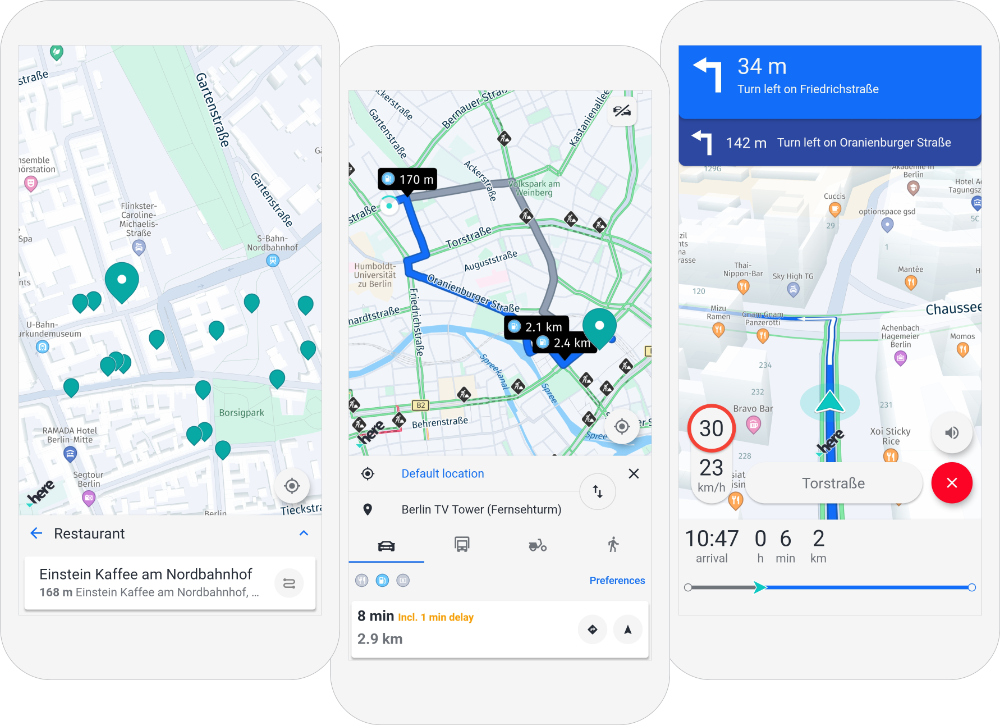
The reference application can be used as a base project to start your own app development.
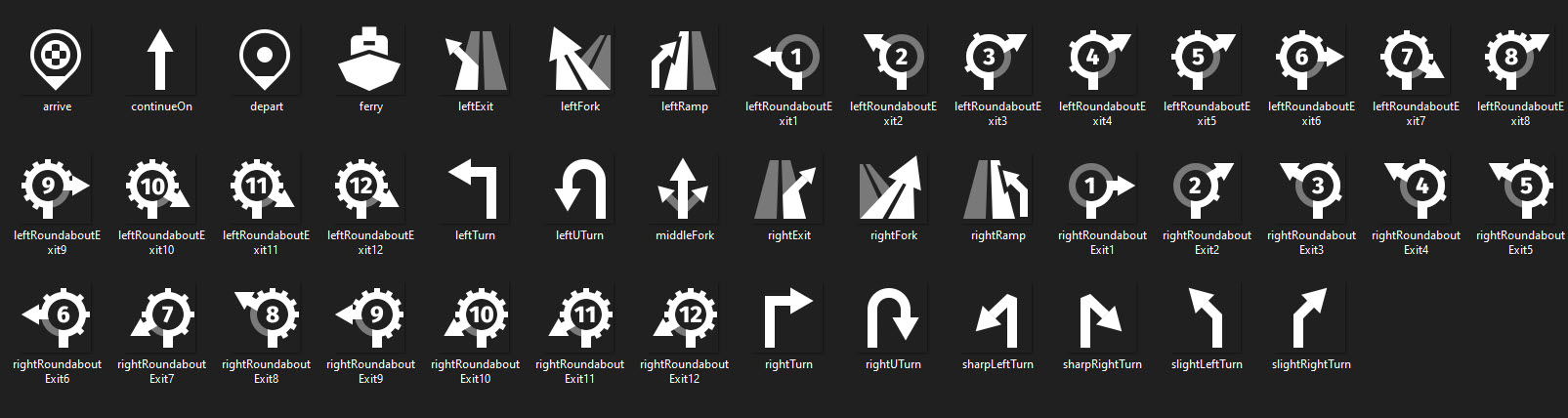
On top, the reference application offers a lot of ready-made assets that can be used for your own apps based on the terms shown on the GitHub page.
Below you can find the available selection of maneuver icons that can be shown to indicate a maneuver action - for example, during turn-by-turn guidance.
The reference application also contains a variety of other icons, such as map markers, to get you started quickly with your own application.

Below you can find an overview of selected features along with the related code that can be used in your own projects.
- Main menu / landing page: The landing page displays a map with an options tab on the top left and a search button on the bottom right: Source for Main Menu and Landing Page.
- Search: The search result option takes you to the exact requested location with a cyan-colored placeholder: SearchResult Source Code.
- Search suggestions: Search suggestions are loaded as soon as typing starts: Search Suggestion and Popup Source Code.
- Place detail info bubble: The place detail popup shows a detailed view of the selected place: Source Code for Place Detail Popup.
- Routing: The routing section in providing a visual overview of the fastest route available to reach your location: Source Code for Routing.
- Route preference for different vehicles: Simulated location events (along the route) are provided for different vehicles as per their route preference: Source Code for Route Preference for Different Vehicles.
- Navigate along a route: Navigating becomes easier with the clean and crisp navigation provided to take you the requested location efficiently: Source Code for Navigating along a route.
- Positioning and user consent: Source Code.
- Offline maps: Source Code.
More reusable icons can be found in the official HERE Icon Library.
How to build the reference application
Build instructions are given on the GitHub page hosting the reference application.
Note that only major versions of the HERE SDK for Flutter are supported.
Updated yesterday