
Get started with Positioning
One of the main reasons to use a mapping application is to find out where you are.
The LocationEngine provided by the HERE SDK implements a comprehensive location solution that works with several location sources such as GPS or other Global Navigation Satellite System (GNSS) receivers, mobile network signals and Wi-Fi network signals to determine accurate locations.
Integrating the HERE SDK location features requires at least the following steps:
- Add the required Android permissions to your manifest file and request the permissions from the user.
- Create a
LocationEngineand set at least oneLocationListener. - If this is the application's first launch, inform the user that the app collects characteristics of nearby mobile and Wi-Fi network signals. Provide a link to the relevant HERE Privacy Notice. An example of how this can be incorporated into the application’s Privacy Policy is available in this example app for Java or for Kotlin. If your app solely targets children, please see the note in the Confirm handling of HERE Privacy notice section below.
- Confirm that the previous step is done by calling the method
confirmHEREPrivacyNoticeInclusion(). - Start the
LocationEngineonce and set the desired accuracy level. - Receive
Locationupdates and handle them in your app.
Network Positioning is based on Network Positioning API v2. An example of a transaction based on Network Positioning is: Get location updates with the LocationEngine using cellular of WiFi positioning.
NoteFor information about the pricing of these features, see the HERE Base Plan Pricing. If you are using the Navigate license or have other questions about pricing, contact us.
Add permissions
Before you can start using the LocationEngine in your app, you will need to add the required permissions to the app's AndroidManifest.xml file:
...
<uses-permission android:name="android.permission.ACCESS_COARSE_LOCATION" />
<uses-permission android:name="android.permission.ACCESS_FINE_LOCATION" />
<uses-permission android:name="android.permission.ACCESS_WIFI_STATE"/>
<uses-permission android:name="android.permission.CHANGE_NETWORK_STATE" />
<uses-permission android:name="android.permission.CHANGE_WIFI_STATE" />
NoteIf your application targets Android SDK version 31 or higher, users of your application need to grant the device's "precise" location. When being prompted, it is not enough to select the "approximate" precision.
Therefore,ACCESS_COARSE_LOCATIONandACCESS_FINE_LOCATIONpermissions need to be present in your manifest file, as shown above.
HERE positioning needs the fine location permission in order to use GNSS and to make cellular and WiFi scans. TheACCESS_COARSE_LOCATIONpermission alone is not enough as it would result in an approximate precision which is not enough for HERE positioning to work. In that case, theLocationEnginewould fail with aMISSING_PERMISSIONSerror.The
WAKE_LOCKpermission is not enforced by the HERE SDK, however, if the permission is granted for the application, HERE SDK will use wake locks to ensure that network scans and position calculation are not interrupted by the device going in power save mode. Wake locks are kept only for minimum required time to keep impact on battery consumption as low as possible. It should be noted that Android operating system blames the battery consumption to the application or service that is keeping a wake lock for its duration, so to keep your application appealing for the users you should carefully consider whether wake locks are mandatory for your use case or not.
For all example apps accompanying this user guide, we use a convenience class - available in Java, called PermissionsRequestor which takes care of the burdening task to request the user's permission.
Not all devices provide the same capabilities and may have certain hardware restrictions that can lead to differences in positioning precision.
Prior to using the LocationEngine, it may be a good idea to check if the device location functionality is enabled. On most Android devices a user can decide to turn the location services on, and even increase the accuracy, by opening the device's Settings and navigating to the Security & Location section.
Initialize the LocationEngine
Creating a new LocationEngine is simple:
try {
    locationEngine = new LocationEngine();
} catch (InstantiationErrorException e) {
    throw new RuntimeException("Initialization of LocationEngine failed: " + e.getMessage());
}
try {
    locationEngine = LocationEngine()
} catch (e: InstantiationErrorException) {
    throw RuntimeException("Initialization failed: " + e.message)
}
NoteIt is not possible to initialize the
LocationEngineduring theApplication'sonCreate()lifecycle. Any other point in time is fine. For example, a good place to initialize the engine may be in anActivity'sonCreate()-method.
Confirm handling of HERE Privacy notice
The LocationEngine occasionally collects information about the characteristics of mobile and Wi-Fi network signals surrounding the mobile device in order to maintain, improve, and provide HERE Positioning services used by the HERE SDK. For example, this includes the strength of nearby signals. HERE has a legitimate interest in collecting this information to maintain, improve, and provide location services. The collected information does not identify the user, and HERE will only retain anonymized data. For more details, please see the HERE Privacy Notice.
NoteBy default, the app needs to call
LocationEngine.confirmHEREPrivacyNoticeInclusion()as a confirmation that collection of characteristics info of near-by mobile and Wi-Fi network signals is described in the application's Terms & Conditions, or Privacy Policy, or otherwise made available to the user, with a reference to the HERE Privacy Notice. See the Legal requirement section below for more information and an example text snippet.In special cases pre-approved by HERE, such as when the app solely targets children, the app needs to call
LocationEngine.confirmHEREPrivacyNoticeException()to confirm that an exceptional permission has been granted by HERE. Consequently, data collection will not take place, and a reference to the HERE Privacy Notice is not required. If you believe data collection should be disabled for your use case, please contact HERE.The
LocationEnginewill be fully functional after calling either of the aforementioned methods.
Before starting the LocationEngine, you need to confirm that the HERE Privacy Notice is made available to the user by calling LocationEngine.confirmHEREPrivacyNoticeInclusion() (or by calling LocationEngine.confirmHEREPrivacyNoticeException(), if HERE has granted an exception – see the note above).
locationEngine.confirmHEREPrivacyNoticeInclusion();
locationEngine.confirmHEREPrivacyNoticeInclusion()
If you are calling the LocationEngine's start() method without calling LocationEngine.confirmHEREPrivacyNoticeInclusion() or LocationEngine.confirmHEREPrivacyNoticeException() beforehand then the engine will not provide location updates. When calling LocationEngine.confirmHEREPrivacyNoticeException() the permission for the exception will be verified asynchronously using your HERE SDK credentials. A missing permission will stop the LocationEngine and a registered LocationStatusListener will be notified with a LocationEngineStatus.PRIVACY_NOTICE_UNCONFIRMED status.
Receive locations
Once the engine is initialized, the last known location can be obtained, as long as the engine has been started at least once before and received at least one position, otherwise null will be returned. This information will remain, so the last known location will also be available between application sessions.
Location myLastLocation = locationEngine.getLastKnownLocation();

if (myLastLocation != null) {
    // Log the last known location coordinates.
    Log.d(TAG, "Last known location: " + myLastLocation.coordinates.latitude + ", " + myLastLocation.coordinates.longitude);
}
NoteNote that the
LocationEnginedoes not need to be started nor any listener needs to be set in order to get the last known location. TheLocationobject contains atimestampthat indicates when that location was received.
Next, before starting the LocationEngine, it's a good idea to register a LocationStatusListener so that you will be notified of changes in the engine's status. To do so, implement the LocationStatusListener interface and register it with the location engine's addLocationStatusListener() method. Check the API Reference for more information on the different statuses.
private final LocationStatusListener locationStatusListener = new LocationStatusListener() {
    @Override
    public void onStatusChanged(@NonNull LocationEngineStatus locationEngineStatus) {
        Log.d(TAG, "LocationEngineStatus: " + locationEngineStatus.name());
    }

    @Override
    public void onFeaturesNotAvailable(@NonNull List<LocationFeature> features) {
        for (LocationFeature feature : features) {
            Log.d(TAG, "Feature not available: " + feature.name());
        }
    }
};

// ...

// Add the listener.
locationEngine.addLocationStatusListener(locationStatusListener);
Additionally, through the listener's onFeaturesNotAvailable() callback you will be notified of any LocationFeature that is not available. If a feature that you need is not available, contact your HERE representative.
The last thing to consider before starting the engine is registering a LocationListener, which provides the onLocationUpdated() callback that sends a notification once a new Location is detected. You can do so in a similar way as with the previously mentioned LocationStatusListener:
private final LocationListener locationListener = new LocationListener() {
    @Override
    public void onLocationUpdated(@NonNull Location location) {
        Log.d(TAG, "Received location: " + location.coordinates.latitude + ", " + location.coordinates.longitude);
    }
};

// ...

// Add the listener.
locationEngine.addLocationListener(locationListener);
NoteThe callback
onLocationUpdated()is received on the main thread - same as for all other callbacks.
Apart from the current geographic coordinates, the Location instance may contain many more useful information, such as the current altitude, bearing, speed, accuracy and more. See the Handle location accuracy section below for more information.
You can add as many LocationStatusListener and LocationListener as you need by calling the respective addLocationStatusListener() and addLocationListener() methods.
For more detailed information about positioning issues, implement the LocationIssueListener interface and register it with the location engine's addLocationIssueListener() method. Via this interface location engine delivers events describing the cause of error when the location engine is running. Check the API Reference for more information on the different issues.
You are now ready to call the LocationEngine's start() method:
try {
    locationEngine = new LocationEngine();
} catch (InstantiationErrorException e) {
    throw new RuntimeException("Initialization failed: " + e.getMessage());
}

// ...

startLocating();

// ...

private void startLocating() {
    locationEngine.addLocationStatusListener(locationStatusListener);
    locationEngine.addLocationListener(locationListener);
    locationEngine.start(LocationAccuracy.BEST_AVAILABLE);
}
try {
    locationEngine = LocationEngine()
} catch (e: InstantiationErrorException) {
    throw RuntimeException("Initialization failed: " + e.message)
}

// ...

startLocating()

// ...

private fun startLocating() {
    locationEngine.addLocationStatusListener(locationStatusListener)
    locationEngine.addLocationListener(locationListener)
    locationEngine.start(LocationAccuracy.BEST_AVAILABLE)
}
The most straightforward way to start the engine is by passing it one of the pre-defined LocationAccuracy modes, as in the code snippet above. See the table below or check the API Reference for more information about all the available modes.
NoteAfter a successful start,
LocationStatusListenerwill always receive statusLocationEngineStatus.ENGINE_STARTED, and after a successful stop, it will always receive statusLocationEngineStatus.ENGINE_STOPPED.
After the LocationEngine has been started, you will receive LocationEngineStatus.ALREADY_STARTED if you try to start it again without calling stop() first. You can use the method isStarted() to check if the engine is started or not. Similarly, if you have started a LocationEngine and try to start another one without stopping the first, you will get LocationEngineStatus.ALREADY_STARTED error. Only one engine can be started at a time.
If you don't want to receive more location updates, you can stop the engine by calling the stop() method. Remember to remove the listeners when they are no longer needed:
public void stopLocating() {
    locationEngine.stop();
}

// ...

locationEngine.removeLocationListener(locationListener);
locationEngine.removeLocationStatusListener(locationStatusListener);
In general, it is recommended to stop the LocationEngine when an app gets disposed.
Show your location on the map
A LocationIndicator is used for representing device's current location on map. Before the indicator is updated with a current location value, a default Location is set, which can be the last known location - or just any place the user should see before the first location update arrives. By default, the horizontal accuracy is visualized with a MapCircle that has a radius of horizontalAccuracyInMeters.
//LocationIndicator object to represent current location.
private LocationIndicator locationIndicator;

// ...

private void addMyLocationToMap(@NonNull Location myLocation) {
    //Create and setup location indicator.
    locationIndicator = new LocationIndicator();
    // Enable a halo to indicate the horizontal accuracy.
    locationIndicator.setAccuracyVisualized(true);
    locationIndicator.setLocationIndicatorStyle(LocationIndicator.IndicatorStyle.PEDESTRIAN);
    locationIndicator.updateLocation(myLocation);
    locationIndicator.enable(mapView);
    //Update the map viewport to be centered on the location.
    MapMeasure mapMeasureZoom = new MapMeasure(MapMeasure.Kind.DISTANCE_IN_METERS, CAMERA_DISTANCE_IN_METERS);
    mapView.getCamera().lookAt(myLocation.coordinates, mapMeasureZoom);
}


// ...

private void updateMyLocationOnMap(@NonNull Location myLocation) {
    //Update the location indicator's location.
    locationIndicator.updateLocation(myLocation);
    //Update the map viewport to be centered on the location, preserving zoom level.
    mapView.getCamera().lookAt(myLocation.coordinates);
}

// ...

//Default start-up location.
private final static GeoCoordinates defaultLocation = new GeoCoordinates(52.520798, 13.409408);

final Location myLastLocation = locationEngine.getLastKnownLocation();

if (myLastLocation != null) {
    addMyLocationToMap(myLastLocation);
} else {
    final Location defaultLocation = new Location(defaultCoordinates);
    defaultLocation.time = new Date();
    addMyLocationToMap(defaultLocation);
}

// ...

private final LocationListener locationListener = location -> {
    updateMyLocationOnMap(location);
};
//LocationIndicator object to represent current location.
private var locationIndicator: LocationIndicator

// ...

private fun addMyLocationToMap(myLocation: Location) {
    //Create and setup location indicator.
    locationIndicator = LocationIndicator()
    // Enable a halo to indicate the horizontal accuracy.
    locationIndicator.isAccuracyVisualized = true
    locationIndicator.locationIndicatorStyle = LocationIndicator.IndicatorStyle.PEDESTRIAN
    locationIndicator.updateLocation(myLocation)
    locationIndicator.enable(mapView!!)

    //Update the map viewport to be centered on the location.
    val mapMeasureZoom =
        MapMeasure(MapMeasure.Kind.DISTANCE_IN_METERS, CAMERA_DISTANCE_IN_METERS.toDouble())
    mapView!!.camera.lookAt(myLocation.coordinates, mapMeasureZoom)
}

// ...

private fun updateMyLocationOnMap(myLocation: Location) {
    //Update the location indicator's location.
    locationIndicator.updateLocation(myLocation)
    //Update the map viewport to be centered on the location, preserving zoom level.
    mapView!!.camera.lookAt(myLocation.coordinates)
}

// ...

//Default start-up location.
private val defaultCoordinates = GeoCoordinates(52.520798, 13.409408)

val myLastLocation = locationEngine.lastKnownLocation
if (myLastLocation != null) {
    addMyLocationToMap(myLastLocation)
} else {
    val defaultLocation = Location(defaultCoordinates)
    defaultLocation.time = Date()
    addMyLocationToMap(defaultLocation)
}

// ...

private val locationListener =
    LocationListener { location: Location ->
        updateMyLocationOnMap(location)
    }
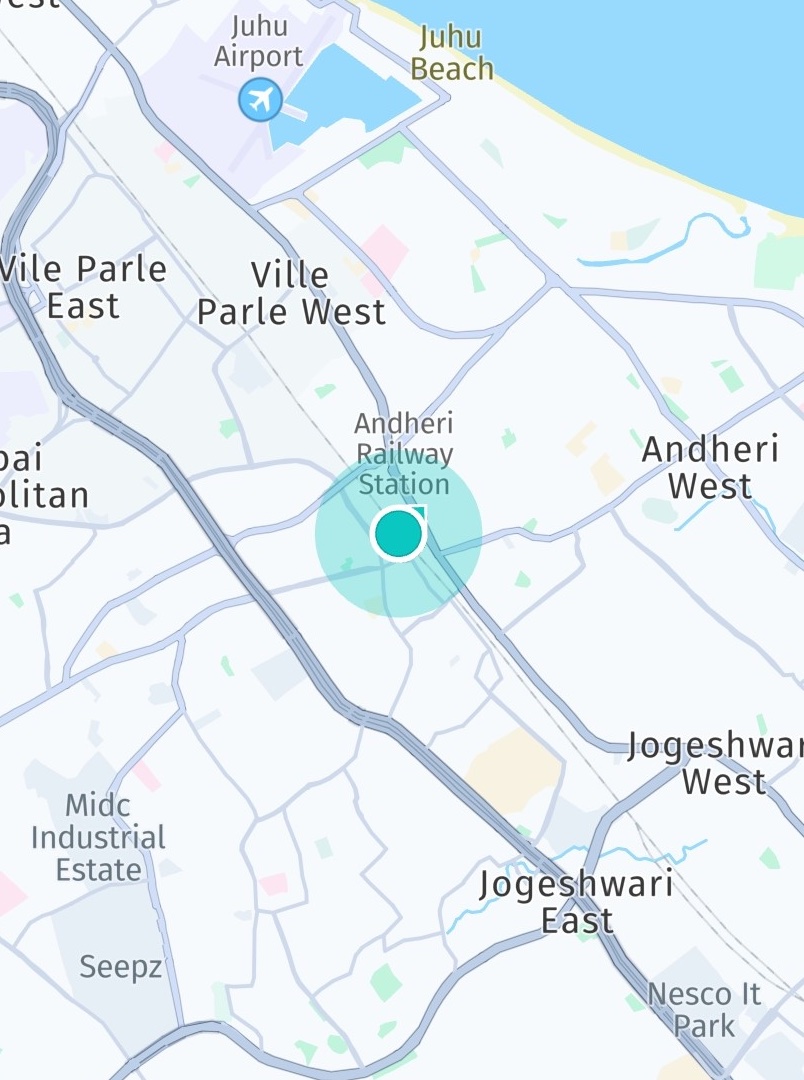
As shown in the implementation above, you can pass the Location object to the location indicator by calling updateLocation(). In this example, the goal is to track the user's current location - therefore, the map viewport's center location is updated as well.
Try the Positioning example apps
- On GitHub you can find the "Positioning" example app available in Java and Kotlin, covering most code snippets shown above.
- A full working flow showing background location updates can be seen in the "PositioningWithBackgroundUpdates" example app you can find here.
- The HikingDiary app shows how to record GPX traces.
Legal requirement
It is the application developer's responsibility to inform users about the collection of nearby mobile and Wi-Fi network signal characteristics. Additionally, developers must provide users with a link to the relevant HERE Privacy Notice.
This information may be included in the application's Terms & Conditions or Privacy Policy, or otherwise made available to the user. An example text for informing users about data collection is shown below:
"This application uses location services provided by HERE Technologies. To maintain, improve and provide these services, HERE Technologies from time to time gathers characteristics information about the near-by network signals. For more information, please see the HERE Privacy Notice at https://legal.here.com/here-network-positioning-via-sdk"
Updated yesterday