
Get started with HERE GIS Data Suite
The HERE GIS Data Suite is ideal for Esri® users who need reliable, high-quality data with extensive global coverage. You can explore our Coverage Map. Each dataset aligns seamlessly with ArcGIS Pro® standards, allowing you to focus on analysis and insights rather than building and configuring data infrastructure from scratch.
With specialized truck attributes, detailed traffic patterns, and cellular signal information,HERE GIS Data Suite goes beyond standard datasets, providing the depth and accuracy needed for advanced, real-world analysis.
This guide helps you get started quickly by showing you how to:
- Access your data and configure your ArcGIS Pro® environment
- Explore the HERE GIS Data Suite components in ArcGIS Pro®
- Learn how to leverage its full capabilities within ArcGIS Pro® (tutorial)
Data access
After purchasing HERE GIS Data Suite, you receive instructions on how to access and download the data on your local machine. Follow these instructions carefully to ensure proper setup.
System requirements
To use the HERE GIS Data Suite, you need the following software and components:
- ArcGIS Pro® software (Basic, Standard, or Advanced license)
- ArcGIS Network Analyst license extension, if you plan to perform network analysis. For more details, see ArcGIS Network Analyst licensing.
- File Geodatabase (fGDB) license file - If your HERE GIS Data Suite package includes a license file, you must install it before accessing the data. For detailed instructions on applying the license in ArcGIS Pro®, see Manage file geodatabase data licenses.
Begin components exploration
| 1 | Locate your HERE GIS Data Suite package and make sure to unzip the data. Open the ArcGIS Pro folder inside the package, then double-click the *.aprx file 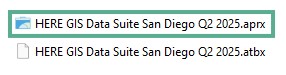 |
| 2 | Content access and display. Open the pre-defined map, which contains layers with all your purchased data. In the Project tab of the Catalog pane, expand the Maps container and click to select the map.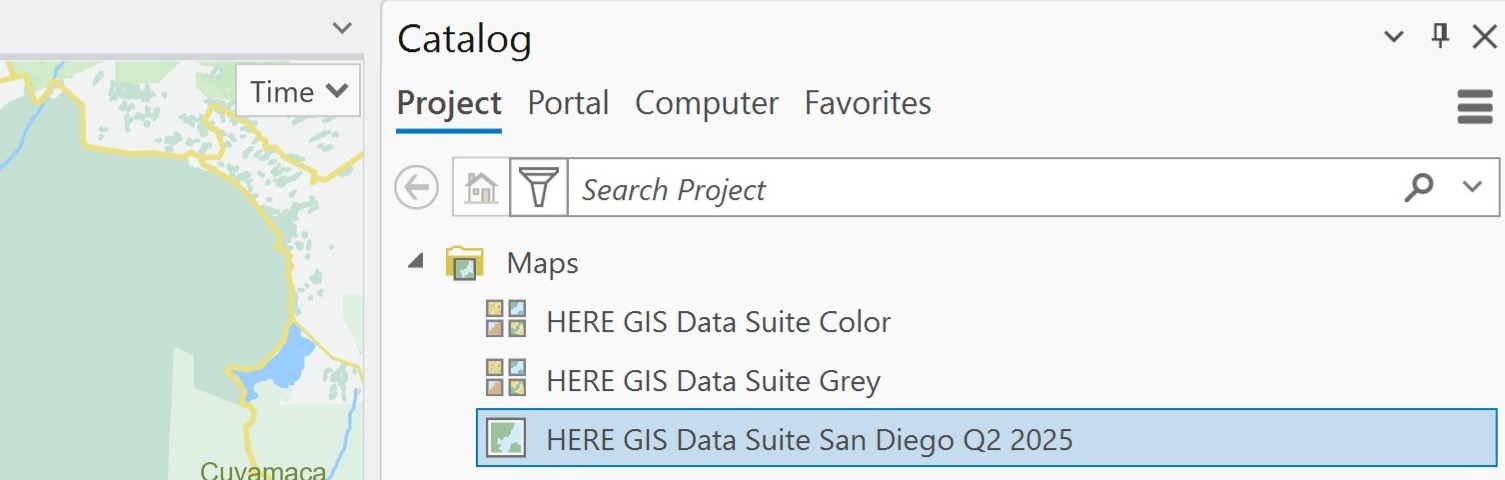 |
| 3 | File geodatabase access
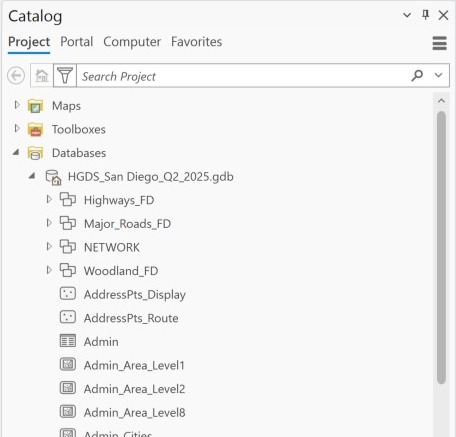 |
| 4 | Locators
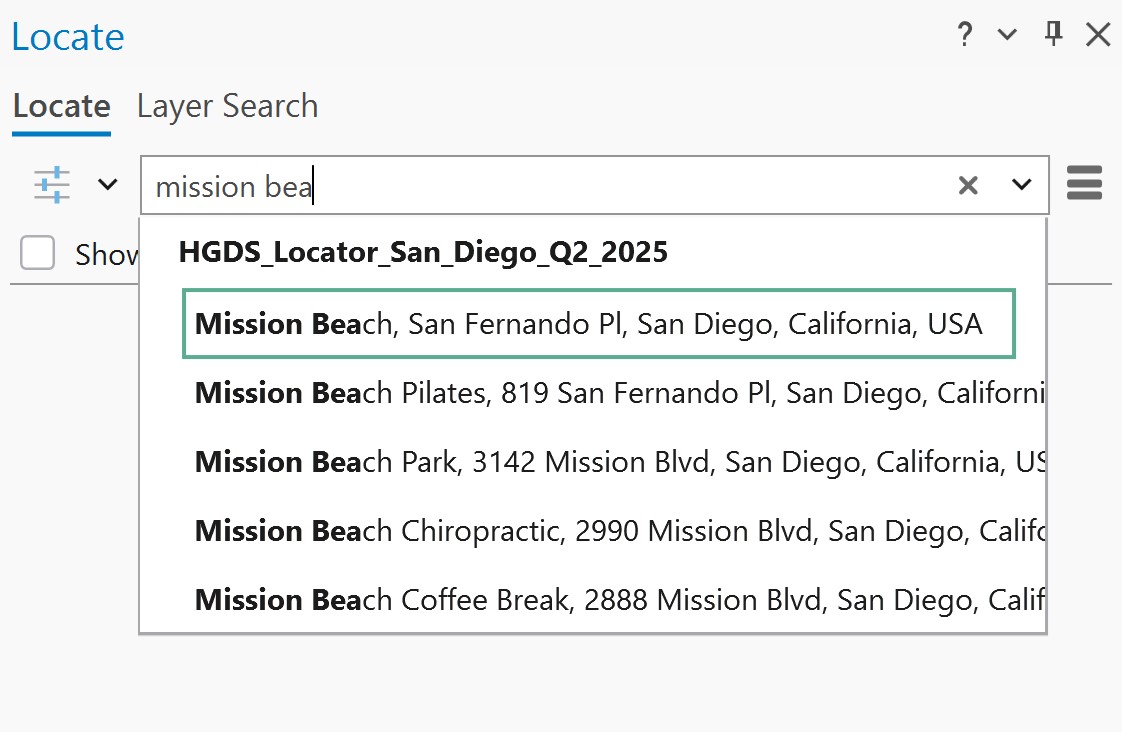
|
 to open the locator pane. Enter your search term and press the [Enter] key.
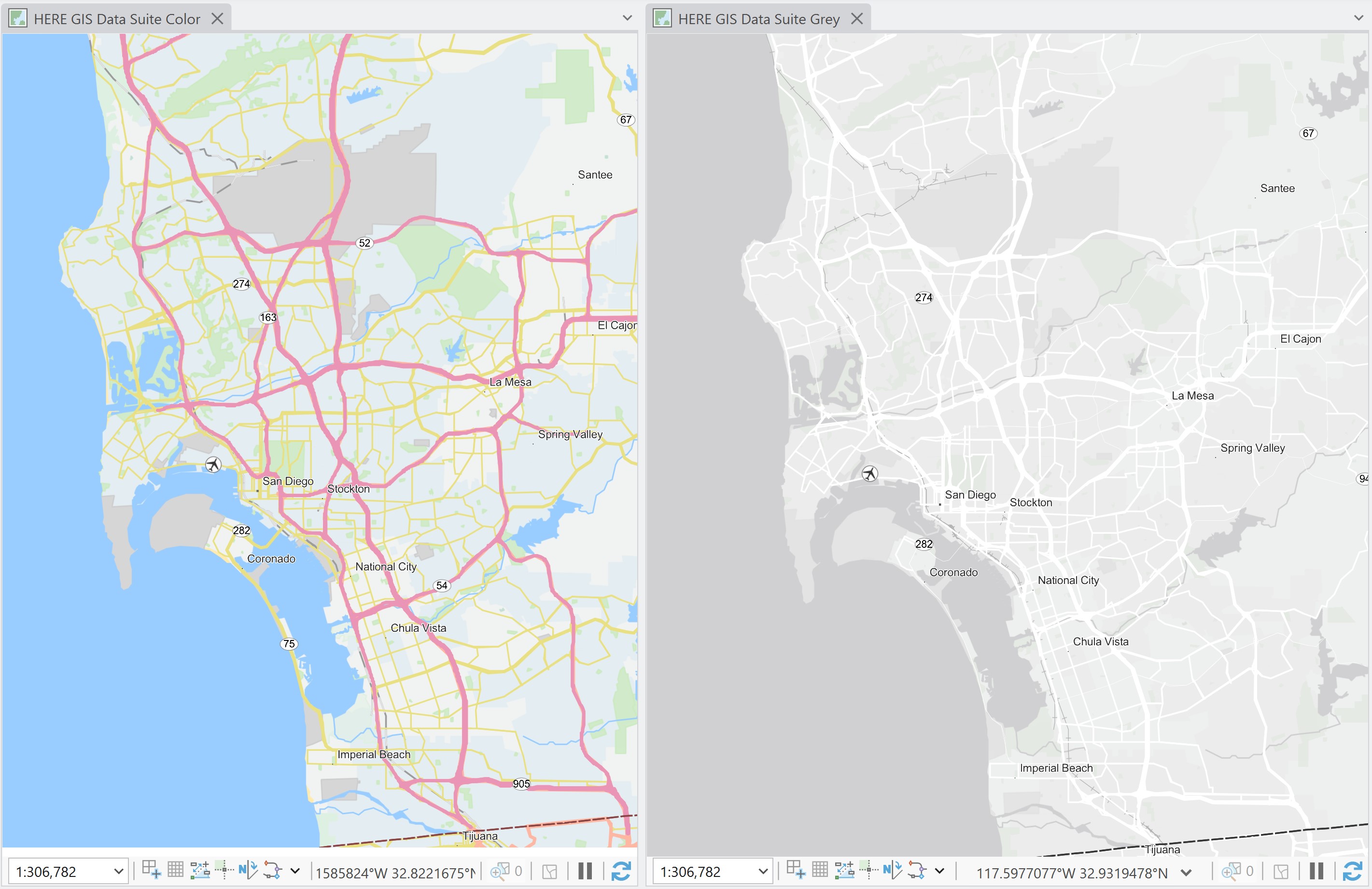
5 | Vector tile basemap
 |
Updated last month