

Control features
The HERE Raster Tile API provides a features parameter that you can use to select optional tile content.
Available features are defined per style - each style supports a different set of features. A feature has a set of modes. Only one mode can be active at a time.
If you do not specify any mode for a feature, the feature is using a default mode. The default mode depends on the feature.
The following sections describe the available feature types together with the available modes.
Advanced Raster Tile
Some of the following features fall under the
Advanced raster tilecategory in the HERE Map Rendering pricing plan. For more information, see Advanced raster tile.
Request the list of available features
To request the list of available features for each map style, use the features endpoint, as shown in the following example:
GET https://maps.hereapi.com/v3/features?apiKey={YOUR_API_KEY}For more information, see the API Reference documentation.
When you make a features request, the response is similar to the following example:
{
  "features": {
    "explore.day": [
      {
        "modes": [
          "disabled",
          "all"
        ],
        "name": "congestion_zones"
      },
      {
        "modes": [
          "disabled",
          "all"
        ],
        "name": "environmental_zones"
      },
      {
        "modes": [
          "all",
          "disabled"
        ],
        "name": "pois"
      },
      {
        "modes": [
            "disabled",
            "active_and_inactive",
            "active_and_inactive_differentiated",
            "active_only",
            "permanent_only"
        ],
        "name": "vehicle_restrictions"
      },
      {
        "modes": [
            "asia_selected_systems",
            "all_systems",
            "disabled"
        ],
        "name":"public_transit"
      },
      {
        "modes": [
            "disabled",
            "all"
        ],
        "name": "truck_preferred_roads"
      }
    ]
    "..."
  }
}
The default mode is always the first mode in the modes array.
Note
You can store the list of features in your client application. You must refresh this value every 24 hours.
Syntax
To control the display features, add the features parameter and then specify the mode for each feature you want to adjust, as shown in the following example:
features=feature1:mode1,feature2:mode2
You can combine features with commas. Only one mode per feature is active at a time. Each feature has a default mode used when not specified.
Available features
The following table summarizes all available features, their parameter names, and supported modes. See the following sections for more in-depth information about each available feature.
| Feature | Parameter | Available values | Pricing |
|---|---|---|---|
| Points of interest (POIs) | pois | all (default), disabled | Standard |
| Congestion zones | congestion_zones | all, disabled (default) | Standard |
| Environmental zones | environmental_zones | all, disabled (default) | Standard |
| Vehicle restrictions | vehicle_restrictions | active_and_inactive, active_and_inactive_differentiated, active_only, permanent_only, disabled (default) | Advanced |
| Public transit information | public_transit | asia_selected_systems, all_systems, disabled (default) | Standard |
| Low-speed zones | low_speed_zones | all, disabled (default) | Standard |
| Truck-preferred roads | truck_preferred_roads | all, disabled (default) | Advanced |
Points of interest (POIs)
POIs represent locations on a map that are of particular interest or significance to users. These can include landmarks, tourist attractions, restaurants, hotels, gas stations, hospitals, and other places that users might want to discover or navigate to.
In the HERE Raster Tile API, you manage the appearance of points of interested by using the features=pois:{value} parameter, with the following values available:
all: Display points of interest in the map image. This is the default setting.disabled: Do not display points of interest.
Tip
To explore the comprehensive library of icons used to mark various types of points of interest, see POI Icons in the HERE Style Editor documentation.
Examples
The following request shows how to get a map tile with POIs disabled:
GET https://maps.hereapi.com/v3/base/mc/17/62475/47981/png?size=512&features=pois:disabled&apiKey={YOUR_API_KEY}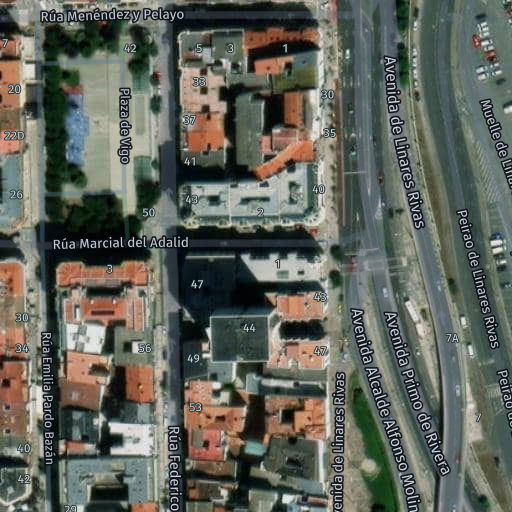
For comparison, the following request shows the same tile with POIs enabled (default):
GET https://maps.hereapi.com/v3/base/mc/17/62475/47981/png?size=512&apiKey={YOUR_API_KEY}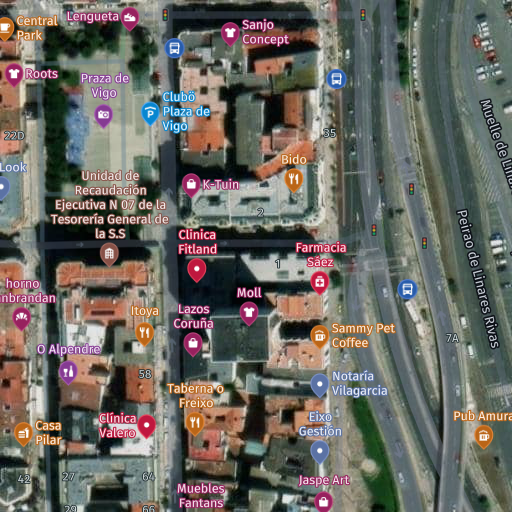
Congestion zones
Congestion zones indicate areas where drivers are required to pay a fee to enter or drive through during certain times of day.
You can manage the appearance of congestion zones by using the features=congestion_zones:{value} parameter, with the following values available:
all: Display congestion zones in the map image, if available.disabled: Do not display congestion zones. This is the default setting.
Example
The following example shows how to overlay a congestion zone over a raster map:
GET https://maps.hereapi.com/v3/base/mc/11/1085/595/png8?features=congestion_zones:all&size=512&apiKey={YOUR_API_KEY}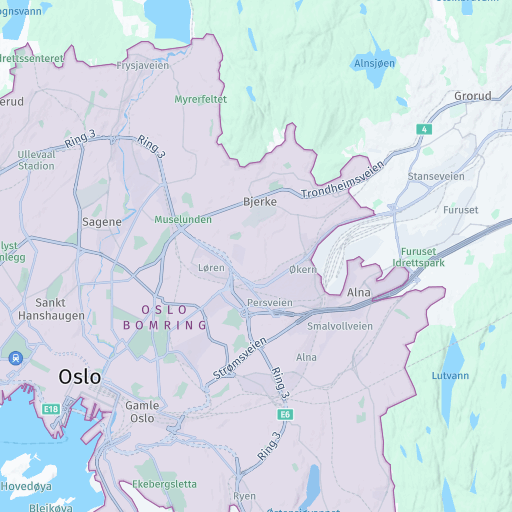
Environmental zones
An environmental zone restricts vehicle access to only those that meet certain emissions standards. Its goal is to enhance air quality by controlling the exhaust emissions from cars. To enter the zone, drivers typically need a visible sticker on their vehicle corresponding to the required emissions standard. Motorcycles and certain special vehicles are exempt from this requirement, depending on the local regulations.
You can manage the appearance of environmental zones by using the features=environmental_zones:{value} parameter, with the following values available:
all: Display environmental zones in the map image, if available.disabled: Do not display environmental zones. This is the default setting.
Example
The following request shows how to get a map tile with the environmental_zones feature:
GET https://maps.hereapi.com/v3/base/mc/11/1100/671/png?features=environmental_zones:all&size=512&apiKey={YOUR_API_KEY}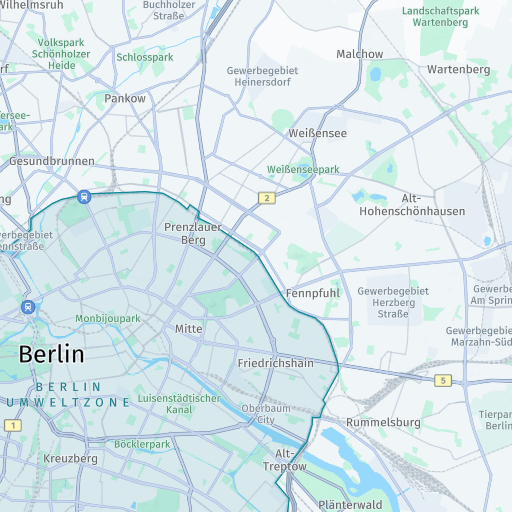
Vehicle restrictions
Vehicle restrictions involve regulations and limitations placed on specific types of vehicles within certain areas, either on a permanent basis or during specific time periods. These restrictions commonly involve prohibiting trucks, motorcycles, or other vehicle categories in designated zones like city centers or residential areas.
Vehicle restrictions are visually represented by highlighting restricted roads on the map. The API also uses icons to clearly indicate the types of vehicles that are prohibited, as well as whether the restriction is applicable only during specific times of day. With this information, you can easily identify restricted areas and understand the nature of the vehicle restrictions in place.
You manage the appearance of vehicle restrictions by using the features=vehicle_restrictions:{value} parameter with the following values available:
active_and_inactive: Display comprehensive view of all vehicle restrictions, regardless of their current status, which means that the image displays the ongoing and temporarily lifted or historical vehicle restrictions.active_and_inactive_differentiated: Display all vehicle restrictions with visual differentiation between active and inactive restrictions. Inactive restrictions appear grayed out on the map. This mode requiresstartTimeandendTimeparameters to evaluate time-based restrictions.active_only: Display only the active vehicle restrictions based on the specified time span. Inactive restrictions are completely hidden from the map. This mode requiresstartTimeandendTimeparameters to evaluate time-based restrictions.permanent_only: Display permanent vehicle restrictions only. This option hides all time-based vehicle restrictions, including those that are currently active. This mode is in the beta stage and might change without prior announcement.disabled: Do not display vehicle restriction data. This is the default setting.
Time-based vehicle restriction modes
The active_and_inactive_differentiated and active_only modes enable you to visualize vehicle restrictions based on specific time periods. These modes are particularly useful for logistics and route planning applications where understanding time-dependent road access is often critical.
When using these modes, you must provide both startTime and endTime parameters to represent local time:
startTime: The start of the time span for evaluating time-based vehicle restrictions. Format:YYYY-MM-DDThh:mm(RFC 3339 format without seconds or timezone).endTime: The end of the time span for evaluating time-based vehicle restrictions. Format:YYYY-MM-DDThh:mm(RFC 3339 format without seconds or timezone).
Note
The
startTimemust be less than or equal toendTime. If either parameter is missing when usingactive_and_inactive_differentiatedoractive_onlymodes, the API returns an error.
Examples
The following example shows how to get a map tile displaying both active and inactive vehicle_restrictions features:
GET https://maps.hereapi.com/v3/base/mc/11/1091/688/png8?features=vehicle_restrictions:active_and_inactive&size=512&apiKey={YOUR_API_KEY}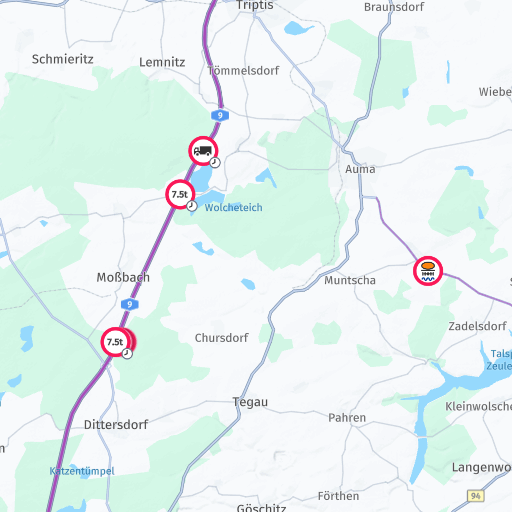
The following example shows how to get a map tile displaying both active and inactive vehicle_restrictions features, with the restrictions inactive during a specific time window grayed out:
GET https://maps.hereapi.com/v3/base/mc/11/1091/688/png8?features=vehicle_restrictions:active_and_inactive_differentiated&startTime=2026-09-07T15:34&endTime=2026-09-07T20:34&size=512&apiKey={YOUR_API_KEY}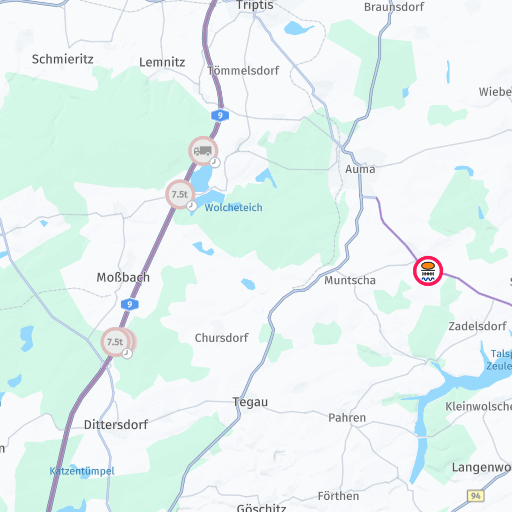
The following example shows how to a get map tile displaying only those vehicle_restrictions features that are active during the specified time window:
GET https://maps.hereapi.com/v3/base/mc/11/1091/688/png8?features=vehicle_restrictions:active_only&startTime=2026-09-07T15:34&endTime=2026-09-07T20:34&size=512&apiKey={YOUR_API_KEY}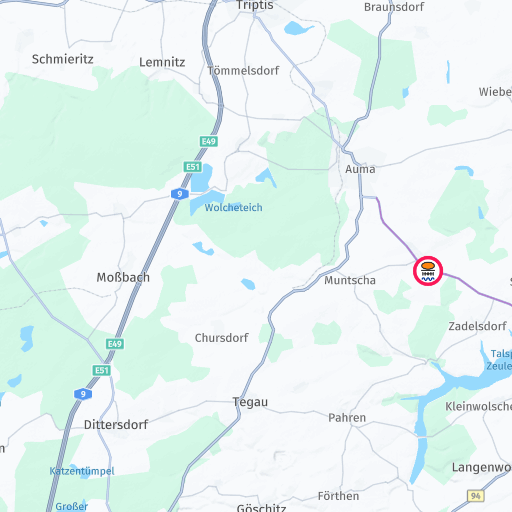
Public transit information
Public transit information provides a clear representation of transit routes, facilitating the user's understanding of the transit network and its connections.
You can manage the appearance of public transit information by using the features=public_transit:{value} parameter with the following values available:
asia_selected_systems: Display only a subset of public transit lines that are considered essential for understanding the base map in Asia region.all_systems: Display and highlight all available public transit data in map images, for example, bus, tram, or underground lines.disabled: Do not display public transit data. This is the default setting.
Example
The following example shows how to get a tile with the public_transit feature enabled:
GET https://maps.hereapi.com/v3/base/mc/13/4323/2647/png8?features=public_transit:all_systems&size=512&apiKey={YOUR_API_KEY}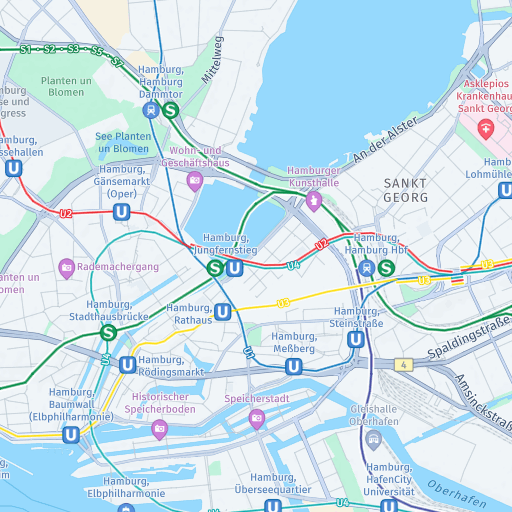
Low-speed zones
Applicable to the Japan map only, at zoom levels 15 and greater, this feature highlights areas with roads where the maximum speed is significantly lower in comparison to the surrounding roads. The low-speed areas usually include narrow roads without footpaths, and free from trees or utility posts, where vehicles and pedestrians coexist closely.
You can manage the appearance of low-speed zones by using the features=low_speed_zones:{value} parameter, with the following values available:
all: Display low-speed zones in the map image, if available.disabled: Do not display low-speed zones. This is the default setting.
Example
The following example shows how to get a tile with the low_speed_zones feature enabled:
GET https://maps.hereapi.com/v3/base/mc/15/29106/12904/png8?lang=en&style=explore.satellite.day&features=low_speed_zones:all&size=512&apiKey={YOUR_API_KEY}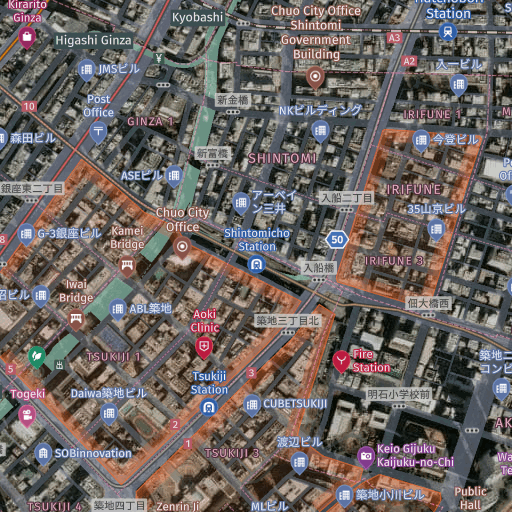
Truck-preferred roads
By visualizing truck-preferred roads, you enable logistics applications, fleet management systems, and navigation tools to provide drivers with routes that are better suited for commercial vehicles.
This feature is important for applications that serve the logistics and transportation industries, where routing commercial vehicles along appropriate roads can improve operational efficiency and reduce the risk of encountering roads with restrictions or inadequate infrastructure for large vehicles.
In the HERE Raster Tile API, you manage the appearance of truck preferred roads by using the features=truck_preferred_roads:{value} parameter with the following values available:
all: Display truck preferred roads in the map image, if available.disabled: Do not display truck preferred roads. This is the default setting.
Example
The following example shows how to get a tile with the truck_preferred_roads feature enabled:
GET https://maps.hereapi.com/v3/base/mc/8/141/89/png8?features=truck_preferred_roads:all&size=512&apiKey={YOUR_API_KEY}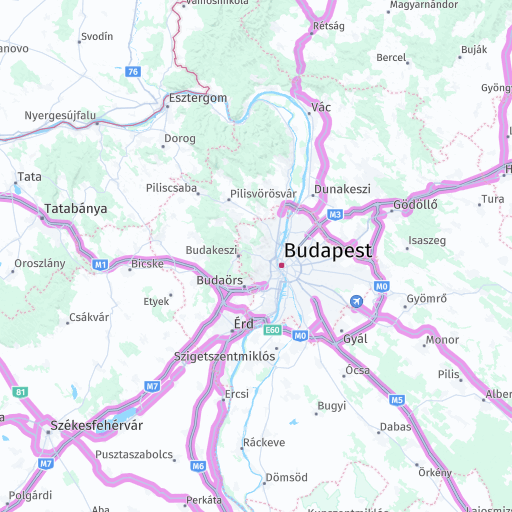
Additional examples
The following examples demonstrate practical use cases and advanced techniques for working with features, including combining multiple features, and creating overlay tiles.
Combine multiple features
The following example shows how to get map tile with the both the environmental_zones and vehicle_restrictions features enabled:
GET https://maps.hereapi.com/v3/base/mc/10/560/355/png8?features=environmental_zones:all,vehicle_restrictions:active_and_inactive&size=512&apiKey={YOUR_API_KEY}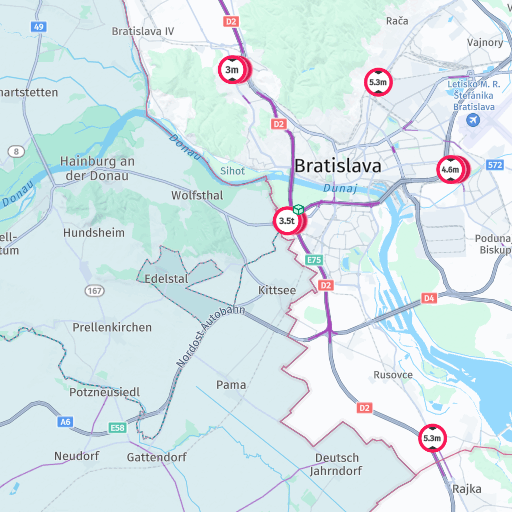
Truck-only tile
The following example shows how to get a truck-only tile by using the blank resource with the vehicle_restrictions feature:
https://maps.hereapi.com/v3/blank/mc/10/537/352/png8?features=environmental_zones:all,vehicle_restrictions:active_and_inactive&size=512&apiKey={YOUR_API_KEY}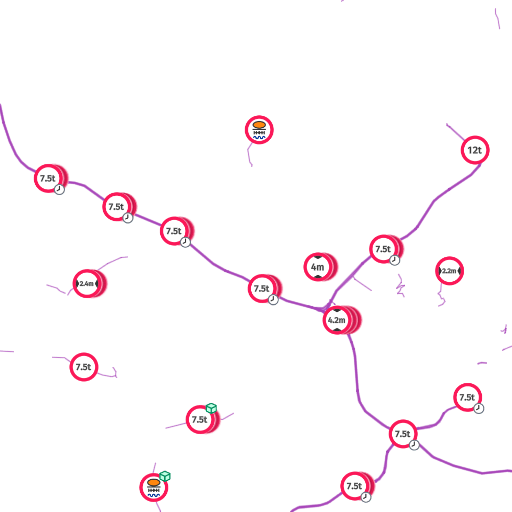
You can combine such tiles with your custom base maps.
Next steps
- To learn about the pricing plan implications of some features, see Explore advanced raster tile features.
- To learn how features interact with map styles, see Apply styles.
- For more information on API endpoints and request parameters, see the API Reference.
Updated 3 days ago