

Retrieve road shield icons
Access the icons resource to retrieve customizable road shield icons, tailored to your chosen size, style, country, state, and road class. These icons significantly enhance the visual representation of road and traffic data when overlaid on map images or integrated into the UI, such as in turn-by-turn instructions.
Understand the request format for obtaining icons
You can obtain icons by making a request to the /icons endpoint, with the {iconType}/{format} path parameters, where:
iconType: Specifies the type of icon that you can retrieve. Currently,roadShieldis the only type supported.format: Specifies the format in which to retrieve an icon. The available formats include:png: Retrieves the icon as a PNG image file.svg: Retrieves the icon in the form of SVG markup.
Mandatory parameters
In addition to the iconType and format path parameters, the request format requires you to specify the following parameter values:
label: A UTF-8 encoded string specifying the text displayed on a road shield. The label must be between 1 and 13 characters long. The calculation for label length includes the characters used to URL-escape special characters such as&,:, and?. For example, the labelA&Bis URL-escaped asA%26B, which counts as 5 characters.countryCode: An ISO 3166-1 Alpha-3 country code to ensure that the icon accurately represents the standards and styles of the particular country. For example,countryCode=DEU, for Germany.- (For the PNG format only)
widthorheight: Icon size. Specify a single dimension for the icon, from24to256pixels. The API automatically adjusts the other dimension value to obtain the correct aspect ratio. If you specify bothwidthandheight, the API defaults to the lower value and adjusts the aspect ratio accordingly. For example,height=64.
Additional parameters
To further customize the icon, you can use the following parameters:
-
style: The corresponding HERE Map Image API style for which to generate the icon. If you don't specify this parameter, the default icon style isexplore.day. For example,style=explore.night -
stateCode: The state code in the ISO 3166-2 format. For example,stateCode=AL, for Alabama, US.Note
Under certain conditions, you must specify the state code for a specific
countryCodeandrouteLevelcombinations, for example, you must provide astateCodevalue for level3roads in the USA or Canada. Otherwise, the API might return no content. -
routeLevel: Specifies the road priority. The available values include:1- international or European road2- national road3- primary road4- secondary road5- minor road6- avenue
Note
If you do not specify this parameter, the API defaults to level
1.
Get the supported icon types and parameter ranges
To obtain the current list of supported icon types along with the information about the related parameters, you can make a request to the /info endpoint, as shown in the following example:
https://image.maps.hereapi.com/mia/v3/info?apiKey={YOUR_API_KEY}Result: The response body is a JSON file that provides a list of available image formats for icons, the minimum and maximum values for image width and height, and the available icon types, as shown in the following example:
{
  "iconImageFormats": [
    "png",
    "svg"
  ],
  "iconSizes": {
    "height": {
      "max": 256,
      "min": 24
    },
    "width": {
      "max": 256,
      "min": 24
    }
  },
  "iconTypes": [
    "roadShield"
  ],
  // (...) Response abbreviated for clarity
}
Retrieve a road shield icon
To get a road shield icon, make a request to the /icons endpoint, as shown in the following examples.
Note
If no icon matching your request parameters exists, the API returns
204: No Contentstatus code.
Sample request #1:
https://image.maps.hereapi.com/mia/v3/icons/roadShield/png
?label=A1
&style=explore.night
&countryCode=USA
&stateCode=CA
&width=256
&routeLevel=3
&apiKey={YOUR_API_KEY}Response:
The API responds with the following icon in the PNG format:
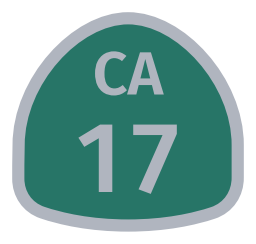
The road shield icon from the previous example corresponds to route level 3 (a primary road), in this case, California State Route 17, with its design adjusted to represent road shields in the state of California, USA. The icon is adjusted for display on a map image rendered with the explore.night style.
Sample request #2:
https://image.maps.hereapi.com/mia/v3/icons/roadShield/png
?label=40
&countryCode=ARG
&width=128
&routeLevel=1
&apiKey={YOUR_API_KEY}Response:
The API responds with the following icon in the PNG format:

The road shield icon in this example corresponds to a national road (level 1) in Argentina. The icon is adjusted for viewing within the context of the default explore.day style.
Sample request #3:
https://image.maps.hereapi.com/mia/v3/icons/roadShield/svg
?label=A10
&countryCode=FRA
&routeLevel=1
&apiKey={YOUR_API_KEY}Response:
The API responds with the following icon, in the SVG format:

This request obtains the road shield for the A10 highway in France, considered as level 1 road.
Next steps
- To explore all supported endpoints and parameters, see the API Reference.
- To gain more hands-on experience with the HERE Map Image API see the
Tutorialssection of this guide.
Updated 7 months ago