

Optimize image dimensions and image format
When using the HERE Map Image API, you are required to specify the dimensions and image format of the generated map image. This allows you to customize the image according to your application requirements, taking into consideration factors such as performance, visual quality, and usability across different applications. Adjusting these parameters ensures that the map image meets your specific needs and enhances the overall user experience.
Note
The following restrictions for image files apply:
- The maximum value for width and height is
2048pixels.- The minimum value for width and height is
64pixels.- The maximum result size is 6 MB.
Image dimensions
When working with the HERE Map Image API, select map image dimensions by using the width and height parameters, measured in pixels, in the {width_value}x{height_value} format.
Supported image formats
The image formats supported by the HERE Map Image API include PNG, JPEG, and PNG8. When selecting an image format for your map tiles, consider the complexity of your map, the number of colors required, the need for transparency, and the trade-off between the file size and visual quality of the map image.
Based on the style, the recommended format parameter values are:
-
jpeg: For any style that includes satellite imagery such assatellite.daystyle orexplore.satellite.daystyle, -
png8: For all the other styles, -
png: An alternative to thepng8, where full image colors are preferred to the smaller image file size.Note
Due to the internal representation of satellite imagery, the
PNGimage format does not result in better image quality as theJPEGimage format despite the much larger image size.
Optional: Get the list of supported image formats and allowed dimensions
To obtain the current list of supported image formats in the HERE Map Image API, make a request to the /info endpoint, as shown in the following example:
https://image.maps.hereapi.com/mia/v3/info
?apiKey={YOUR_APIKEY}Result: The API responds with a JSON file that lists the supported image formats in the imageFormats array, as well as the minimum and maximum values for image height and width in the imageSizes array, as shown in the following example:
{
    "imageFormats": [
        "jpeg",
        "png",
        "png8"
    ],
    "imageSizes": {
        "height": {
            "max": 2048,
            "min": 64
        },
        "width": {
            "max": 2048,
            "min": 64
        }
    }
}
You can use any of the values in a returned array to specify the type and dimensions of your map image files.
Customize image dimensions and image format
Configure the query to set image dimensions and image format, as needed.
Sample request #1:
Consider the following sample request to obtain a PNG image with the dimensions of 256x256 pixels:
https://image.maps.hereapi.com/mia/v3/base/mc/center:57.712943,12.042842;zoom=9/256x256/png
?apiKey={YOUR_API_KEY}Response:
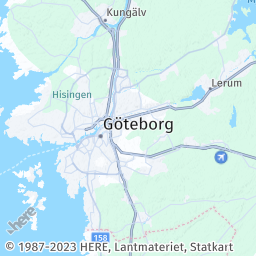
To change the image format, replace the png value in the query with a value corresponding to another type, as listed in the imageFormats array, for example, png8.
Note
You can evaluate the difference between identical PNG and PNG8 images of the same width and height by looking at the file size. Typically, the PNG8 image should have a smaller file size compared to the PNG image due to its reduced color palette.
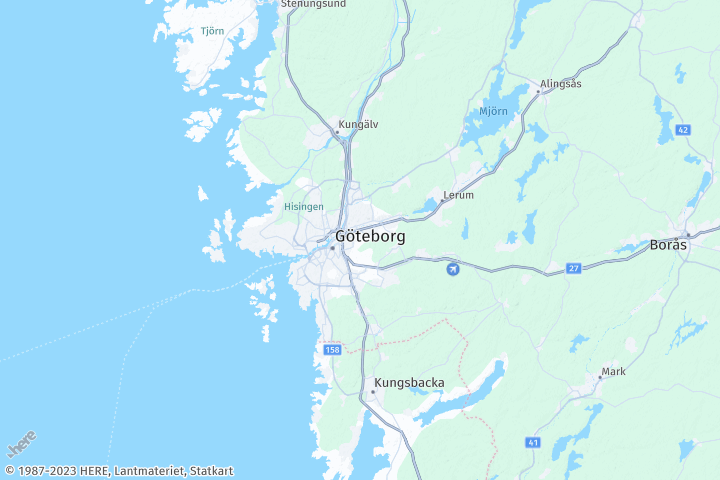
To modify the image dimensions, replace the 256x256 values in the query with new width and height dimensions in pixels, for example 720x480, where 720 is the image width and 480 is the image height.
Sample request #2:
The adjusted query has the following parameters:
https://image.maps.hereapi.com/mia/v3/base/mc/center:57.712943,12.042842;zoom=9/720x480/png8
?apiKey={YOUR_API_KEY}Response:
The returned map image reflects the updated size and image format parameters:
Best practices for specifying image dimensions and image format
Image dimensions
Ensure the dimensions meet your application's specifications for optimal performance.
- The selected dimensions should align with your application requirements.
- When determining optimal image dimensions, consider factors such as device screen dimensions and required map detail. Smaller dimensions lead to faster loading but sacrifice detail, while larger dimensions offer more detail but slower loading times.
- Choose dimensions that strike a balance between speed and detail, considering target device capabilities and application requirements.
Image file format
Choose the appropriate image file format based on image characteristics and transparency needs.
| Image file format | Description | Considerations |
|---|---|---|
| PNG | Popular for preserving sharp lines, text, and icons, with alpha transparency support. Larger file sizes. | Consider trade-off between image quality and file size. |
| JPEG | Suitable for continuous-tone images like satellite imagery. Does not support transparency. | Consider it for satellite imagery and when transparency is not required. |
| PNG8 | Uses a limited color palette (up to 256 colors), reducing file size while maintaining visual quality. | Ideal for maps with simple color schemes or restricted color ranges, where file size is a concern. Avoid using with satellite imagery. |
Next steps
To explore all supported endpoints and parameters, see the API Reference.
Updated 7 months ago