

GeoJSON format
The GeoJSON format is a powerful tool for superimposing custom data onto a map image, allowing you to define and display your own geographical features such as points, lines, and polygons. By utilizing custom overlays through GeoJSON, you can enhance the visual representation of your data and provide additional context to your maps by highlighting specific regions, plotting routes, or displaying spatial relationships.
Explore the HERE Map Image API v3 with this interactive example. Test parameters and see real-time results:
Try It OutThe HERE Map Image API offers comprehensive capability for working with GeoJSON data. The following sections provide an overview of the different aspects of GeoJSON format you can leverage to enhance your maps with additional data.
GeoJSON-specific coordinate format
The format for geometry coordinates is [longitude, latitude] (an X/Y coordinate system). For example, the following GeoJSON point geometry provides the coordinates of the HERE Berlin office in the format accepted by the HERE Map Image API:
{
  "type": "Point",
  "coordinates": [13.38492, 52.53076]
}
Valid latitude/longitude ranges
Valid latitudes are within the range -90 to 90, while valid longitudes fall within the range -180 to 180. Requests that are using values outside these boundaries fail with an error message.
For lines or polygons that traverse the antimeridian (longitudes -180 or 180), the service always attempts to establish the shortest connection between the two points. For example, this means that a line from [-170, 0] to [170, 0], crosses the antimeridian and not the prime meridian. To create a longer path that circumnavigates the antimeridian, add additional points in between the original ones.
Consideration for overlay styling
To create a custom overlay, it's essential to prepare your data in the GeoJSON format, an open standard widely used for representing geographic data using JSON (JavaScript Object Notation). This format supports various geometry types, including Point, Line, and Polygon.
To have complete control over the visual appearance of GeoJSON features on a map, you can leverage the style specification provided by the HERE Map Image API. This specification serves as a comprehensive guide for each geometry type, offering a straightforward and user-friendly approach to customize and style GeoJSON overlays. By defining custom styles within the properties object of your GeoJSON, you can achieve the desired visual effects and create visually appealing and informative maps.
Colors
When styling GeoJSON features, you have the flexibility to specify colors using different formats. You can represent colors as one nibble or one byte for each color component, along with an optional alpha component. The supported color formats include #rgb, #rrggbb, #rgba, and #rrggbbaa. When using the short color format #rgb or #rgba the digits for each channel are internally duplicated, so#f004 is the same color as #ff000044.
Note
If you don't specify the
colorparameter for your GeoJSON features, the HERE Map Image API uses the default color for the selected map style.
Drawing order for overlay features
The drawing order for map features is essential to ensure that the map is visually clear and informative. The rule for drawing order is to prioritize features based on their importance and to avoid visual clutter. In the HERE Map Image API, the overlay features are displayed above background, base map, and lines but below labels. For overlay features themselves, Polygons take precedence, followed by Lines, and then Points or custom labels. The following list provides the drawing order, starting from the features of the highest priority:
- Map labels
- Custom overlay features:
- Polygons
- Lines
- Points or custom labels
- Base or background map
For custom overlay features that might overlap each other on a ma image, you can override the drawing order be specifying the "layer":"foreground" parameter for a specific geometry to display that geometry above others. For multiple geometries with this parameter, the order of Polygon -> Line -> Point is applied. See the example in Circle style for a practical application of the "layer":"foreground" parameter.
Measurement units
You can use the GeoJSON format to specify various properties of custom features to include on a map image. Depending on your use case, you can specify the values of the width and outline-width properties of Point and Line geometries by using various measurement units. The available unit types include:
| Unit | Description |
|---|---|
Integer, for example, 5 | Pixels |
String with no unit, for example "5" | Pixels |
"px" | Pixels |
"m" | Meters |
"km" | Kilometers |
"mi" | Miles |
"ft" | Feet |
"yd" | Yards |
"%" | The percentage of the default value for a specific property, in pixels. For example, if the default value for width is 2 pixels, then 200% is 4 pixels. % is a sensitive character that must be encoded in the request URL as %25. |
Refer to examples in the following sections for practical applications of this concept.
Available geometry types
The following sections provide a high-level overview of GeoJSON geometry types supported in HERE Map Image API through the geojson parameter. The overview also includes associated style information to help you adjust the appearance of GeoJSON using its properties object, ensuring it aligns with your business needs and branding.
The HERE Map Image API supports Feature, FeatureCollection, and Geometry as top-level entities in GeoJSON. For more information, see The GeoJSON Format.
Note
To add style properties to a geometry type, for example MultiPolygon, you must place that geometry type under a
FeatureorFeatureCollectiontop-level entity.
Point geometry
Points can be rendered as markers or circles, with various style options available for customization.
Marker style
Marker style allows you to customize the appearance of markers placed at the given coordinates.
You can style markers by using the following properties:
| Name | Type | Default | Description |
|---|---|---|---|
style | String | "marker" | The style of the Point geometry. To create a marker, set the value to marker or do not include the style attribute in the properties object of the GeoJSON. |
icon | String | "pin" | The marker icon type. Available values include: - "cp" (for proximity circle) - "diamond" - "pin" - "poi" - "square" - "triangle" - "bubble" For more information, see Example #1: Icon types. |
label | String | <empty> | The text to show at the coordinates. To set automatic labels, use the following values: - "$alpha" - Use Latin alphabet, for example, A, B, C, and so on. - "$num" - Use Arabic numerals, for example, 1, 2, 3, and so on. |
color | Color | style-dependent | The icon color. |
outline-color | Color | style-dependent | The icon outline color. |
text-color | Color | style-dependent | The label text color. |
text-outline-color | Color | style-dependent | The text outline color. |
outline-width | Integer | 0 (turned off) | The text outline width. |
size | String | "medium" | The label and icon size. The available values include: - "small" - "medium" - "large" |
Example #1: Icon types
The following table shows examples for each available icon type in the HERE Map Image API:
| Icon type | JSON Code | Example |
|---|---|---|
| pin | { "type": "Point", "coordinates": [13.38492, 52.53076] } | 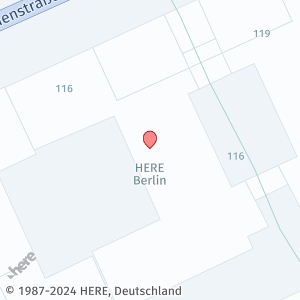 |
| no icon - label only | { "type": "Feature", "properties": { "icon": "", "label": "Label%20\nonly", "text-color": "%23DD0000", "text-outline-color": "%2300DD00", "outline-width": 2, "size": "large" }, "geometry": { "coordinates": [ 13.38492, 52.53076 ], "type": "Point" } } | 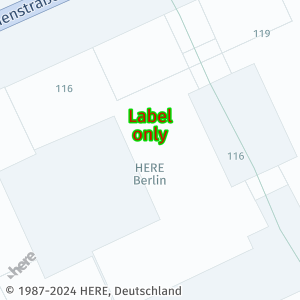 |
| diamond | { "type": "Feature", "properties": { "icon": "diamond", "label": "Large%20diamond", "size": "large" }, "geometry": { "coordinates": [ 13.38492, 52.53076 ], "type": "Point" } } | 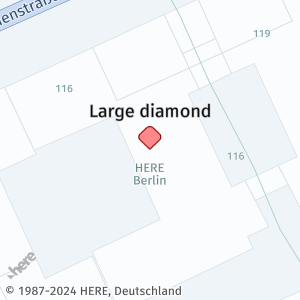 |
| position marker | { "type": "Feature", "properties": { "icon": "cp", "size": "small", "label": "Small%20position%20\nmarker", "text-color": "%2306AF8F" }, "geometry": { "coordinates": [ 13.38492, 52.53076 ], "type": "Point" } } | 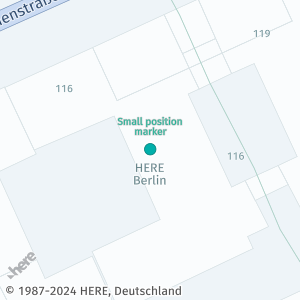 |
| POI | { "type": "Feature", "properties": { "icon": "poi", "label": "POI", "color": "%230D0", "outline-color": "%23006400" }, "geometry": { "coordinates": [ 13.38492, 52.53076 ], "type": "Point" } } | 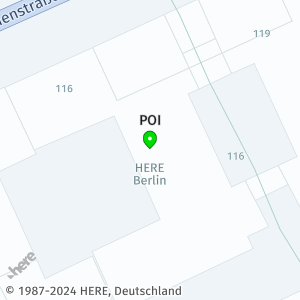 |
| triangle | { "type": "Feature", "properties": { "icon": "triangle", "label": "triangle", "color": "%23FFC0CB", "outline-color": "%23FF1493", "text-color": "%23FF1493" }, "geometry": { "coordinates": [ 13.38492, 52.53076 ], "type": "Point" } } | 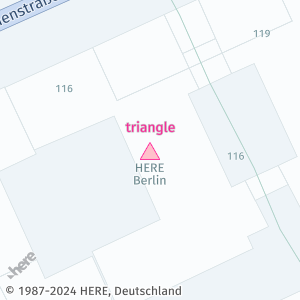 |
| square | { "type": "Feature", "properties": { "icon": "square", "label": "square", "color": "%23800080", "outline-color": "%234B0082", "text-color": "%234B0082" }, "geometry": { "coordinates": [ 13.38492, 52.53076 ], "type": "Point" } } | 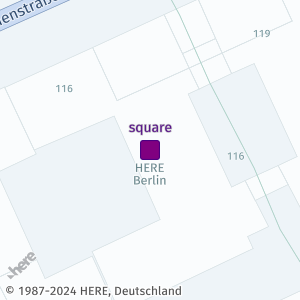 |
| bubble | { "type": "Feature", "properties": { "icon": "bubble", "label": "bubble", "color": "%23FEA857", "outline-color": "%23D48C49" }, "geometry": { "coordinates": [ 13.38492, 52.53076 ], "type": "Point" } } | 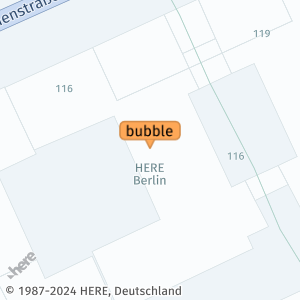 |
The snippet shows a sample request that uses geojson to render a basic pin icon:
https://image.maps.hereapi.com/mia/v3/base/mc/overlay;zoom=19/200x200/png?apiKey={YOUR_API_KEY}
&geojson=%7B%22type%22:%22Point%22,%22coordinates%22:%5B13.38492,52.53076%5D%7D
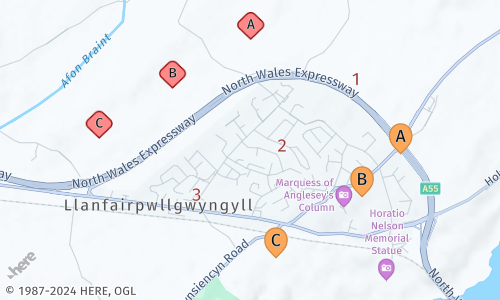
Example #2: Markers with auto-generated labels
The following GeoJSON showcases markers with automatically generated labels:
{
  "type": "FeatureCollection",
  "features": [
    {
      "type": "Feature",
      "properties": {
        "label":"$alpha",
        "icon":"diamond"
      },
      "geometry": {
        "type": "MultiPoint",
        "coordinates": [
          [-4.203405,53.229618],
          [-4.209793,53.227234],
          [-4.215786,53.224785]
        ]
      }
    },
    {
      "type": "Feature",
      "geometry": {
        "type": "MultiPoint",
        "coordinates": [
          [-4.194901,53.227557],
          [-4.200894,53.224313],
          [-4.207892,53.221906]
        ]
      },
      "properties": {
        "icon":"",
        "label":"$num",
        "size":"large",
        "text-color":"%23972E2B",
        "text-outline-color":"%23FFF",
        "text-outline-width":2
      }
    },
    {
      "type": "Feature",
      "geometry": {
        "type": "MultiPoint",
        "coordinates": [
          [-4.191168,53.223947],
          [-4.194326,53.221842],
          [-4.20136,53.218855]
        ]
      },
      "properties": {
        "label":"$alpha",
        "color":"%23FEA857",
        "outline-color": "%23D48C49",
        "size":"large"
      }
    }
  ]
}
The following request incorporates the preceding GeoJSON:
https://image.maps.hereapi.com/mia/v3/base/mc/overlay;padding=64/500x300/png
?apiKey={YOUR_API_KEY}
&geojson={"type":"FeatureCollection","features":[{"type":"Feature","properties":{"label":"$alpha","icon":"diamond"},"geometry":{"type":"MultiPoint","coordinates":[[-4.203405,53.229618],[-4.209793,53.227234],[-4.215786,53.224785]]}},{"type":"Feature","geometry":{"type":"MultiPoint","coordinates":[[-4.194901,53.227557],[-4.200894,53.224313],[-4.207892,53.221906]]},"properties":{"icon":"","label":"$num","size":"large","text-color":"%23972E2B","text-outline-color":"%23FFF","text-outline-width":2}},{"type":"Feature","geometry":{"type":"MultiPoint","coordinates":[[-4.191168,53.223947],[-4.194326,53.221842],[-4.20136,53.218855]]},"properties":{"label":"$alpha","color":"%23FEA857","outline-color":"%23D48C49","size":"large"}}]}
Based on the preceding sample, the HERE Map Image API renders the following markers:
Circle style
The circle style enables you to create circles at the specified coordinates.
You can style markers by using the following properties:
| Name | Type | Default | Description |
|---|---|---|---|
style | String | "marker" | The style of the Point geometry. To create a circle, set the value to circle. |
color | Color | style-dependent | The circle color. |
width | Integer/String | 8 | The circle diameter. Specify the value in pixels or in one of the available Specify the value in pixels or in one of the available measurement units. |
outline-color | Color | style-dependent | The circle outline color. |
outline-width | Integer/String | 0 (turned off) | The circle outline width. Specify the value in pixels or in one of the available measurement units. |
Example: Circle markers
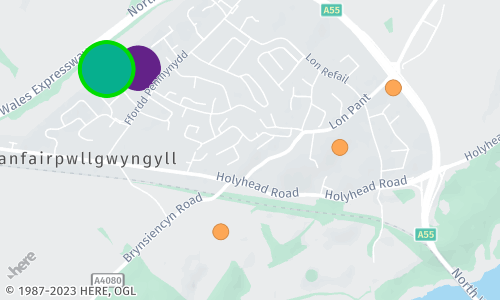
The following GeoJSON snippet is configured for rendering circle markers through the HERE Map Image API:
{
  "type": "FeatureCollection",
  "features": [
    {
      "type": "Feature",
      "properties": {
        "style":"circle",
        "color": "%2306AF8F",
        "width": "200m",
        "layer":"foreground",
        "outline-color":"%230D0",
        "outline-width":"4px"
      },
      "geometry": {
        "coordinates": [-4.208105,53.224614],
        "type": "Point"
      }
    },
    {
      "type": "Feature",
      "properties": {
        "style":"circle",
        "color": "%23632289",
        "width": "200yd"
      },
      "geometry": {
        "coordinates": [-4.206244,53.224644],
        "type": "Point"
      }
    },
    {
      "type": "Feature",
      "geometry": {
        "type": "MultiPoint",
        "coordinates": [
          [-4.191168,53.223947],
          [-4.194326,53.221842],
          [-4.20136,53.218855]
        ]
      },
      "properties": {
        "style":"circle",
        "color":"%23FEA857",
        "outline-color": "%23D48C49",
        "width":"200%25",
        "outline-width":1
      }
    }
  ]
}
The following request incorporates the preceding GeoJSON:
https://image.maps.hereapi.com/mia/v3/base/mc/overlay;padding=64/500x300/png
?apiKey={YOUR_API_KEY}
&geojson={"type":"FeatureCollection","features":[{"type":"Feature","properties":{"style":"circle","color":"%2306AF8F","width":"200m","layer":"foreground","outline-color":"%230D0","outline-width":"4px"},"geometry":{"coordinates":[-4.208105,53.224614],"type":"Point"}},{"type":"Feature","properties":{"style":"circle","color":"%23632289","width":"200yd"},"geometry":{"coordinates":[-4.206244,53.224644],"type":"Point"}},{"type":"Feature","geometry":{"type":"MultiPoint","coordinates":[[-4.191168,53.223947],[-4.194326,53.221842],[-4.20136,53.218855]]},"properties":{"style":"circle","color":"%23FEA857","outline-color":"%23D48C49","width":"200%25","outline-width":1}}]}
This following figure showcases how the HERE Map Image API renders Point-type geometries as circles, based on the input from the preceding example:
Line geometry
Line geometry represents a series of connected points on the map. You can customize properties such as color, width, outline-color, and outline-width to define the appearance of lines.
| Name | Type | Default | Description |
|---|---|---|---|
color | Color | style-dependent | The line color. |
width | Integer/String | 2 | The line width. Specify the value in pixels or in one of the available measurement units. |
outline-color | Color | style-dependent | The line outline color. |
outline-width | Integer/String | 0 (turned off) | The width of the outline. Specify the value in pixels or in one of the available measurement units. |
Example #1: Line string
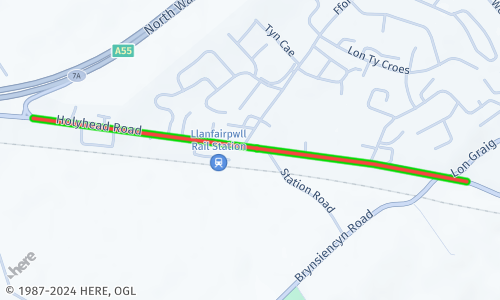
This GeoJSON snippet contains a sample LineString geometry associated with style properties to make the line clearly distinguishable from the background:
{
  "type": "Feature",
  "properties": {
    "color": "%23FC4242",
    "width": "9m",
    "outline-color": "%230D0",
    "outline-width": "2px"
  },
  "geometry": {
    "coordinates": [
      [-4.199719, 53.220504],
      [-4.203276, 53.220905],
      [-4.216335, 53.221956]
    ],
    "type": "LineString"
  }
}
The following request incorporates the preceding GeoJSON:
https://image.maps.hereapi.com/mia/v3/base/mc/overlay;padding=20/500x300/png
?apiKey={YOUR_API_KEY}
&geojson={"type":"Feature","properties":{"color":"%23FC4242","width":"9m","outline-color":"%230D0","outline-width":"2px"},"geometry":{"coordinates":[[-4.199719,53.220504],[-4.203276,53.220905],[-4.216335,53.221956]],"type":"LineString"}}
Based on the specifications from the preceding example, the HERE Map Image API retrieves a map image showcasing a Line geometry type:
Example #2: Multi-line string
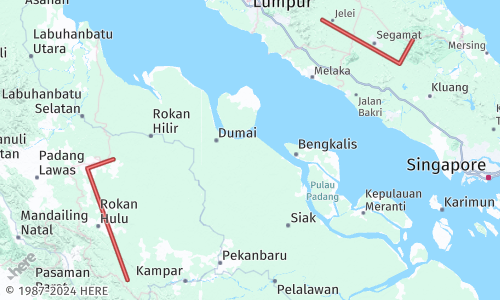
The HERE Map Image API also supports the MultiLine geometry for size-efficient display of multiple lines on a single map image, as shown in the following example, in which the Geometry entity is the top-level entity:
{
  "type": "MultiLineString",
  "coordinates": [
    [
      [
        100.576271,
        0.362502
      ],
      [
        100.211489,
        1.374787
      ],
      [
        100.448084,
        1.457333
      ]
    ],
    [
      [
        102.34297,
        2.720222
      ],
      [
        103.044426,
        2.323713
      ],
      [
        103.162761,
        2.53747
      ]
    ]
  ]
}
The following request incorporates the preceding GeoJSON:
https://image.maps.hereapi.com/mia/v3/base/mc/overlay;padding=20/500x300/png
?apiKey={YOUR_API_KEY}
&geojson={"type":"MultiLineString","coordinates":[[[100.576271,0.362502],[100.211489,1.374787],[100.448084,1.457333]],[[102.34297,2.720222],[103.044426,2.323713],[103.162761,2.53747]]]}
Based on this request, the HERE Map Image API retrieves a map image showcasing a MultiLine geometry type:
Polygon geometry
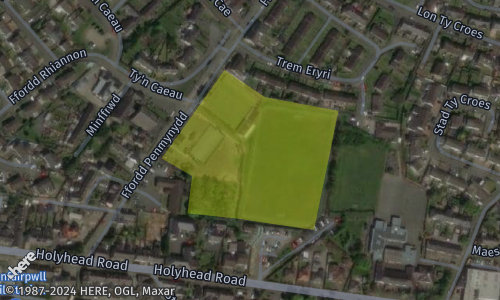
Polygon geometry represents a closed shape with multiple connected points. You can customize the fill color of the polygon using the color property.
Example #1: Polygon
The following code snippet shows a sample Polygon geometries as encoded in GeoJSON objects:
{
  "type": "Feature",
  "properties": {
    "color": "%23E3F70550"
  },
  "geometry": {
    "coordinates": [
      [
        [-4.206387, 53.222874],
        [-4.207243, 53.222155],
        [-4.206827, 53.222012],
        [-4.206892, 53.221709],
        [-4.206168, 53.221663],
        [-4.205968, 53.221643],
        [-4.205172, 53.221573],
        [-4.204840, 53.222542],
        [-4.205842, 53.222654],
        [-4.206387, 53.222874]
      ]
    ],
    "type": "Polygon"
  }
}
The following request incorporates the preceding GeoJSON:
https://image.maps.hereapi.com/mia/v3/base/mc/overlay;padding=70/500x300/png
?apiKey={YOUR_API_KEY}
&geojson={"type":"Feature","properties":{"color":"%23E3F70550"},"geometry":{"coordinates":[[[-4.206387,53.222874],[-4.207243,53.222155],[-4.206827,53.222012],[-4.206892,53.221709],[-4.206168,53.221663],[-4.205968,53.221643],[-4.205172,53.221573],[-4.20484,53.222542],[-4.205842,53.222654],[-4.206387,53.222874]]],"type":"Polygon"}}
&style=explore.satellite.day
Based on the preceding example, the API renders Polygon geometries in map images as shown in the following figure:
Example #2: Multi-polygon
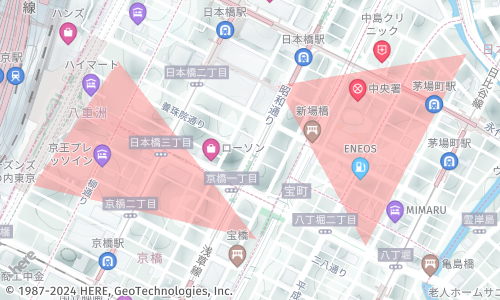
The HERE Map Image API also supports the MultiPolygon geometry for size-efficient display of multiple polygons on a single map image, as shown in the following example, in which the Geometry entity is the top-level entity:
{
  "type": "MultiPolygon",
  "coordinates": [
    [
      [
        [
          139.770404,
          35.681290
        ],
        [
          139.768064,
          35.678493
        ],
        [
          139.774243,
          35.677278
        ],
        [
          139.770404,
          35.681290
        ]
      ]
    ],
    [
      [
        [
          139.774802,
          35.680733
        ],
        [
          139.777253,
          35.677132
        ],
        [
          139.780047,
          35.681451
        ],
        [
          139.774802,
          35.680733
        ]
      ]
    ]
  ]
}
The following request incorporates the preceding GeoJSON:
https://image.maps.hereapi.com/mia/v3/base/mc/overlay;padding=20/500x300/png
?apiKey={YOUR_API_KEY}
&geojson={"type":"MultiPolygon","coordinates":[[[[139.770404,35.68129],[139.768064,35.678493],[139.774243,35.677278],[139.770404,35.68129]]],[[[139.774802,35.680733],[139.777253,35.677132],[139.780047,35.681451],[139.774802,35.680733]]]]}
Based on the preceding example, the API renders MultiPolygon geometries in map images as shown in the following figure:
GeoJSON encoding in API requests
When including data in a URL, URI encoding is necessary to ensure that special characters, reserved characters, and certain punctuation marks are properly represented. This encoding prevents interference with the URL structure. For GeoJSON data in API requests, URI encoding is required to handle characters with special meaning in URLs, such as {, }, [, ], #, :, and others.
By URI encoding the GeoJSON overlay in an API request, the data is transmitted and interpreted correctly by the server. This encoding prevents conflicts or misinterpretations caused by special characters in the GeoJSON object. Without URI encoding, the URL structure could break, and the request parameters may be parsed incorrectly.
Sample request
https://image.maps.hereapi.com/mia/v3/base/mc/overlay:padding=20/370x480/png8
?apikey={YOUR_API_KEY}
&style=lite.day
&geojson={
    "type": "FeatureCollection",
    "features": [
        {
            "type": "Feature",
            "geometry": {
                "type": "MultiPoint",
                "coordinates": [
                    [-0.076345, 51.504107],
                    [-0.074451, 51.506892]
                ]
            },
            "properties": {
                "color": "#00DD00"
            }
        }
    ]
}
The same Request URI-encoded:
https://image.maps.hereapi.com/mia/v3/base/mc/overlay:padding=20/370x480/png8
?apikey={YOUR_API_KEY}
&style=lite.day
&geojson=%7B%22type%22%3A%22FeatureCollection%22%2C%22features%22%3A%5B%7B%22type%22%3A%22Feature%22%2C%22geometry%22%3A%7B%22type%22%3A%22MultiPoint%22%2C%22coordinates%22%3A%5B%5B-0.076345%2C51.504107%5D%2C%5B-0.074451%2C51.506892%5D%5D%7D%2C%22properties%22%3A%7B%22color%22%3A%22%2300DD00%22%7D%7D%5D%7D
In the URI-encoded version, special characters are replaced by their encoded representations. For instance, # is encoded as %23, { as %7B, } as %7D, : as %3A, [ as %5B, ] as %5D, and , as %2C. This encoding ensures the URL remains valid and the GeoJSON data is transmitted accurately to the API server.
Troubleshoot GeoJSON overlays
Understand the most common issues that you might encounter when using GeoJSON overlays in HERE Map Image API and how to address them.
Issue #1: URI too long
When including GeoJSON overlays in API requests, you may encounter the issue of the URI being too long. This can happen when the GeoJSON data or parameters exceed the maximum allowed length for a URI, which is 8192 characters.
Potential causes
- Large or complex GeoJSON data exceeding URI length limitations.
- Highly precise coordinates with many decimal places.
- A large number of features in the GeoJSON overlay.
Resolution
- Decrease coordinate precision: Reduce the precision of coordinates by rounding or truncating decimal places. For example, modify
[-0.123456, 51.789012]to[-0.123, 51.789]to reduce the coordinate length. - Remove unnecessary coordinates: For example, you can simplify the polygon's coordinates or eliminate unnecessary vertices to decrease the data size. This results in a shorter URI.
- Eliminate unnecessary characters: For example, you can remove excessive space characters (
%20) from the URI to make it more compact without affecting the data integrity or structure. - Limit the number of features: Consider including only the necessary features in the GeoJSON overlay to reduce the data size and subsequently the URI length.
Issue #2: Unexpected results in map images
When including GeoJSON overlays in API requests, you may encounter unexpected results in the retrieved map images, for example the map displaying random locations, GeoJSON features not displaying, and so on.
Potential causes
- Invalid or poorly formatted GeoJSON objects.
- Incorrect style attributes.
- Incompatible coordinate reference systems or coordinate format discrepancies.
Resolution
- Validate and correct the GeoJSON data: Ensure that the GeoJSON data adheres to the GeoJSON format, including the proper structure, properties, and geometries. You can validate the data using an online GeoJSON validation tool to identify any syntax errors or missing elements.
- Ensure proper encoding of GeoJSON: Properly encode the GeoJSON data when including it in the API request. Replace special characters such as
#with their corresponding URL-encoded representation, such as%23. This prevents conflicts or misinterpretations that can occur due to special characters in the GeoJSON object. - Align GeoJSON data and resulting map image: Inspect the returned map image to ensure it aligns with your expectations. Review the overlay position, features, and styling to verify they match the intended representation and style specification. If there are discrepancies, review the GeoJSON data for any inconsistencies.
Next steps
For instructions on how to create custom layers of information in your map images through GeoJSON objects, see Add layers of information by using GeoJSON.
Updated 7 months ago