

Define map center
In this method, you set the map position by specifying the latitude and longitude coordinates for its center. The level of detail displayed on the map is controlled by mandatory parameters such as zoom or radius, which accompany the center coordinates.
Explore the HERE Map Image API v3 with this interactive example. Test parameters and see real-time results:
Try It OutMap center with zoom
Use center parameter along with the zoom level (from 1 to 20) to determine the scale of the map. Higher zoom levels provide more detail, while lower zoom levels show a broader view.
-
Format:
center:{latitude},{longitude};zoom={value} -
Sample request:
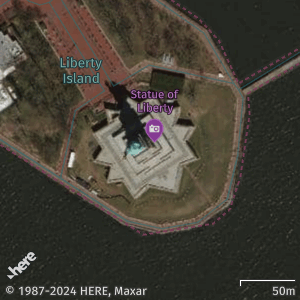
https://image.maps.hereapi.com/mia/v3/base/mc/center:40.6892,-74.0445;zoom=17/300x300/png8
?apiKey={YOUR_API_KEY}
&scaleBar=km
&style=explore.satellite.day
In the preceding example, the map center is set to the Statue of Liberty, New York:
40.6892is the latitude value-74.0445is the longitude value17is the zoom level value
-
Response:
Map center with radius
The radius parameter specifies a specific distance (in meters) extending from the center point. For example, you can use radius when highlighting a particular area or region around a point of interest. With this method, the API dynamically adjusts the zoom level to ensure the entire area within the radius is captured in the image.
-
Format:
center:{latitude},{longitude};radius={value} -
Sample request:
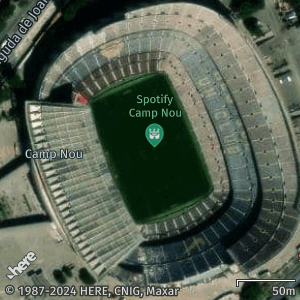
https://image.maps.hereapi.com/mia/v3/base/mc/center:41.3809,2.1228;radius=130/300x300/png8
?scaleBar=km
&style=explore.satellite.day
&apiKey={YOUR_API_KEY}
In the preceding example, the map center is set to the Camp Nou Stadium, Barcelona:
41.3809is the latitude value2.1228is the longitude value130is the value (in meters) for the radius from the center point
-
Response:
Best practices for center and zoom/radius parameters
- Ensure that the provided coordinates accurately represent the desired location for the map center. Any inaccuracies in the center point can lead to a misleading map display.
- When using the zoom method, select an appropriate zoom level that balances detail and visibility. Higher zoom levels offer finer detail but may limit the visible area, while lower zoom levels provide a broader view but may lack specific details.
- When using the radius method, adjust the radius to meet your needs. A large radius may clutter the map with excessive information, making it hard to identify specific points of interest. Conversely, a small radius may omit important geographic areas.
- Test and validate the chosen zoom level/radius size on various devices to ensure a consistent and optimal user experience on different devices and screen sizes.
Next steps
To explore other methods for positioning map images, see the following articles:
Updated 7 months ago