

Get started
Gain hands-on experience of working with the HERE Map Image API by configuring the HERE platform to process your first request.
Note
For more detailed information on HERE account setup, project creation, service linking, app registration, and authentication, see the Identity & Access Management Guide.
Get a HERE account
Obtain access to the HERE platform through your organization administrator's invitation or get started for free.
- If your company has already established a HERE platform organization, contact your organization admin who can invite you to join the organization.
- If your company hasn’t established a HERE platform organization yet, you can get started for free. For more information, see the HERE platform pricing.
Get an API key
Register an app and create a unique API key for authenticating your requests to the HERE platform.
Note
Linking the HERE Map Image API through projects is currently not supported.
- From the Launcher pane, select Access Manager.
- On the Access Manager page, click the Apps tab.
- On the Apps tab, click Register new app.
- In the Register new app window, provide the details for the new app:
- In the Name field, enter your app name.
- In the Default access to a project field, select No project.
- Click Register. The HERE platform creates a new app with a unique app ID.
- On your app page, generate up to two API keys:
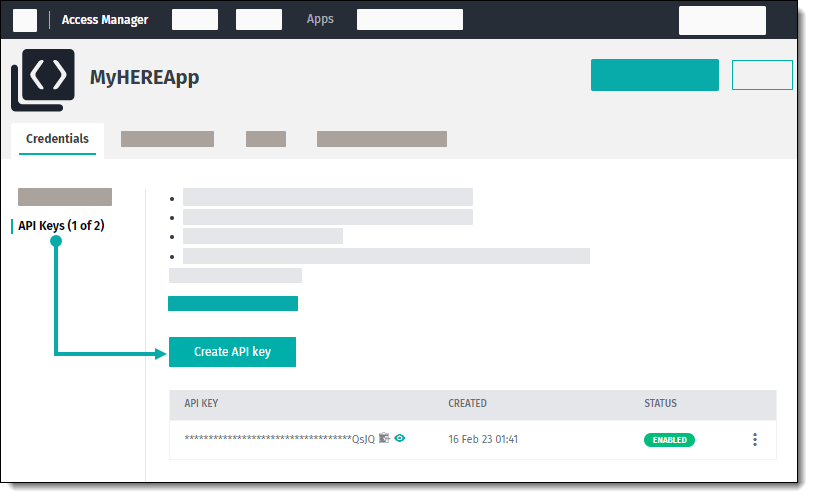
- On the Credentials tab, select API Keys and, then click Create API Key. The HERE platform displays the API key that you created with the
enabledstatus. - Optional: To add an extra API key, click Create API key.
- On the Credentials tab, select API Keys and, then click Create API Key. The HERE platform displays the API key that you created with the
The following figure provides a visual summary for generating API keys:
Obtain a basic map image
By constructing a request URL with the necessary information and making a GET request to that URL, you can retrieve a map image from the HERE Map Image API.
-
Construct a basic request that follows this pattern:
https://image.maps.hereapi.com/mia/v3/{resource}/{projection}/{view}/{width}x{height}/{format}?{parameter1=value}&{parameter2=value}&...Consider the following example:
https://image.maps.hereapi.com/mia/v3/base/mc/center:52.53086,13.38662;zoom=12/800x400/png
?apiKey={YOUR_API_KEY}
In the preceding example:
https://image.maps.hereapi.comis the base URL for accessing the HERE Map Image API./mia/v3/base/mcis thegetImageendpoint path indicating the specific map image request. The request uses the HERE Map Image API (mia/v3), specifies the map resource type asbase, and the projection asmc(Mercator). and the desired image dimensions as800pixels in width and400pixels in height./center:52.53086,13.38662;zoom=12specifies the coordinates of the center of the map image. In this case, the coordinates are latitude52.53086and longitude13.38662. Thezoom=12parameter value is the zoom level of the map./800x400/pngspecifies image dimensions and the file type.apiKey='YOUR_API_KEY'is the query parameter that you must replace with an actual API key. The API key serves as an authentication mechanism to ensure authorized access to the HERE Map Image API.
-
Send the request. For example, you can use the Postman tool.
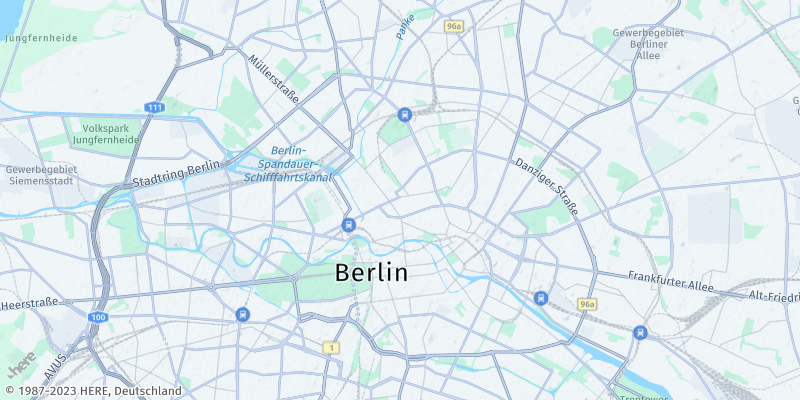
Result: A successful server response with code 200 includes a pre-rendered map image, as shown in the following example:
Next steps
- Depending on your use case, you can modify or extend query parameters to adjust the map to your specific business needs. For example, you can change the map style, the method with which to define the map coordinates, add more features to the map, introduce custom layers of information, and so on, as described in the further sections of this guide.
- For more advanced use cases involving the HERE Map Image API, see the
Tutorialssection of this guide. - For the terms and conditions covering this documentation, see the HERE Documentation License.
Updated 4 months ago