

Request your first tile
Gain hands-on experience of working with the HERE Raster Tile API by configuring the HERE platform to process your first request.
Note
For more detailed information on HERE account setup, project creation, service linking, app registration, and authentication, see the Identity & Access Management Guide.
Get a HERE account
Obtain access to the HERE platform through your organization administrator's invitation or get started for free.
- If your company has already established a HERE platform organization, contact your organization admin who can invite you to join the organization.
- If your company hasn’t established a HERE platform organization yet, you can get started for free. For more information, see the HERE platform pricing.
Get an API key
Register an app and create a unique API key for authenticating your requests to the HERE platform.
-
From the Launcher pane, select Access Manager.
-
On the Access Manager page, click the Apps tab.
-
On the Apps tab, click Create new app.
-
In the Create new app window, provide the details for the new app:
- In the App name field, enter your app name.
- Optional: In the App description field, provide a meaningful description of your app.
- Click Create app. The HERE platform creates a new app with a unique app ID.
-
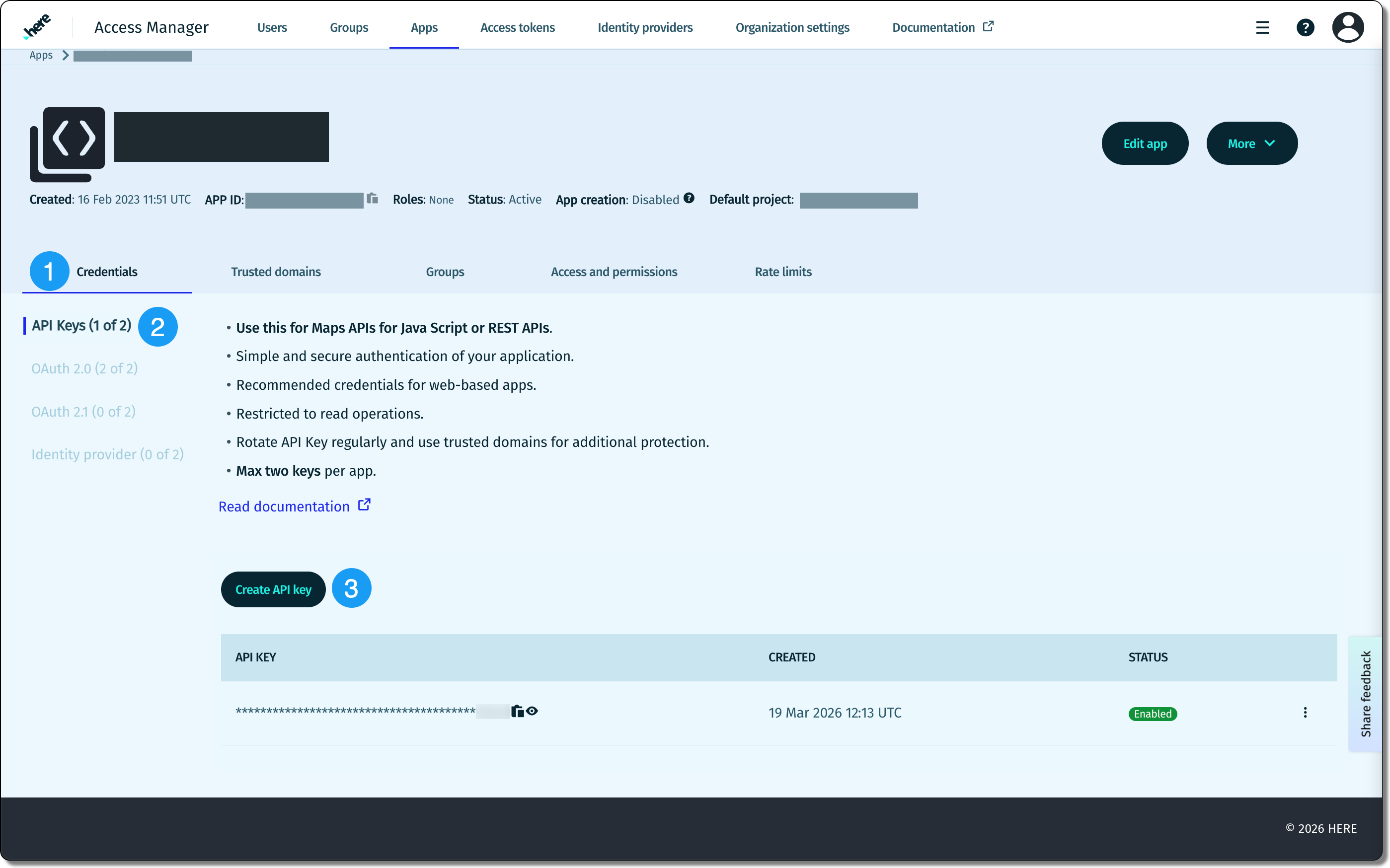
On your app page, generate up to two API keys:
- On the Credentials tab, select API Keys and, then click Create API Key. The HERE platform displays the API key that you created with the
enabledstatus. - Optional: To add an extra API key, click Create API key.
- On the Credentials tab, select API Keys and, then click Create API Key. The HERE platform displays the API key that you created with the
The following figure provides a visual summary for the process of generating API keys:
Obtain a tile
Request a raster map tile, which is a pre-rendered image of a specific area of a map.
-
Choose any location on which to center the tile, and then note down the location
latitudeandlongitudecoordinates. -
Convert the
latitudeandlongitudeintocolumnandrowraster tile grid coordinates. For more information, see Understand tile coordinates. -
Build a
GETrequest to obtain the tile that centers on the coordinates of the location that you chose. Consider the following request example:GET https://maps.hereapi.com/v3/base/mc/7/69/49/png?apiKey={YOUR_API_KEY}where:
baseis the layer available for the raster tile7is the zoom level69is thecolumngrid coordinate49is therowgrid coordinate
The sample request uses the API key for authentication. For more information on OAuth token authentication, see the Identity & Access Management Developer Guide.
-
Send the request. For example, you can use the Postman tool.
Result: A successful server response with code
200includes a pre-rendered raster tile image for the map grid coordinates that you requested, as shown in the following example: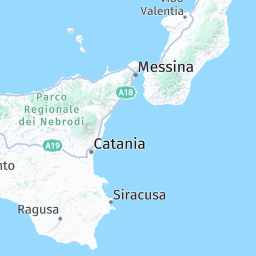
Next steps
- For information on how to customize tile appearance, see the API Reference and other sections of this guide.
- For information how to integrate raster tiles with web SDKs for map rendering, see Integrate raster maps with frameworks.
Updated 24 days ago