
Retrieve viewport data from the API response header
The HERE Map Image API offers data regarding the viewport and zoom level of the rendered image in the API response header. For example, the viewport data might become useful in the following scenarios:
- The overlay features solely dictate image positioning. For example, consider a scenario where you request an image with a polygon overlay. In such case, you do not have to specify any parameters related to map positioning and let the API automatically adjust the viewport coordinates so that the entire extent of the polygon is visible.
- The requested view extent does not fit the target aspect ratio of the map image. For instance, consider a scenario where you specify the image size as 200x200 pixels, but the requested bounding box isn't square. In such cases, the API extends the smaller dimension to achieve a square aspect ratio, leading to modifications in the actual viewport coordinates.
With the added insights into the image's actual position, integrating further geocoded information based on the viewport and zoom level becomes feasible.
Understand the viewport data format
The header fields that you can use to establish the exact bounding box of your map image (the map area that is currently being displayed to the user) have the following format:
Viewport-Bottom-Left: Lat: 41.87656468755008, Lon: -87.63296054906671
Viewport-Top-Right: Lat: 41.891346969040455, Lon: -87.61707626606835
Viewport-Zoom: 10.0
where:
- The
Viewport-Bottom-LeftandViewport-Top-Rightfields represent the geographical coordinates of two opposite (south-western and north-eastern) corners of a bounding box on a map. - The
Viewport-Zoomfield indicates the zoom level of the map viewport and complements the viewport coordinates by specifying the scale and level of detail for the displayed map area. This field can show fractional values.
Extract viewport data from the API response header
Learn how to extract viewport data from API response headers in by following a practical example.
Request a sample image
Consider the following sample HERE Map Image API request:
https://image.maps.hereapi.com/mia/v3/base/mc/overlay;padding=64/500x300/png8
?apikey={YOUR_API_KEY}
&overlay=point:51.5560359,-0.2850295;label=Departure|51.5560399,-0.2818;label=Arrival|size=large;text-color=#972E2B;text-outline-color=#FFF;outline-width=2
&overlay=line:BGos3qiDp2sRkCqsBT0eAsdAghCAwHToGTkIA0K;color=#00B0FFCC;outline-color=#1967D2CC;width=5
&style=lite.dayResponse:
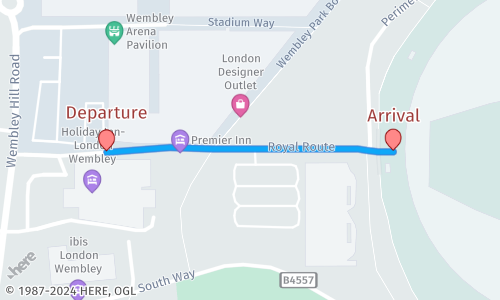
In this request, the API automatically determines the bounding box based on the overlay and padding parameters to return the following image:
Determine the image viewport coordinates and zoom level
To learn about the actual map position and zoom level, you need to obtain viewport data, as the original request does not specify those parameters, because, in this case, the API determines the viewport coordinates and zoom automatically. The following simple Python code snippet shows how to obtain the viewport data from the API response header, based on the request from the previous example.
import requests

# Make a GET request to the URL
response = requests.get('https://image.maps.hereapi.com/mia/v3/base/mc/overlay:padding=64/500x300/png?apiKey={YOUR_API_KEY}&overlay=point:51.5560359,-0.2850295;label=Departure|51.5560399,-0.2818;label=Arrival|size=large;text-color=#972E2B;text-outline-color=#FFF;outline-width=2&overlay=line:BGos3qiDp2sRkCqsBT0eAsdAghCAwHToGTkIA0K;color=#00B0FFCC;outline-color=%231967D2CC;width=5&style=lite.day')

# Check if the request was successful (status code 200)
if response.status_code == 200:
    # Extract a specific header value using the get() method
    viewport_bottom_left = response.headers.get('Viewport-Bottom-Left')
    viewport_top_right = response.headers.get('Viewport-Top-Right')
    viewport_zoom = response.headers.get('Viewport-Zoom')

    print(f'Viewport-Bottom-Left: {viewport_bottom_left}')
    print(f'Viewport-Top-Right: {viewport_top_right}')
    print(f'Viewport-Zoom: {viewport_zoom}')
else:
print(f'Error: Request failed with status code {response.status_code}')Result:
The code from the previous example returns the following values for viewport coordinates and zoom level of the map image:
Viewport-Bottom-Left: Lat: 51.55498722, Lon: -0.28623116
Viewport-Top-Right: Lat: 51.55708855, Lon: -0.28059831
Viewport-Zoom: 16.9296Hint
You can use the obtained viewport coordinates to request an image depicting the same area extent by leveraging the
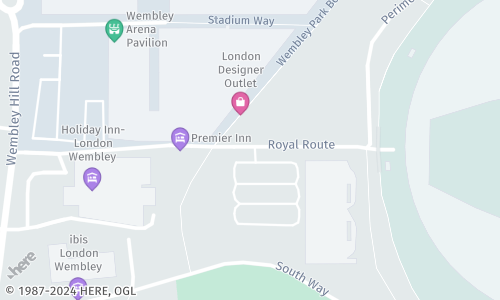
bboxparameter. This parameter allows you to specify the bounding box of the area, showing a precise alignment with the obtained viewport.https://image.maps.hereapi.com/mia/v3/base/mc/bbox:-0.28623116,51.55498722,-0.28059831,51.55708855/500x300/png ?apiKey={YOUR_API_KEY} &style=lite.dayThe response provides an image where the displayed area extent aligns with the obtained viewport coordinates:
Considerations
-
Due to the WebMercator projection, the viewport latitude is limited to:
-85.051132for the south-western (SW) bounding box corner85.051132for the north-eastern (NE) bounding box corner
-
When a bounding box crosses the anti-meridian, it can lead to longitude values that fall outside the standard range of [
-180,180] degrees. For example, longitudes likeSW: -181,NE: -179orSW: 179,NE: 181create two separate representations of the same area. To avoid this, the API adjusts the out-of-bounds values to the opposite side of the globe. This ensures a consistent representation, even though the south-western longitude might be greater than the north-eastern longitude (for example,SW: 179,NE: -179). The following figure shows a sample set of viewport coordinates for a map image whose bounding box crosses the anti-meridian: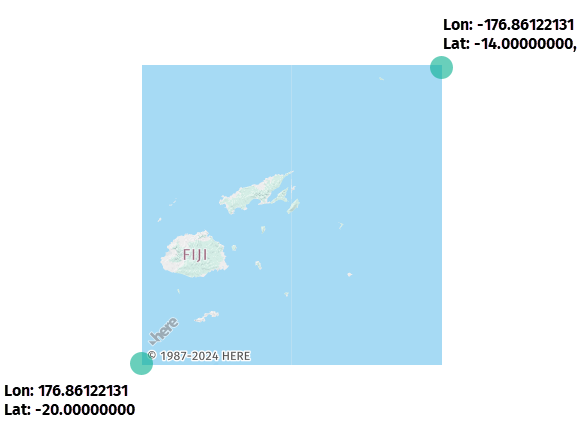
-
You cannot specify the longitude value as less than
-180degrees for the SW bounding box corner or more than180degrees for the NE bounding box corner.This scenario occurs when requesting a full-Earth map with the
bbox:-180,-90,180,90configuration.Note
In the HERE Map Image API, the format for bounding box specification takes the
longitudevalue as the first one in each coordinate pair:bbox:{southwest_longitude},{southwest_latitude},{northeast_longitude},{northeast_latitude}For more information, see Set map bounds.
-
In cases where the map image width is significantly greater than its height (for example,
700x200), the image might display an undefined or ambiguous region in grey, as shown in the following image: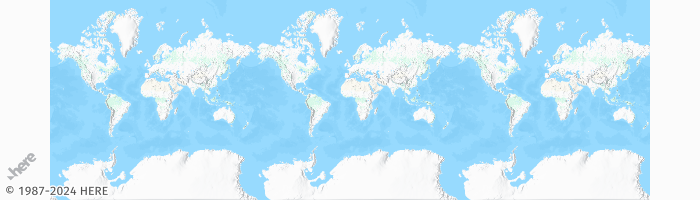
Next steps
- To explore all supported endpoints and parameters, see the API Reference.
- To gain more hands-on experience with the HERE Map Image API see the
Tutorialssection of this guide.
Updated 7 months ago