

Get started
Gain hands-on experience of working with the HERE Vector Tile API by configuring the HERE platform to process your first request.
Note
For more detailed information on HERE account setup, project creation, service linking, app registration, and authentication, see the Identity & Access Management Guide.
Get a HERE account
Obtain access to the HERE platform through your organization administrator's invitation or get started for free.
- If your company has already established a HERE platform organization, contact your organization admin who can invite you to join the organization.
- If your company hasn’t established a HERE platform organization yet, you can get started for free. For more information, see the HERE platform pricing.
Get an API key
Register an app and create a unique API key for authenticating your requests to the HERE platform.
- From the Launcher pane, select Access Manager.
- On the Access Manager page, click the Apps tab.
- On the Apps tab, click Register new app.
- In the Register new app window, provide the details for the new app:
- In the Name field, enter your app name.
- In the Default access to a project field, define the scope of the new app:
- To allow your app to access all location service APIs, select No project.
- To restrict your application to access only the location service APIs that a specific project includes, select that project from the list.
- Click Register. The HERE platform creates a new app with a unique app ID.
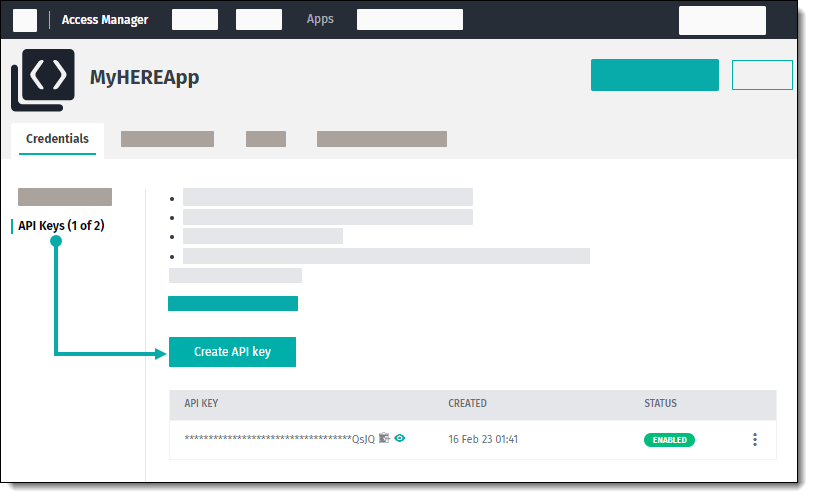
- On your app page, generate up to two API keys:
- On the Credentials tab, select API Keys and, then click Create API Key. The HERE platform displays the API key that you created with the
enabledstatus. - Optional: To add an extra API key, click Create API key.
- On the Credentials tab, select API Keys and, then click Create API Key. The HERE platform displays the API key that you created with the
The following figure provides a visual summary for generating API keys:
Send a sample request
Make an HTTP GET request to the API endpoint. The base HERE Vector Tile API URL has the following pattern:
https://vector.hereapi.com/v2/vectortiles/base/mc/{z}/{x}/{y}/omv?apikey=APIKEY_HERE
where:
{z}is the tile zoom level{x}specifies the horizontal position of the tile on the map{y}specifies the vertical position of the tile on the map
Sample request URL:
https://vector.hereapi.com/v2/vectortiles/base/mc/12/2200/1343/omv?apikey=APIKEY_HEREReplace APIKEY_HERE with your actual HERE API key. This URL retrieves the vector tile for zoom level 12, with tile coordinates x=2200 and y=1324.
Result:
- The response status code
200indicates that the HERE platform processed the request successfully. - Other response status codes (for example,
400) might indicate an issue with the request being sent by the client. For the list of response codes and what they might indicate, see the API Reference.
Next steps
Render vector maps by integrating the HERE Vector Tile API URL into a map rendering web SDK of your choice, for example, the HERE Maps API for JavaScript. For sample integrations, see Examples.
Updated 5 months ago