

Overlay proximity circles on a map image
Proximity circles provide valuable information regarding the reliability of a reported or estimated device or user position.
When a circle is displayed around the reported position, users can understand that the actual location may vary within the circle due to technological limitations or factors affecting positioning accuracy. This transparency assists in decision-making and ensures safer navigation experiences.
Explore the HERE Map Image API v3 with this interactive example. Test parameters and see real-time results:
Try It OutTo facilitate rendering of the estimated position together with an proximity circle, you can use the following map features:
- A
cpmarker for showing the most likely position. You can adjust this marker by changing the text color, outline, or size. - A
circlemarker at the same position, showing the extent of the proximity circle.
Before you begin
- Obtain an API Key: If you do not have one already, sign up for a HERE platform account and generate an API key. For more information, see Get started with the HERE Map Image API.
- Understand the specification of the GeoJSON format and the corresponding compact overlay encoding that you can use as an alternative for GeoJSON.
Render a proximity circle
Create a GeoJSON or custom style overlay to display an proximity circle.
The following snippet shows sample input for a GeoJSON overlay displaying an proximity circle:
{
  "type": "FeatureCollection",
  "features": [
    {
      "type": "Feature",
      "geometry": {
        "type": "Point",
        "coordinates": [
          2.17512,
          41.37253
        ]
      },
      "properties": {
        "style": "circle",
        "color": "#0F05",
        "width": "25m"
      }
    },
    {
      "type": "Feature",
      "geometry": {
        "type": "Point",
        "coordinates": [
          2.17512,
          41.37253
        ]
      },
      "properties": {
        "icon": "cp",
        "label": "You",
        "size": "large"
      }
    }
  ]
}
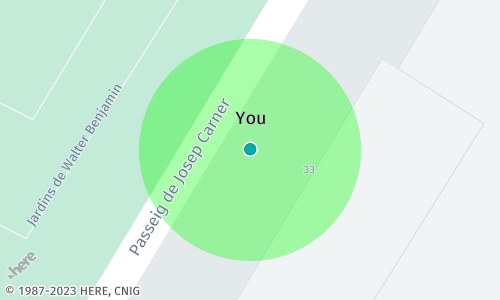
In the preceding example, the initial feature places a circular marker at a designated location. This circular marker illustrates the extent of proximity linked to a particular geographical point or area. The second marker, of type cp, is the central point that signifies the most probable location.
The following example shows a sample API request containing the GeoJSON features from the preceding example, expressed according to the custom overlay encoding specification:
https://image.maps.hereapi.com/mia/v3/base/mc/center:41.372530,2.175120;zoom=20/500x300/png8
?apikey={YOUR_API_KEY}
&overlay=point:41.37253,2.17512;width=25m;style=circle;color=%230F05
&overlay=point:41.37253,2.17512;icon=cp;label=You;size=largeHint
In case you display a single proximity circle, use the
centerparameter together withzoomorradiusparameters to explicitly adjust the map zoom or the bounding box to your needs.In case of multiple proximity circle markers, the HERE Map Image API automatically adjusts the zoom to accommodate all markers within the map bounds (unless you specify the
centerandzoom/radiusparameters).
Result: The following image provides the server response based on the preceding sample request showing a map image with an proximity circle around a marker:
Next steps
- To explore other supported endpoints and parameters, see the API Reference.
- To gain more hands-on experience with the HERE Map Image API see the
Tutorialssection of this guide.
Updated 4 months ago