

Position map based on overlay
To automatically determine the map view position, you can use a custom overlay based on GeoJSON geometry types, either in the dedicated GeoJSON format or through custom overlay encoding. By adopting this approach, the map adjusts to encompass the extent of the overlay features, guaranteeing visibility of all features within the specified map size.
Depending on your use case, you can use any of the following formats for the {view} path variable:
overlay: Use only the overlay features to position the map view.overlay:padding={padding}: Use the overlay features together with additional space to prevent them from being cut or obscured by map edges.overlay:radius={value};padding={value}: Use overlay features with a distance extending from the map center to better control the level of detail.overlay:zoom={zoom};padding={value}: Use overlay features with a specific zoom to better control the level of detail.
For this map view positioning method, the following considerations and restrictions apply:
-
Only the
overlayview parameter is mandatory. -
The
radiusandzoomparameters are mutually exclusive. -
In addition to the
overlayview parameter in the request path, you must specify thegeojsonoroverlayparameter defining the overlay content in the following format:- GeoJSON:
https://image.maps.hereapi.com/mia/v3/base/mc/overlay/png8?geojson=... - Custom overlay encoding:
https://image.maps.hereapi.com/mia/v3/base/mc/overlay/png8?overlay=...
- GeoJSON:
Sample request #1:
Consider the following example of the geojson parameter:
{
  "type": "FeatureCollection",
  "features": [
    {
      "type": "Feature",
      "geometry": {
        "type": "MultiPoint",
        "coordinates": [
          [
            -0.076345,
            51.504107
          ],
          [
            -0.074451,
            51.506892
          ]
        ]
      },
      "properties": {
        "size": "large"
        "label": "$alpha"
      }
    }
  ]
}
The following code snippet combines the GeoJSON objects from the preceding example with the overlay parameter in a sample API request to set the map view:
https://image.maps.hereapi.com/mia/v3/base/mc/overlay:padding=44/300x300/png8
?apikey={YOUR_API_KEY}
&geojson={"type":"FeatureCollection","features":[{"type":"Feature","geometry":{"type":"MultiPoint","coordinates":[[-0.076345,51.504107],[-0.074451,51.506892]]},"properties":{"size":"large","label":"$alpha"}}]}Response:
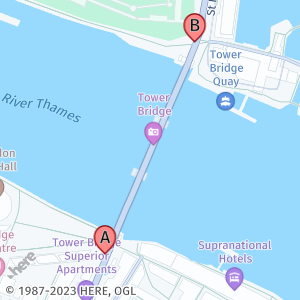
Sample request #2:
The following example uses the custom overlay encoding expressed as part of the overlay parameter:
overlay=point:40.748333,-73.985278;size=large;label=Empire State Building
The following snippet provides the previous overlay parameter value as part of a sample request. This request uses the overlay features together with the zoom parameter (in this case, 17) to assume more control over the level of detail that the image displays around the single overlay feature.
https://image.maps.hereapi.com/mia/v3/base/mc/overlay:zoom=17/300x300/png
?apiKey={YOUR_API_KEY}
&features=pois:disabled
&style=explore.satellite.day
&overlay=point:40.748333,-73.985278;size=large;label=Empire State BuildingResponse:
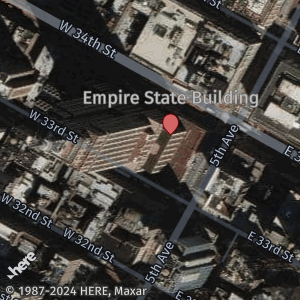
Best practices for the overlay parameter
- Ensure that the overlay contains accurate geographic data, including correct coordinates and feature extent. Any inaccuracies or errors in the coordinate data can result in errors in map positioning or incomplete representations.
- Verify that the automatic determination of the map view based on the overlay data accurately captures the entire extent of the features that you want to display.
- Always consider adding padding around overlay features. This ensures that overlay features near the edge of the map aren't cut off or partially hidden, providing a better visual representation of the data.
Next steps
To explore other methods for positioning map images, see the following articles:
Updated 7 months ago