

Add layers of information by using GeoJSON
To enhance the level of detail and customization in your maps, you can use GeoJSON to add custom layers of information. GeoJSON enables you to define and display geographic features such as points, lines, and polygons with associated style attributes. By incorporating GeoJSON into your mapping workflow, you can enrich your maps with additional data layers, providing valuable context and insights to your audience.
In this tutorial, the objective is to learn how to set a GeoJSON overlay for an example route by utilizing different types of geometries. The tutorial explores the process of creating a visually appealing and informative map overlay by incorporating various geometric shapes and features.
Before you begin
Understand the format, behavior, and style specification for GeoJSON overlays in HERE Map Image API. For more information, see GeoJSON format.
Display markers with labels
You can use markers to represent different points on a map, including the user's current location (or starting point) and the destination point in route representation. These labeled markers offer users instant orientation in relation to the map.
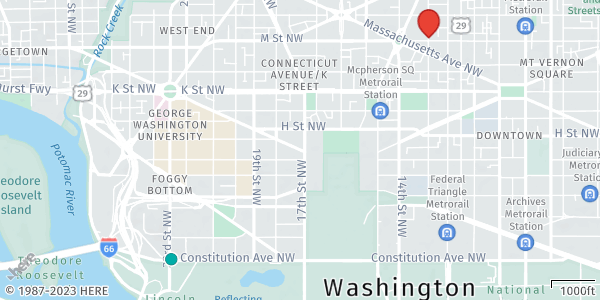
The following GeoJSON provides information about the locations and styling for the start and destination points:
{
  "type": "FeatureCollection",
  "features": [
    {
      "type": "Feature",
      "properties": {
        "marker":"cp",
        "size": "large"
      },
      "geometry": {
        "coordinates": [-77.050046,38.892132], // Starting point
        "type":"Point"
      }
    },
    {
      "type": "Feature",
      "properties": {
        "color":"#EA4335",
        "outline-color":"#A60D0D",
        "outline-width":"1px",
        "size":"large"
      },
      "geometry": {
        "coordinates": [-77.029591,38.905713], // Destination point
        "type":"Point"
      }
    }
  ]
}
Each GeoJSON feature includes properties that specify the label, text color, text outline color, and outline width. The geometry object specifies the type as Point and provides the coordinates for each point.
Sample request #1:
To render these features on a static map image, include this GeoJSON object in the geojson parameter of a HERE Map Image API request, as shown in the following example:
https://image.maps.hereapi.com/mia/v3/base/mc/overlay:padding=64/600x300/png8
?apikey={YOUR_API_KEY}
&scaleBar=mi
&style=lite.day
&features=pois:disabled
&geojson={"type":"FeatureCollection","features":[{"type":"Feature","properties":{"marker":"cp","size":"large"},"geometry":{"coordinates":[-77.050046,38.892132],"type":"Point"}},{"type":"Feature","properties":{"color":"%23EA4335","outline-color":"%23A60D0D","outline-width":"1px","size":"large"},"geometry":{"coordinates":[-77.029591,38.905713],"type":"Point"}}]}Response:
The API returns the following map image, displaying labelled markers, as specified in the geojson parameter:
Note
Consider the following points about the API request and the resulting image from the preceding example:
- The image employs the
lite.daystyle, which features a minimalist design that reduces the emphasis on road networks. This style is ideal as a background for GeoJSON overlays.- To ensure markers are fully visible and not partially obstructed, the
paddingparameter adds extra space around the overlay features.- When working with GeoJSON overlays, you do not need to specify the map position using the
center,bbox, orboundsparameters. The API automatically determines the camera position and zoom level based on the coordinates of the GeoJSON features.
Display markers with auto-labels
Through automatically labelled markers, users can quickly distinguish between different locations and make informed decisions while navigating. For example, markers with auto-labels can represent various points of interest or planned stops along the route.
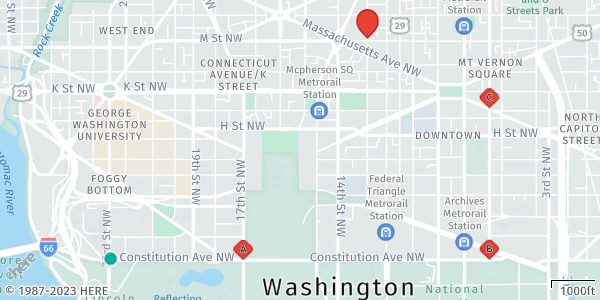
In HERE Map Image API you can render such markers by using Arabic numerals (1, 2, 3, and so on) or capital Latin letters (A, B, C, and so on). These labeling options provide a clear and systematic way to differentiate and identify markers in the order they appear in the GeoJSON data.
The following GeoJSON provides information about the locations, labels, and styling for the stopover markers:
{
  "type": "FeatureCollection",
  "features": [
    {
      "type": "Feature",
      "geometry": {
        "type": "MultiPoint",
        "coordinates": [
          [-77.039488,38.892101],
          [-77.019919,38.892124],
          [-77.019913,38.901495]
        ]
      },
      "properties": {
        "label":"$alpha",
        "marker":"diamond",
        "size": "small",
        "color": "#EA4335",
        "outline-color": "#A60D0D",
        "outline-width": 1
      }
    }
  ]
}Note
The
geometryobject in the GeoJSON uses theMultiPointtype to store the coordinates for all the auto-labeled markers. This efficient representation allows for compact storage of multiple points in a single object.
Sample request #2:
The following API request combines GeoJSON objects to add auto-labelled markers in addition to labelled markers from the previous example:
https://image.maps.hereapi.com/mia/v3/base/mc/overlay:padding=64/600x300/png8
?apikey={YOUR_API_KEY}
&scaleBar=mi
&style=lite.day
&features=pois:disabled
&geojson={"type":"FeatureCollection","features":[{"type":"Feature","properties":{"marker":"cp","size":"large"},"geometry":{"coordinates":[-77.050046,38.892132],"type":"Point"}},{"type":"Feature","properties":{"color":"%23EA4335","outline-color":"%23A60D0D","outline-width":"1px","size":"large"},"geometry":{"coordinates":[-77.029591,38.905713],"type":"Point"}},{"type":"Feature","geometry":{"type":"MultiPoint","coordinates":[[-77.039488,38.892101],[-77.019919,38.892124],[-77.019913,38.901495]]},"properties":{"label":"$alpha","marker":"diamond","size":"small","color":"%23EA4335","outline-color":"%23A60D0D","outline-width":1}}]}Response:
The API returns the following map image that displays auto-labelled markers that represent stopovers between the start and destination markers:
Display circle markers
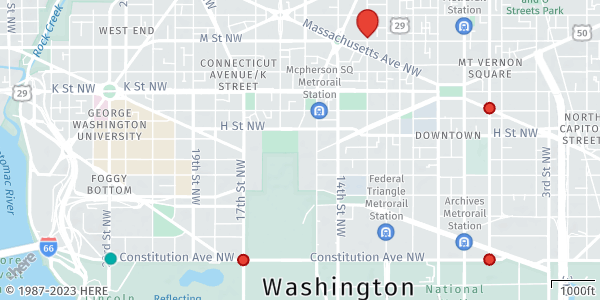
Alternatively, you can use circle markers to enhance the visual representation of point features, for example, in use cases in which marker labels are not important. In the following GeoJSON object, circle markers replace the auto-labelled markers from the previous example to provide another way of representing stopover markers:
{
  "type": "FeatureCollection",
  "features": [
    {
      "type": "Feature",
      "geometry": {
        "type": "MultiPoint",
        "coordinates": [
          [-77.039488,38.892101],
          [-77.019919,38.892124],
          [-77.019913,38.901495]
        ]
      },
      "properties": {
        "style":"circle",
        "width":"60m",
        "color": "#EA4335",
        "outline-color": "#A60D0D",
        "outline-width":"2px"
      }
    }
  ]
}
Sample request #3:
The following request contains a GeoJSON object adjusted to display circle markers instead of the auto-labelled ones:
https://image.maps.hereapi.com/mia/v3/base/mc/overlay:padding=64/600x300/png8
?apikey={YOUR_API_KEY}
&scaleBar=mi
&style=lite.day
&features=pois:disabled
&geojson={"type":"FeatureCollection","features":[{"type":"Feature","properties":{"marker":"cp","size":"large"},"geometry":{"coordinates":[-77.050046,38.892132],"type":"Point"}},{"type":"Feature","properties":{"color":"%23EA4335","outline-color":"%23A60D0D","outline-width":"1px","size":"large"},"geometry":{"coordinates":[-77.029591,38.905713],"type":"Point"}},{"type":"Feature","geometry":{"type":"MultiPoint","coordinates":[[-77.039488,38.892101],[-77.019919,38.892124],[-77.019913,38.901495]]},"properties":{"style":"circle","width":"60m","color":"%23EA4335","outline-color":"%23A60D0D","outline-width":"2px"}}]}Response:
The API renders the following circle markers, based on the GeoJSON settings:
Display lines
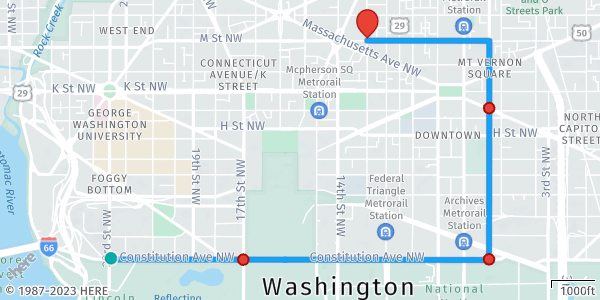
In GeoJSON, lines are commonly used to represent routes. A line in GeoJSON is defined as a LineString or MultiLineString geometry type. It consists of an array of coordinates that define the path of the route.
The following GeoJSON object represents a route, connecting the stopover markers from previous examples, that a user needs to follow from the start to the destination:
{
  "type": "FeatureCollection",
  "features": [
    {
      "type": "Feature",
      "properties": {
        "color": "#00B0FFCC",
        "width": 4,
        "outline-color": "#1967D2CC",
        "outline-width": 1
      },
      "geometry": {
        "coordinates": [
          [
            [-77.050049, 38.892113],
            [-77.019921, 38.892080],
            [-77.019896, 38.905658],
            [-77.029616, 38.905673]
          ]
        ],
        "type": "MultiLineString"
      }
    }
  ]
}
In this GeoJSON representation, the MultiLineString geometry indicates multiple line segments. The coordinates property contains an array of latitude and longitude coordinate pairs that define each road segment.
Additionally, the object properties include styling information for each line, such as the color, width, outline color, and outline width. These properties can be customized according to your preferences to achieve the intended visual representation of the route.
Sample request #4:
The following request incorporates the MultiLineString feature representing the route from the start to the destination point, while connecting the stopover markers:
https://image.maps.hereapi.com/mia/v3/base/mc/overlay:padding=64/600x300/png8
?apikey={YOUR_API_KEY}
&scaleBar=mi
&style=lite.day
&features=pois:disabled
&geojson={"type":"FeatureCollection","features":[{"type":"Feature","properties":{"marker":"cp","size":"large"},"geometry":{"coordinates":[-77.050046,38.892132],"type":"Point"}},{"type":"Feature","properties":{"color":"%23EA4335","outline-color":"%23A60D0D","outline-width":"1px","size":"large"},"geometry":{"coordinates":[-77.029591,38.905713],"type":"Point"}},{"type":"Feature","geometry":{"type":"MultiPoint","coordinates":[[-77.039488,38.892101],[-77.019919,38.892124],[-77.019913,38.901495]]},"properties":{"style":"circle","width":"60m","color":"%23EA4335","outline-color":"%23A60D0D","outline-width":"2px"}},{"type":"Feature","properties":{"color":"%2300B0FFCC","width":4,"outline-color":"%231967D2CC","outline-width":1},"geometry":{"coordinates":[[[-77.050049,38.892113],[-77.019921,38.89208],[-77.019896,38.905658],[-77.029616,38.905673]]],"type":"MultiLineString"}}]}Response:
The resulting map image now displays a route connecting the start and destination markers, while passing the stopover markers:
Next steps
- To explore other supported endpoints and parameters, see the API Reference.
- To gain more hands-on experience with the HERE Map Image API see the
Tutorialssection of this guide.
Updated 4 months ago