

Adding Missing Traffic(Flow and Incidents) and Satellite Toggles to HERE Maps v3.1 Default UI (WebGL)
When using the HERE Maps API v3.1 with the WebGL rendering engine and initializing the default UI with platform.createDefaultLayers(), the standard layer switcher control (accessed via the map settings icon, see image below)
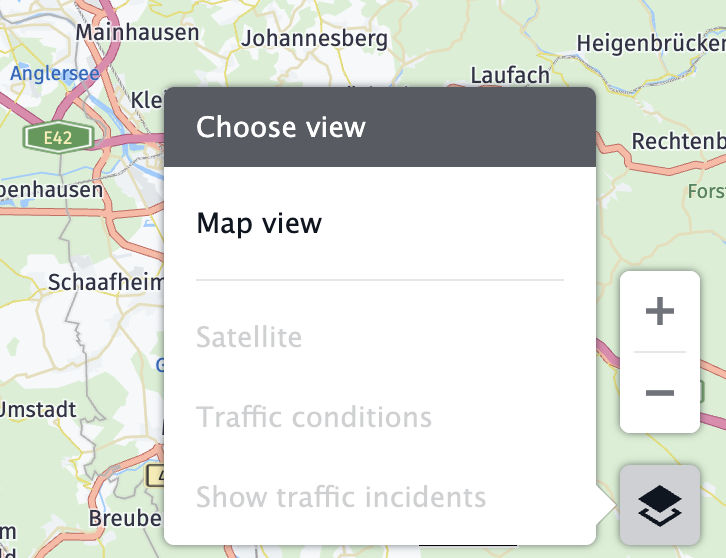
, typically includes options for switching base map types (Map, Satellite, etc.) but does not automatically include checkboxes or toggles for controlling the vector Traffic Flow or Traffic Incident layers.
Users need a straightforward way to show or hide these specific traffic layers independently using UI controls.
Solution:
Implement a separate, custom HTML/JavaScript UI control panel alongside the default HERE UI. This custom panel will contain the specific checkboxes needed to manage the visibility of the flowLayer and incidentLayer.
5. Implementation Steps:
Initialize Map and Layers
Set up the H.service.Platform and H.Map as usual, likely using defaultLayers.vector.normal.map as the base.
Create the specific traffic layers using platform.getTrafficVectorTileService:
<br /> // --- Traffic Layer Setup ---try { // Note: Style URLs might need adjustment based on specific default layer structure let urlStyleFlow = defaultLayers.vector.traffic.map.getProvider().getStyle().getBaseUrl(); let styleTraffFlow = new H.map.render.webgl.Style(urlStyleFlow); let flowService = platform.getTrafficVectorTileService({ layer: 'flow' }); var flowLayer = flowService.createLayer(styleTraffFlow); // Store globally let urlStyleIncidents = urlStyleFlow; // Fallback style try { // Attempt to get specific incident style URL if (/* Check structure exists */ defaultLayers.vector.trafficincidents?.map?.getProvider?.()?.getStyle?.()?.getBaseUrl) { let specificUrl = defaultLayers.vector.trafficincidents.map.getProvider().getStyle().getBaseUrl(); if (specificUrl) urlStyleIncidents = specificUrl; } } catch(e) {/* Use fallback */} let styleTraffIncidents = new H.map.render.webgl.Style(urlStyleIncidents); let incidentService = platform.getTrafficVectorTileService({ layer: 'incident' }); var incidentLayer = incidentService.createLayer(styleTraffIncidents); // Store globally} catch (error) { console.error("Error setting up Traffic Layers:", error); alert("Could not create traffic layers."); // Handle error appropriately}<br />
Also create other layers needed, like the satelliteLayer for base map switching.
Create Custom UI HTML Structure:
Define a function to dynamically create the HTML elements for the control panel.
<br /> function createCustomUIControl() { const controlDiv = document.createElement('div'); controlDiv.className = 'custom-ui-control'; // Style this class with CSS controlDiv.innerHTML = ` Traffic Layers Flow Incidents <br /><br /> ---<br /><br /> Base Map Map Satellite `; // Add Event Listeners (see next step) // ... return controlDiv;}<br />
Add CSS to style and position the .custom-ui-control div appropriately on the page (e.g., using position: absolute).
Implement Custom UI Logic (Event Listeners):
Inside the createCustomUIControl function (or separately), attach change event listeners to the checkboxes and radio buttons.
Checkbox Listeners: Directly call map.addLayer() or map.removeLayer() based on the checkbox state.
<br /> // Within createCustomUIControl or similar setup function:const chkFlow = controlDiv.querySelector('#toggleTrafficFlow');const chkIncidents = controlDiv.querySelector('#toggleTrafficIncidents');chkFlow.addEventListener('change', function() { if (this.checked) { if (flowLayer) { try { map.addLayer(flowLayer); } catch(e){} } } else { if (flowLayer) { try { map.removeLayer(flowLayer); } catch(e){} } }}`);chkIncidents.addEventListener('change', function() { if (this.checked) { if (incidentLayer) { try { map.addLayer(incidentLayer); } catch(e){} } } else { if (incidentLayer) { try { map.removeLayer(incidentLayer); } catch(e){} } }}`);<br />
Radio Button Listeners: Call map.setBaseLayer() to switch between the vector and satellite base layers.
<br /> // Within createCustomUIControl or similar setup function:const radioVector = controlDiv.querySelector('#baseVector');const radioSatellite = controlDiv.querySelector('#baseSatellite');radioVector.addEventListener('change', function() { if (this.checked) { try { map.setBaseLayer(defaultLayers.vector.normal.map); } catch(e){} }}`);radioSatellite.addEventListener('change', function() { if (this.checked) { try { if (satellTileLayer) { map.setBaseLayer(satellTileLayer); } else { alert("Satellite layer unavailable."); updateCustomUIState(); } } catch(e){ updateCustomUIState(); } }}`);<br />
Add Custom UI to Page:<br />const customControlElement = createCustomUIControl();document.body.appendChild(customControlElement);<br />
(Recommended) Synchronize UI State:
To ensure the checkboxes accurately reflect the layer state (especially if layers might be added/removed by other means), implement a function to check the map's current layers and update the checkbox checked status.
Helper function layerExists: Use map.getObjects() to get an array of map objects and loop through it.<br />function layerExists(mapInstance, layerToCheck) { if (!layerToCheck || !mapInstance) return false; let layerFound = false; try { const objects = mapInstance.getObjects(); for (let i = 0; i < objects.length; i++) { if (objects[i] === layerToCheck) { layerFound = true; break; } } } catch (e) { return false; } return layerFound;}<br />updateCustomUIState Function: Uses layerExists to set checkbox states.<br />function updateCustomUIState() { const controlDiv = document.querySelector('.custom-ui-control'); // ... (get checkbox/radio elements) ... try{ chkFlow.checked = layerExists(map, flowLayer); chkIncidents.checked = layerExists(map, incidentLayer); // ... (update radio buttons based on map.getBaseLayer()) ... } catch(e) {/*ignore errors during UI update*/}}`<br />
Trigger Updates: Call updateCustomUIState() once initially. Add event listeners to the map's layer collection (map.getLayers().addEventListener('add', ...) and 'remove', ...) to call updateCustomUIState() whenever a relevant layer is added or removed, ensuring the UI stays in sync. Also call it in the baselayerchange listener.
For full snippet, please see the attached.
Updated 23 days ago