

Tour Planning - How to use the demo tool
Overview
HERE's Tour Planning demo site allows customers to easily configure settings, upload JSON files, plan a tour, visualise the data, and download the results. This guide will walk you through the key functions and steps to effectively use the tool.
https://demo.tourplanning.ext.here.com
1. Configuration
Before using the tool, you'll need to configure essential settings to tailor the experience to your needs.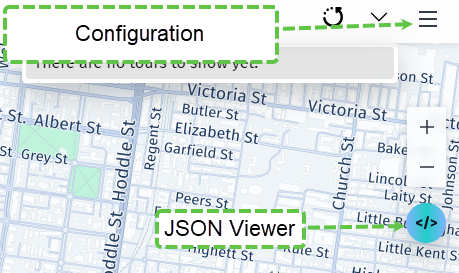
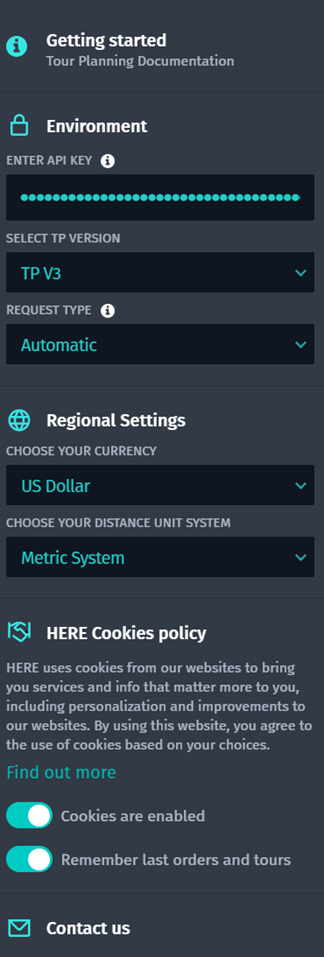
Configuration options:
API Key: enter your unique API Key to authenticate and access the tool, If you don't have an API key yet, you can get one by following these instructions
Version: select the appropriate Tour Planning API version you're using, currently it's TP V3.
Request Type: you can specify the request type, we recommend using synchronous requests for smaller jobs (limit of 250 jobs and 35 vehicle types), and andasynchronous requests for larger problems.
Regional Settings: customise regional settings, such as currency and the distance Unit system.
Once these settings are adjusted, you'll be ready to move on to inputting and visualising your data.
2. Input Data ( Manual or JSON Upload)
Manual Input: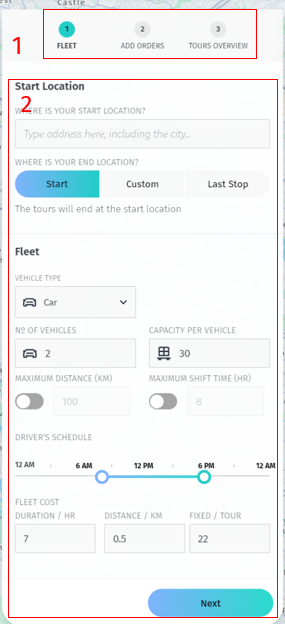
Steps:
+ Fleet Profile: specify details like start location, operational hours, vehicle capacity, and other fleet parameters.
+ Order Details: Input stops, service times, and capacity needs for each stop.
+ After entering the data, proceed to click Plan tour to generate the service route.
JSON Viewer
The site includes a built-in JSON Viewer, allowing you to upload JSON files that contain the input data.
Steps:
+ Navigate to the JSON Viewer on the top right
+ Click Upload JSON and select the file from your local system.
+ The tool will parse and display the data, allowing you to review it on the map.
+ After uploading the data, click Plan Tour to generate the service route, the planned route will be displayed on the map once ready.
3. Map Settings for Custom Visualisation
The tool automatically generates a visual route on a map to help you see the planned service tour, click the icon in the above image to enable Map Settings.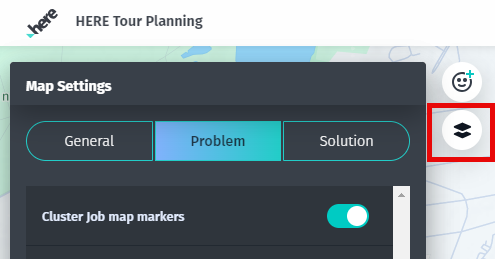
Show Stops: Toggle on and off to display each service stop on the route.
Cluster Stops map Markers: Enable this to group close stops together for a cleaner map view.
etc.
4. Download Results
After planning and visualising the tour, you can download the results for future use, in JSON Viewer, choose the solutions from the dropdown list , and click Download to download the JSON file.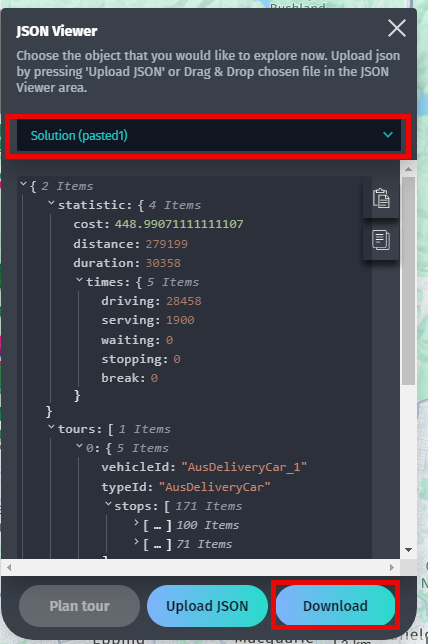
5. Troubleshooting and Support
If you encounter any issues, please ensure:
Your API Key is correctly entered and active.
The JSON file is properly formatted.
Map settings are configured correctly for optimal visualization.
For further assistance, please contact our support team.
Updated 23 days ago