

How to Raise a Technical Support Ticket on HERE Platform
Overview
This article explains how to create a Technical Support ticket through the HERE Support Portal. It guides you through the required steps, ticket categories, and severity levels to ensure your issue is submitted correctly.
Intended Audience
This article is intended for:
- HERE Platform users
- Developers and customers using HERE products and services
- Users with an active HERE support plan
Prerequisites
Before creating a support ticket, ensure that: - You have access to the HERE Platform Portal
- You are logged in with valid realm credentials
- You have an active support plan (required for Technical Support tickets)
Steps to Raise a Technical Support Ticket
1. Log in to HERE Platform
Access the HERE Platform Portal using your credentials.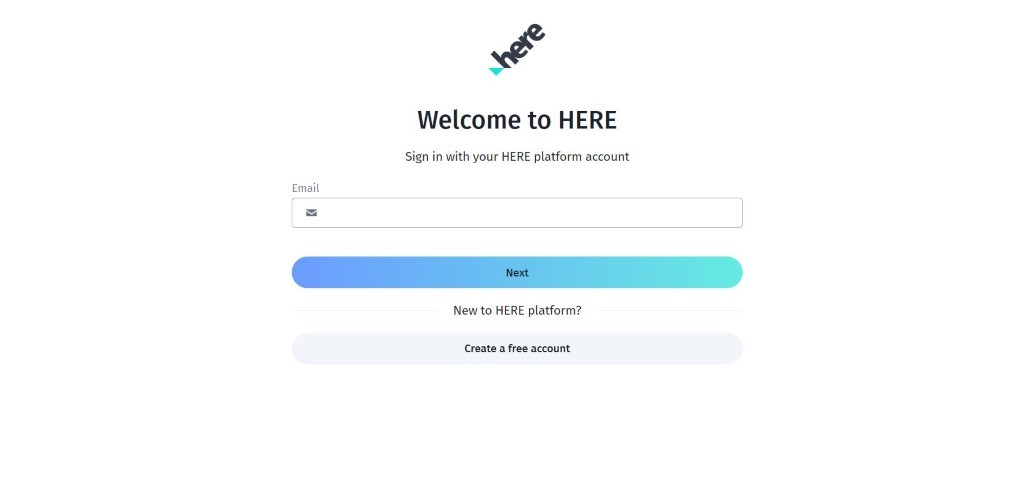
2. Open Support Portal
Click on Go To Support Portal.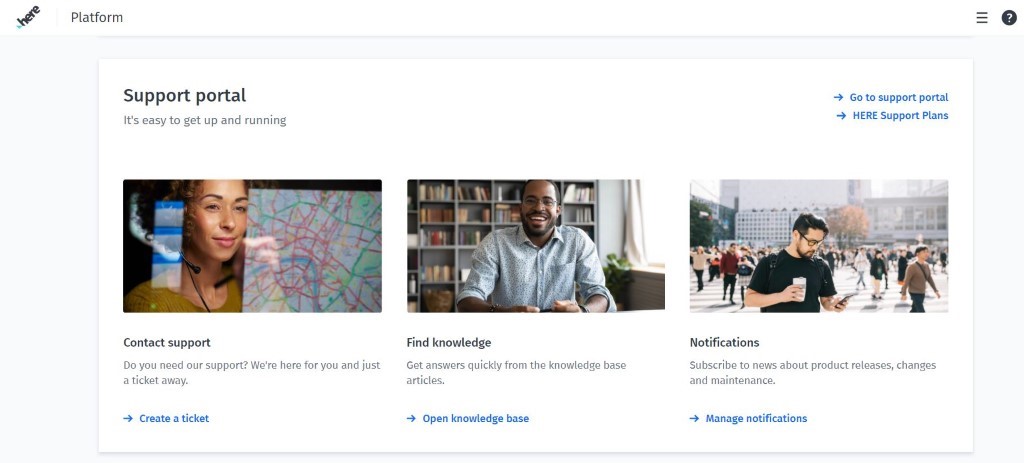
3. Create a New Ticket
On the Support Portal page, select Create Support Ticket.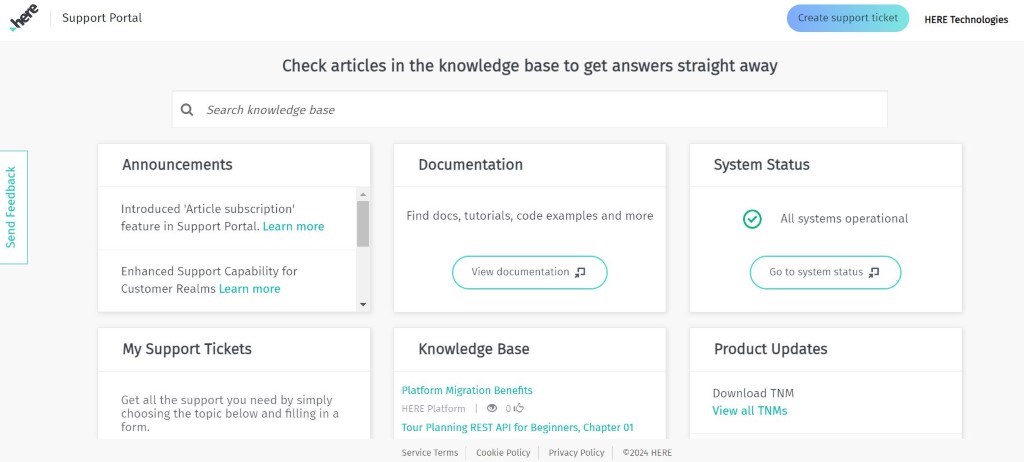
4. Open Support Request Form
The Support Request page will be displayed.
Select Request Type
Choose the appropriate Category:
Technical Support (requires support plan)
Account Support
Legal Support
For technical issues:
+ Select Technical Support
+ Choose Technical Help as the ticket type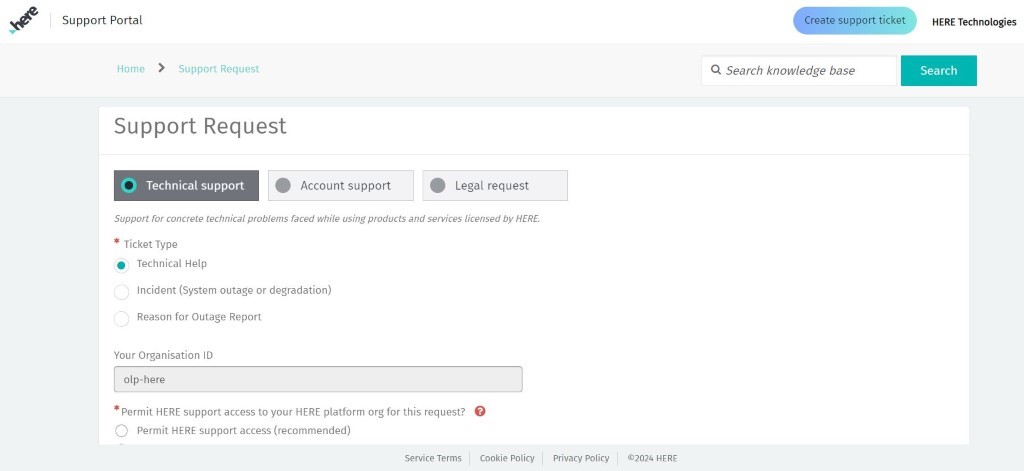
Provide Access and Product Details
1. Permit Support Access (Recommended)
Enable “Permit HERE support access” to allow support engineers to access your HERE organization for faster troubleshooting.
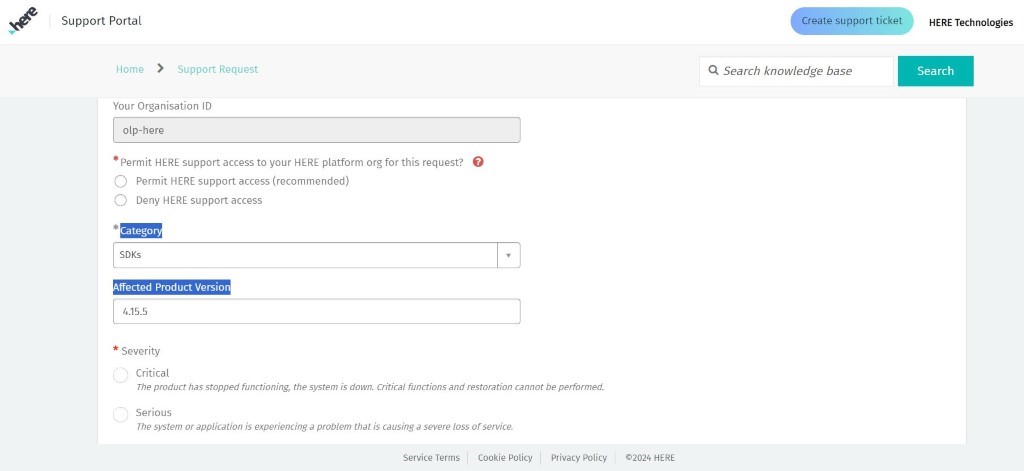
2. Select Product Information
+ Choose the appropriate Category from the dropdown
+ Enter the Affected Product Version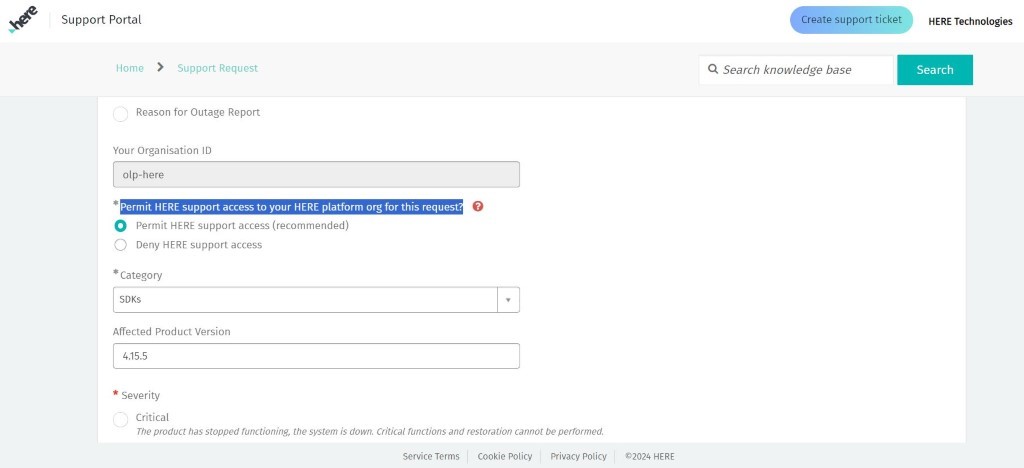
Select Severity Level
1. Choose the severity level that best matches your issue:
Critical – The system is down or non-functional; critical operations cannot continue
Serious – Significant loss of service or major functionality impacted
Normal – Partial loss of service; issue causes inconvenience
Minor – Small issue with minimal impact; no data loss or major disruption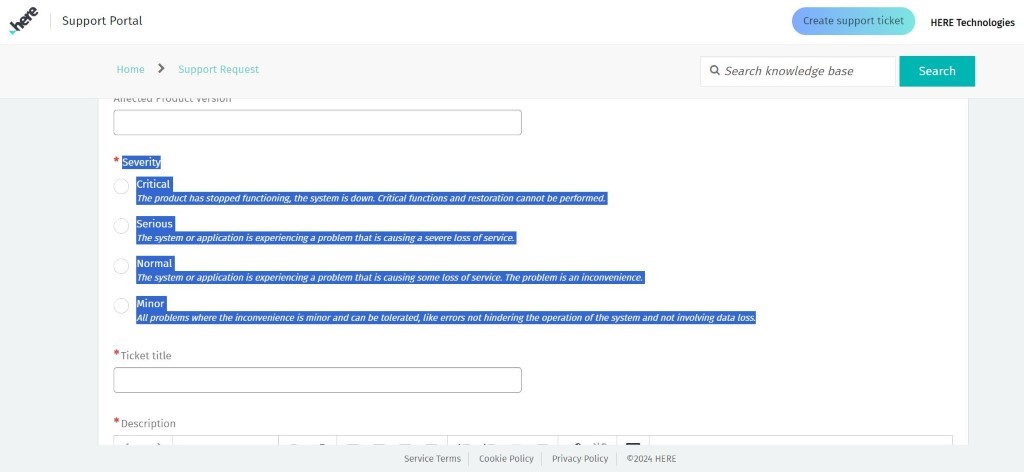
Enter Ticket Details
1. Ticket Title
Provide a clear and concise summary of the issue.
2. Description
Include detailed information such as:
Steps to reproduce the issue
Expected vs. actual behavior
Error messages (if any)
3. Attachments (Optional but Recommended)
Upload supporting files such as:
Screenshots
Logs
Videos
Submit the Ticket
1. Click Submit to create the support ticket.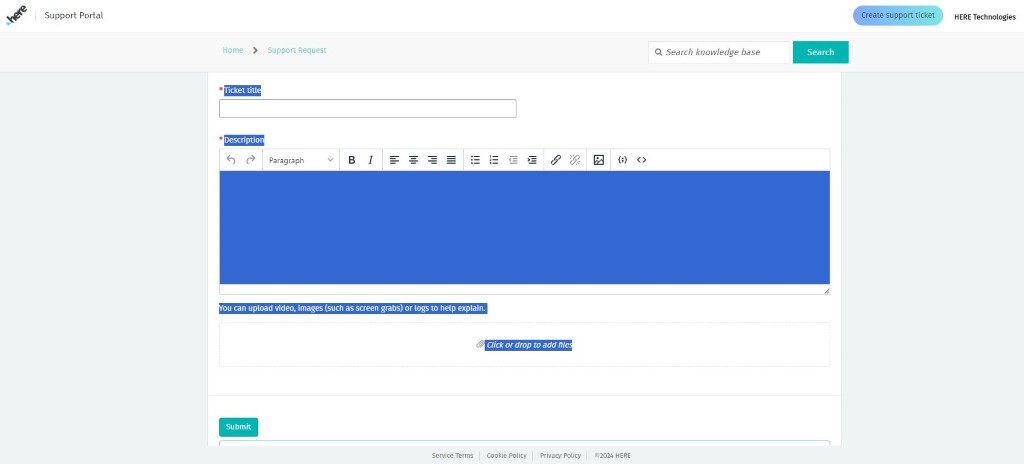
Additional Notes
Providing complete and accurate details helps reduce resolution time
Enabling support access allows HERE engineers to investigate issues more efficiently
Ensure your issue description is clear and reproducible
Related Information
HERE Support Plans and Entitlements: (refer to HERE documentation or support plan details page)
Updated 23 days ago
Did this page help you?