
Manage Notifications at the User Profile
1. Scope
The article has the purpose to guide users how to manage notifications at the User Profile to receive updates through email notifications, selecting only what is relevant enrolling for system status and maintenance services notifications.
2. Why to manage notifications?
The functionality will automatically send email notifications when a new service event is published on HERE System Status Page including informational messages, service degradations, and outages and email notifications summarizing planned maintenance and the scheduled timeframes.
Note: To have more information about System Status page refer to KB0018191 article .
3. How to manage notifications?
To manage notifications will require you access the User Profile page and then set up the preferences at your convenience. Please following the 2 steps below you will find out how to manage notifications:
STEP 1. There are 3 options to access the User Profile page at your service:
1. 1. a. In https://platform.here.com please login with your credentials to access HERE Platform, go to Support portal and then click on Manage notifications option,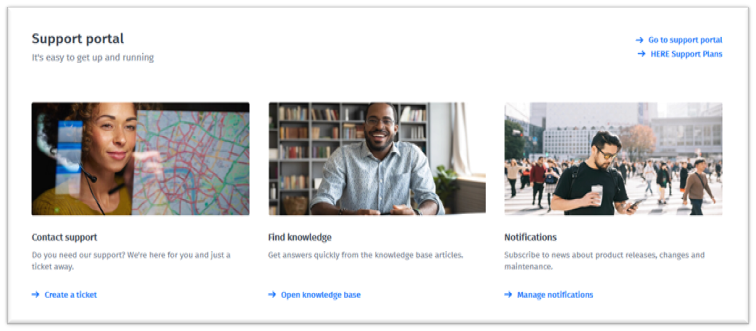
Fig.: Here Platform, Support Portal, Manage notifications.
1. 1. b. In https://support.here.com/csm please login with your credentials to access Support Portal, click on your name in the right corner at the top of the page and select the option, Profile: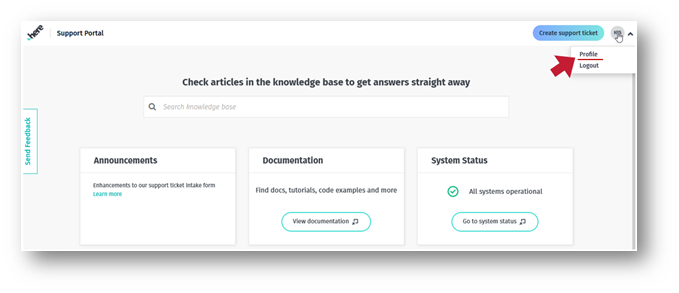
Fig.: Here Platform, Support Portal, Profile.
1. 1. c. In https://status.here.com/status please sign in with your credentials to access HERE System Status Page, click on your name in the right corner at the top of the page and select the option, Profile.
2. 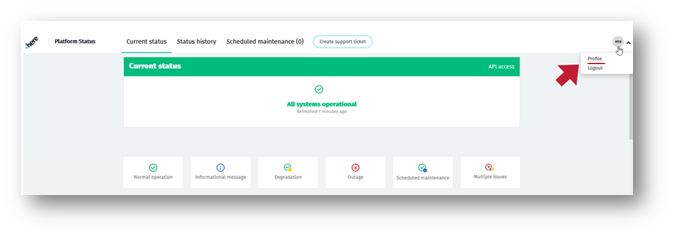
4. Fig.: Here System Status page, Profile.
Step 2. Set up the preferences
In User Profile page, pick up on the service list the options at your convenience.
Use the turn on/ turn off button to set up your preferences. All buttons are turn off by default. When the button is turned on the color is changed from gray to green.
A notification message is pop up every time you update your preferences.
See below both pages: System Status and Maintenance notifications: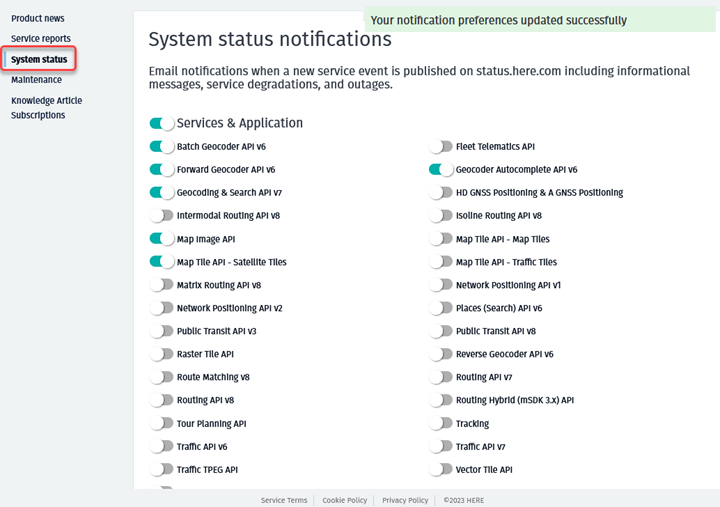
Fig.: User Profile, System status.
4. Customer email incident notification
After it has set up the System Status preferences to receive only the relevant notification, email incident notification only will send directly to customers interested on this information.
When an incident occurs, the first email notification will be sent to communicate the incident resolution has started, subsequent emails at every update will be sent when investigation is in progress and the last email will be sent when the incident is resolved.
Email incident notification brings a summarized information such as: incident start time, region affected, impact duration, and update details along the incident lifecycle.
5. Customer email maintenance notification
After it has set up the API preferences to receive only the relevant notification, email maintenance notification only will send directly to customers interested on this information.
When a maintenance is scheduled an email notification will be sent to communicate the planned maintenance and the schedule timeframes. A notification will also be sent once the maintenance is complete.
Updated 23 days ago