
How to take screenshots with required resolution on MacBook

Problem

You can take screenshots with required resolution, such as 1920 x 1080, on Windows machines but not Mac OS.

Because Mac OS only supports resolutions that have the same ratio of 16 x 10 with their physical screen.

Resolution

Choose the largest supported resolution, use browser dev tool to take the screenshots with expected resolution.

Guide

1. Choose the largest supported resolution of your MacBook

The default display options are as follows:
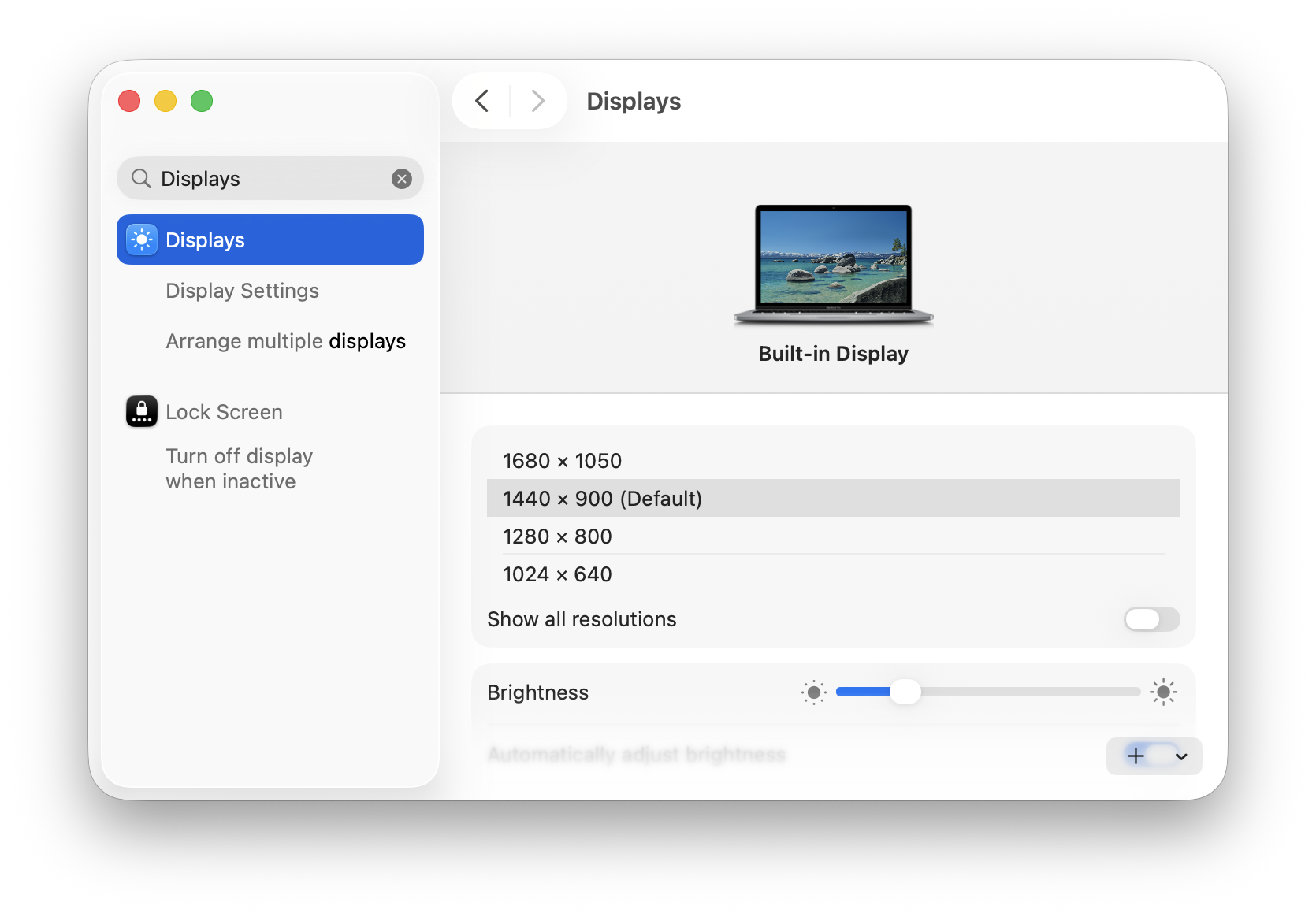
‹ Displays Q Displays X Displays Display Settings Arrange multiple displays Built-in Display Lock Screen D Turn off display 1680 x 1050 when inactive 1440 × 900 (Default) 1280 x 800 1024 × 640 Show all resolutions Brightness Automatically adjust brightness +

Toggle the "Show all resolutions" option, then you can more resolution options.
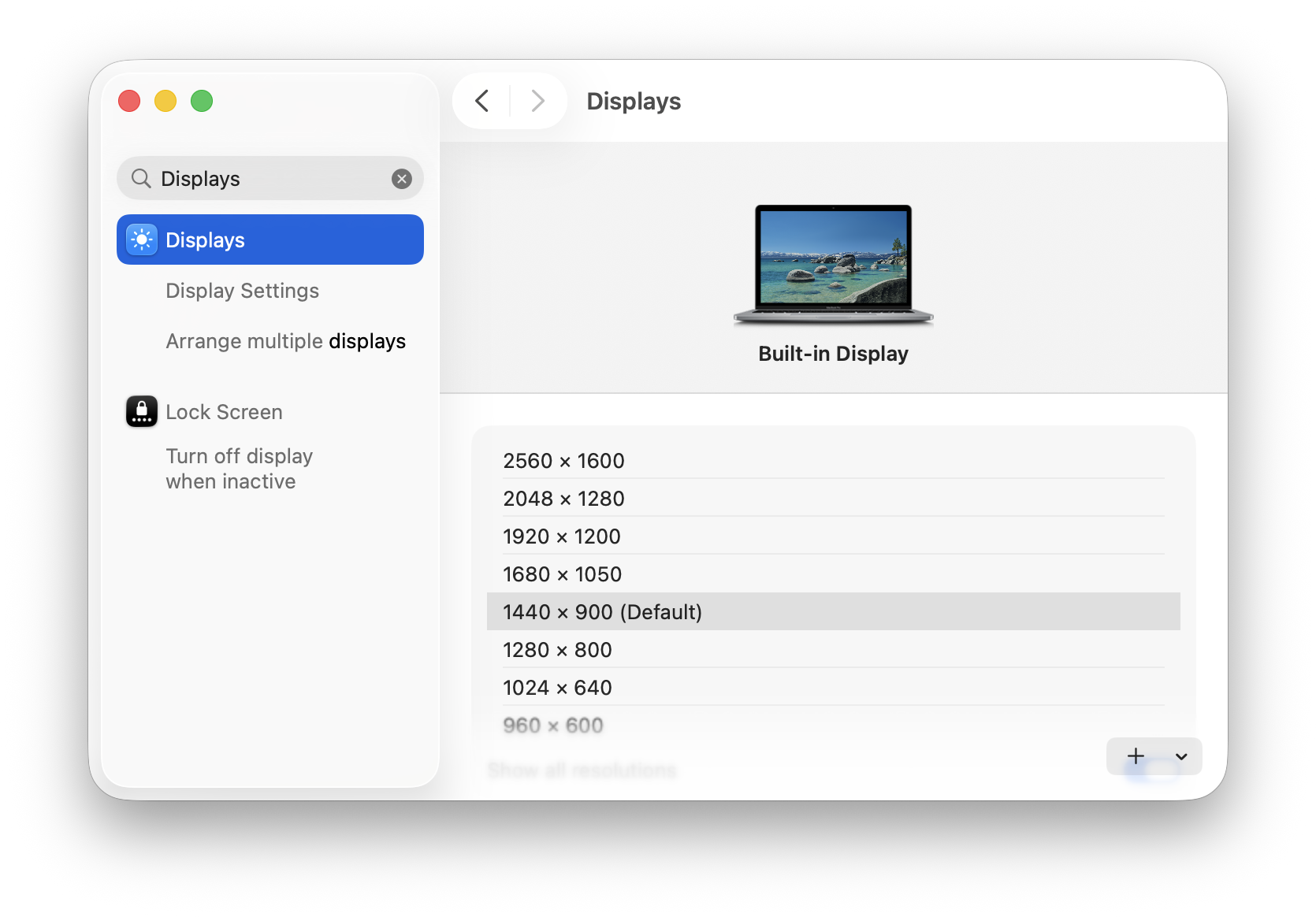
‹ Displays Q Displays X Displays Display Settings Arrange multiple displays Built-in Display Lock Screen D Turn off display 2560 x 1600 when inactive 2048 x1280 1920 x 1200 1680 x 1050 1440 × 900 (Default) 1280 x 800 1024 × 640 960 x 600 Show all resolutions + v

Choose 2560 x 1600 that can cover the required 1920 x 1080 resolution.

2. Use the browser developer tool to take the screenshots with expected resolution

Open the developer tool of the browser > toggle device emulator
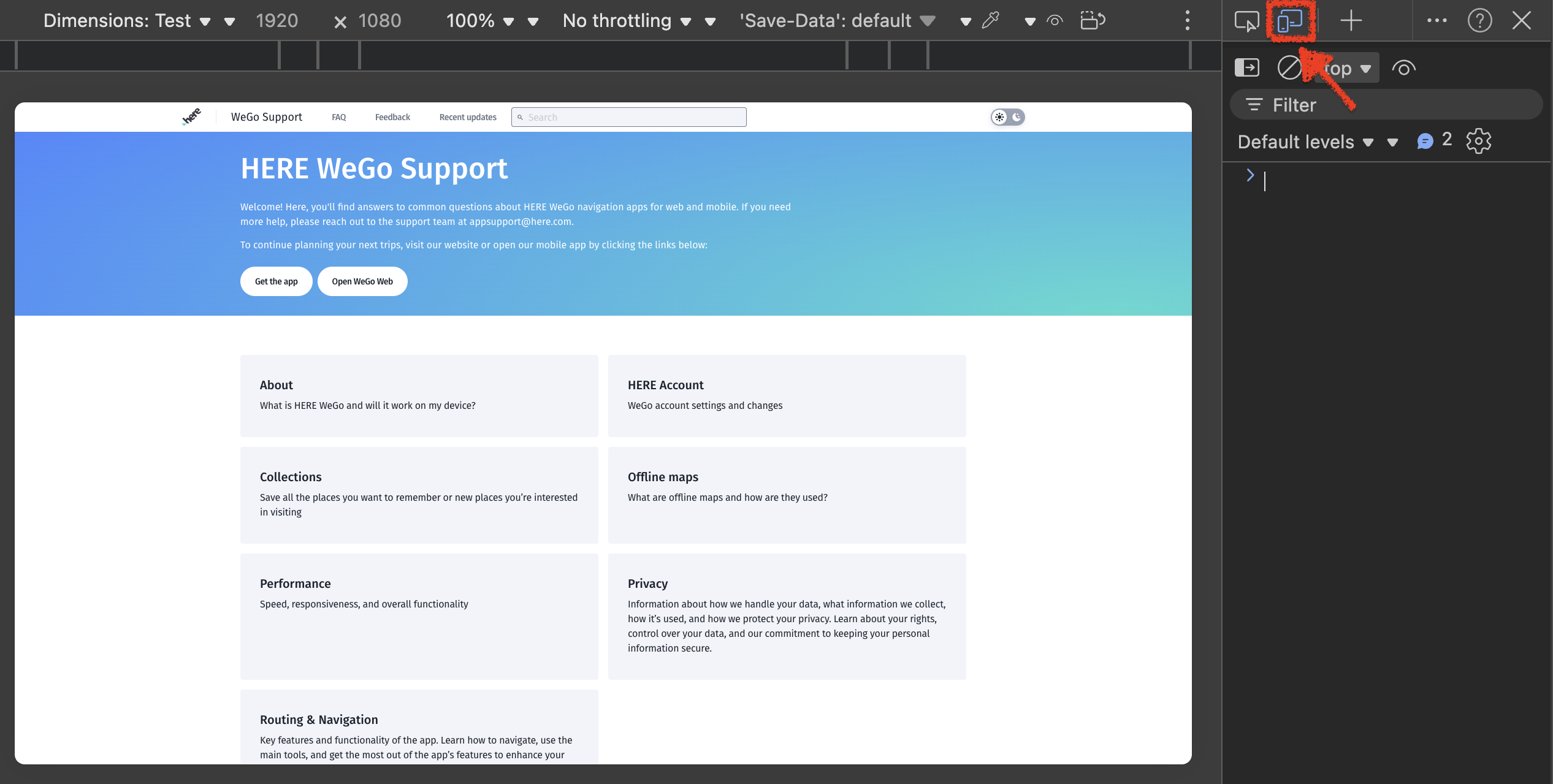
... Dimensions: Test v v 1920 × 1080 100% \ \ No throttling v v 'Save-Data': default -A ... ? X top v O = Filter hore WeGo Support FAQ Feedback Recent updates Search Default levels v v 9 2 50} HERE WeGo Support ~ Welcome! Here, you'll find answers to common questions about HERE WeGo navigation apps for web and mobile. If you need more help, please reach out to the support team at appsupport@here.com. To continue planning your next trips, visit our website or open our mobile app by clicking the links below: Get the app Open WeGo Web About HERE Account What is HERE WeGo and will it work on my device? WeGo account settings and changes Collections Offline maps Save all the places you want to remember or new places you're interested What are offline maps and how are they used? in visiting Performance Privacy Speed, responsiveness, and overall functionality Information about how we handle your data, what information we collect, how it's used, and how we protect your privacy. Learn about your rights, control over your data, and our commitment to keeping your personal information secure. Routing & Navigation Key features and functionality of the app. Learn how to navigate, use the main tools, and get the most out of the app's features to enhance your

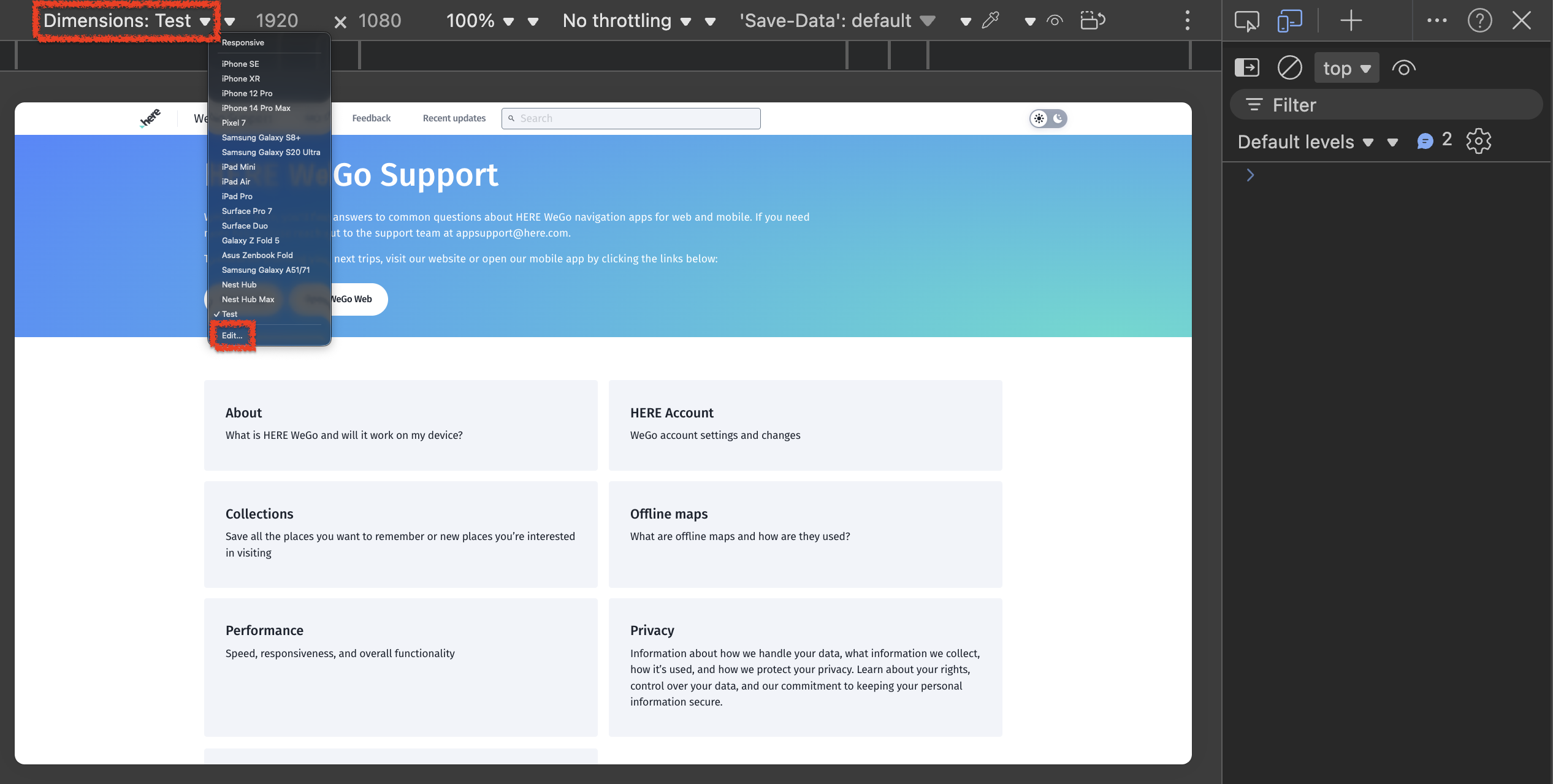
Dimension options > Edit

... Dimensions: Test 1920 × 1080 100% v v No throttling \ \ 'Save-Data': default + ... ? X Responsive iPhone SE top v iphone XR iPhone 12 Pro = Filter iPhone 14 Pro Max more We Pixel 7 Feedback Recent updates a Search Samsung Galaxy S8+ Default levels v v A 2 50} Samsung Galaxy S20 Ultra Pad Min Go Support Pad Air Pad Pro Surface Pro 7 answers to common questions about HERE WeGo navigation apps for web and mobile. If you need Surface Duo Galaxy Z Fold 5 ut to the support team at appsupport@here.com. Asus Zenbook Fold next trips, visit our website or open our mobile app by clicking the links below: Samsung Galaxy A51/71 Nest Hub Nest Hub Max WeGo Web / Test Edit. .. About HERE Account What is HERE WeGo and will it work on my device? WeGo account settings and changes Collections Offline maps Save all the places you want to remember or new places you're interested What are offline maps and how are they used? in visiting Performance Privacy Speed, responsiveness, and overall functionality Information about how we handle your data, what information we collect, how it's used, and how we protect your privacy. Learn about your rights, control over your data, and our commitment to keeping your personal information secure.

Add custom device or edit an existing device settings, and make sure the resolution is 1920 x 1080 and Desktop as the user agent:
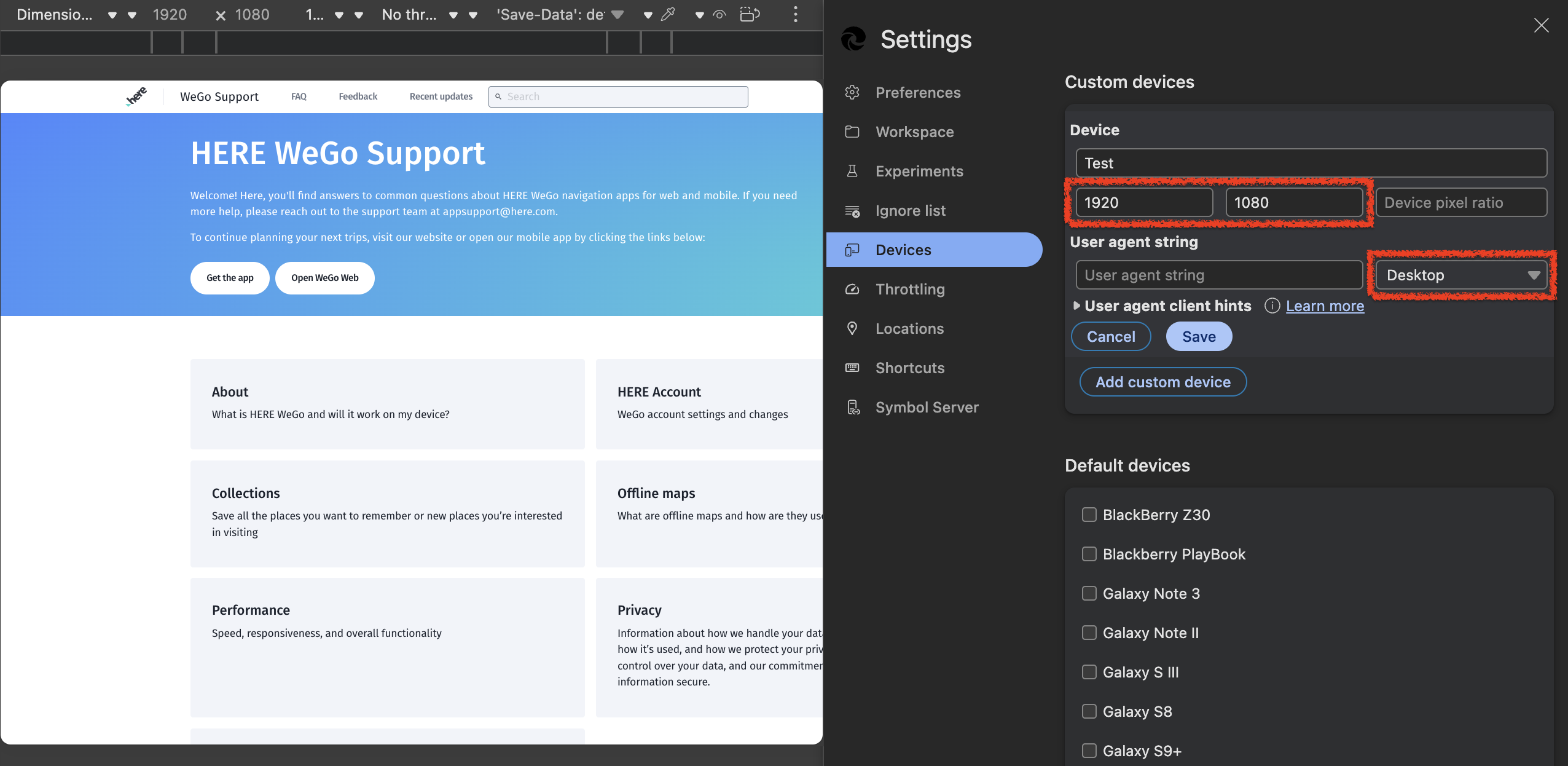
... Dimensio ... . 1920 × 1080 1 ... . No thr ... . 'Save-Data': de v Settings X Custom devices WeGo Support Preferences FAO Feedback Recent updates Search here Device HERE WeGo Support Workspace Experiments Test Welcome! Here, you'll find answers to common questions about HERE WeGo navigation apps for web and mobile. If you need 1920 more help, please reach out to the support team at appsupport@here.com. Ignore list 1080 Device pixel ratio To continue planning your next trips, visit our website or open our mobile app by clicking the links below: Devices User agent string Get the app Open WeGo Web & Throttling User agent string Desktop ›User agent client hints Learn more Locations Cancel Save Shortcuts Add custom device About HERE Account What is HERE WeGo and will it work on my device? WeGo account settings and changes Symbol Server Default devices Collections Offline maps Save all the places you want to remember or new places you're interested What are offline maps and how are they us BlackBerry Z30 in visiting Blackberry PlayBook Galaxy Note 3 Performance Privacy Speed, responsiveness, and overall functionality Information about how we handle your dat Galaxy Note II how it's used, and how we protect your priv control over your data, and our commitmer Galaxy S III information secure. Galaxy S8 Galaxy S9+

Confirm the result resolution of 1920 x 1080 with 100% zoom.

3. Use CMD+Shift+P dev tool command to "Capture screenshot":
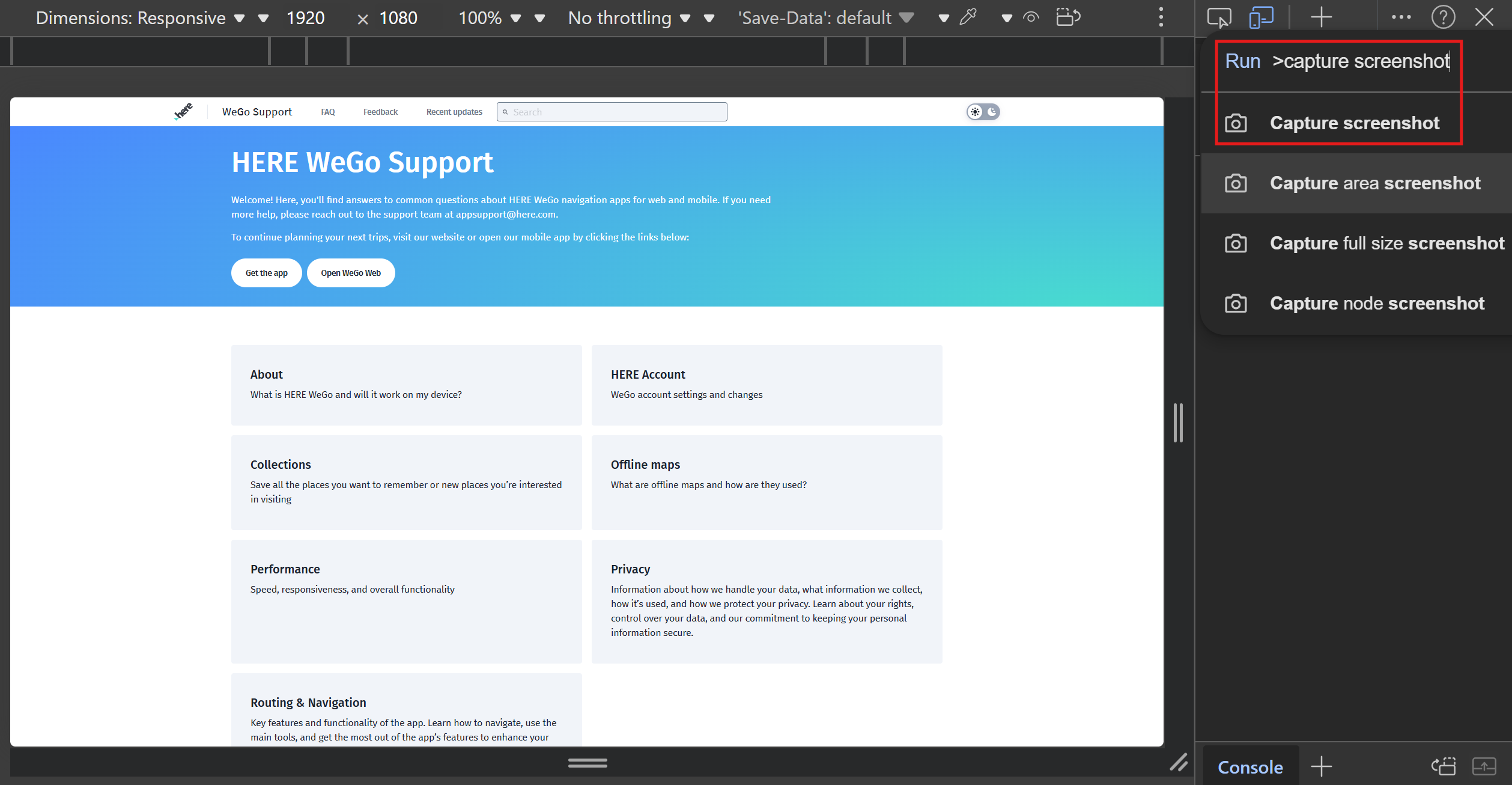


The taken screenshot in PNG format is less blurred than JPEG format, but the dev tool command sometimes does not work.

Do not choose the "Capture full size screenshot", otherwise, the full page will be captured and may not fit the expected resolution.

4. [OPTIONAL] Take the screenshot with browser feature and crop it if necessary

On Edge, you can use the top right browser menu option or shortcut of Shift+CMD+S to take screenshot.
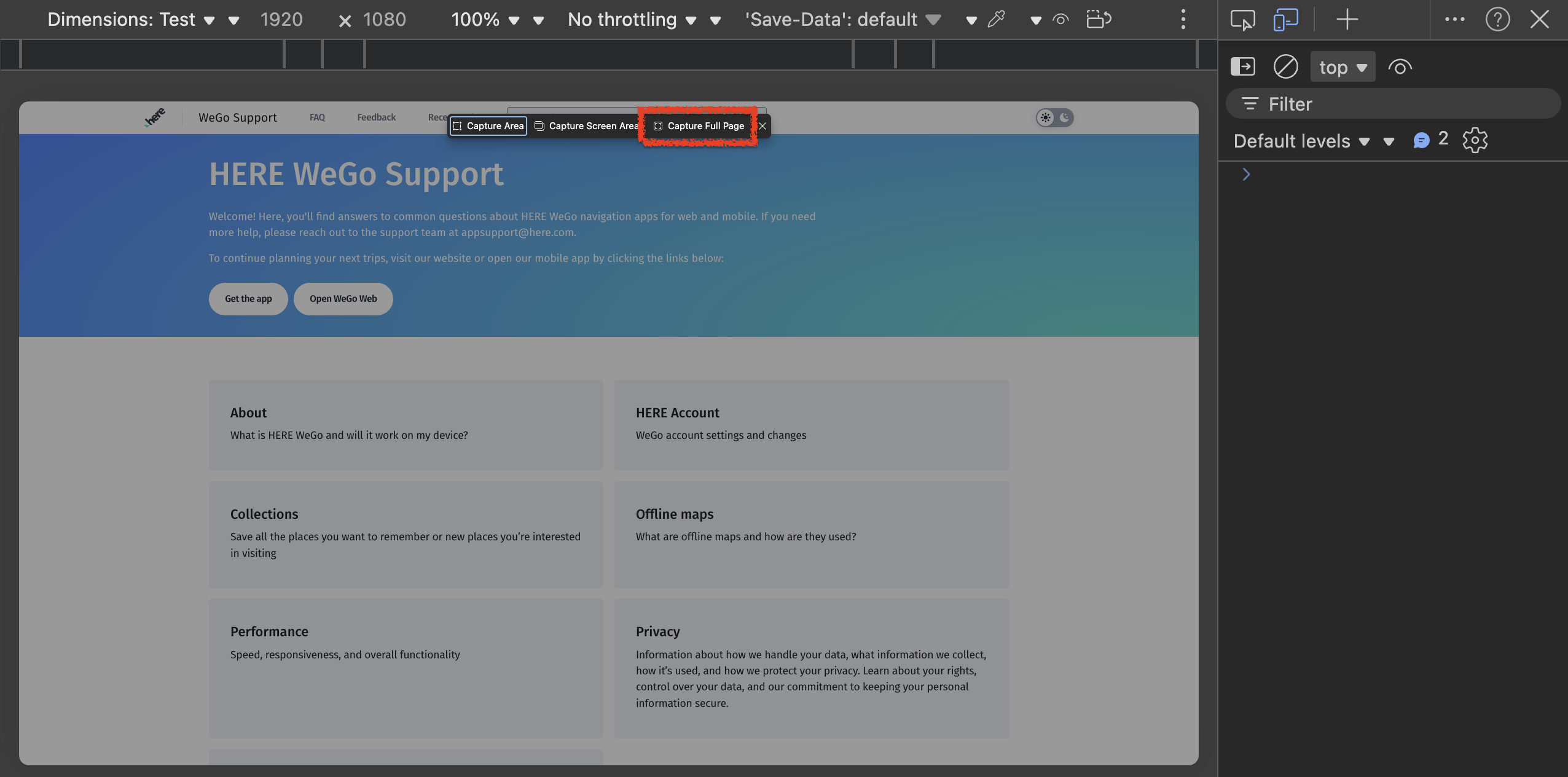
No throttling \ \ 'Save-Data': default v ? X ... Dimensions: Test v v 1920 × 1080 100% v v LA! ... top = Filter WeGo Support hore FAQ Feedback Rece 1 Capture Area Capture Screen Area Capture Full Page Default levels v v A 2 503 HERE WeGo Support > Welcome! Here, you'll find answers to common questions about HERE WeGo navigation apps for web and mobile. If you need more help, please reach out to the support team at appsupport@here.com. To continue planning your next trips, visit our website or open our mobile app by clicking the links below: Get the app Open WeGo Web About HERE Account What is HERE WeGo and will it work on my device? WeGo account settings and changes Collections Offline maps Save all the places you want to remember or new places you're interested What are offline maps and how are they used? in visiting Performance Privacy Speed, responsiveness, and overall functionality Information about how we handle your data, what information we collect, how it's used, and how we protect your privacy. Learn about your rights, control over your data, and our commitment to keeping your personal information secure.

Choose the option of "Capture Full Page" then double check what you got.

Sometimes, the taken full page screenshot covers the whole page but not only the visible part.
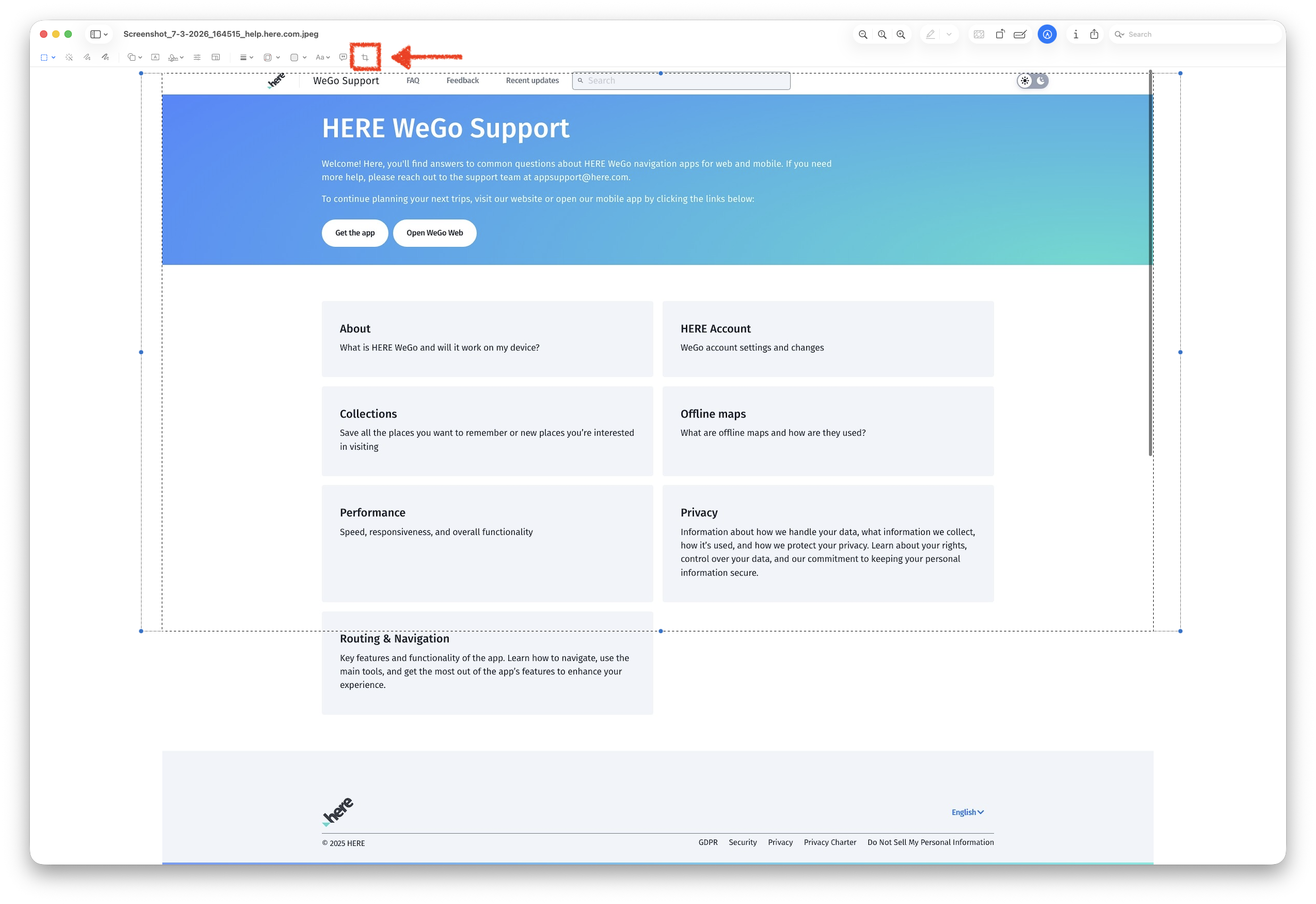


You can use the Mac OS default Preview tool to select and crop the part you need from the full page screenshot.

Draw a rectangle, make sure its height is 1080 and its left and right sides are over the left and right edges of the screenshot.
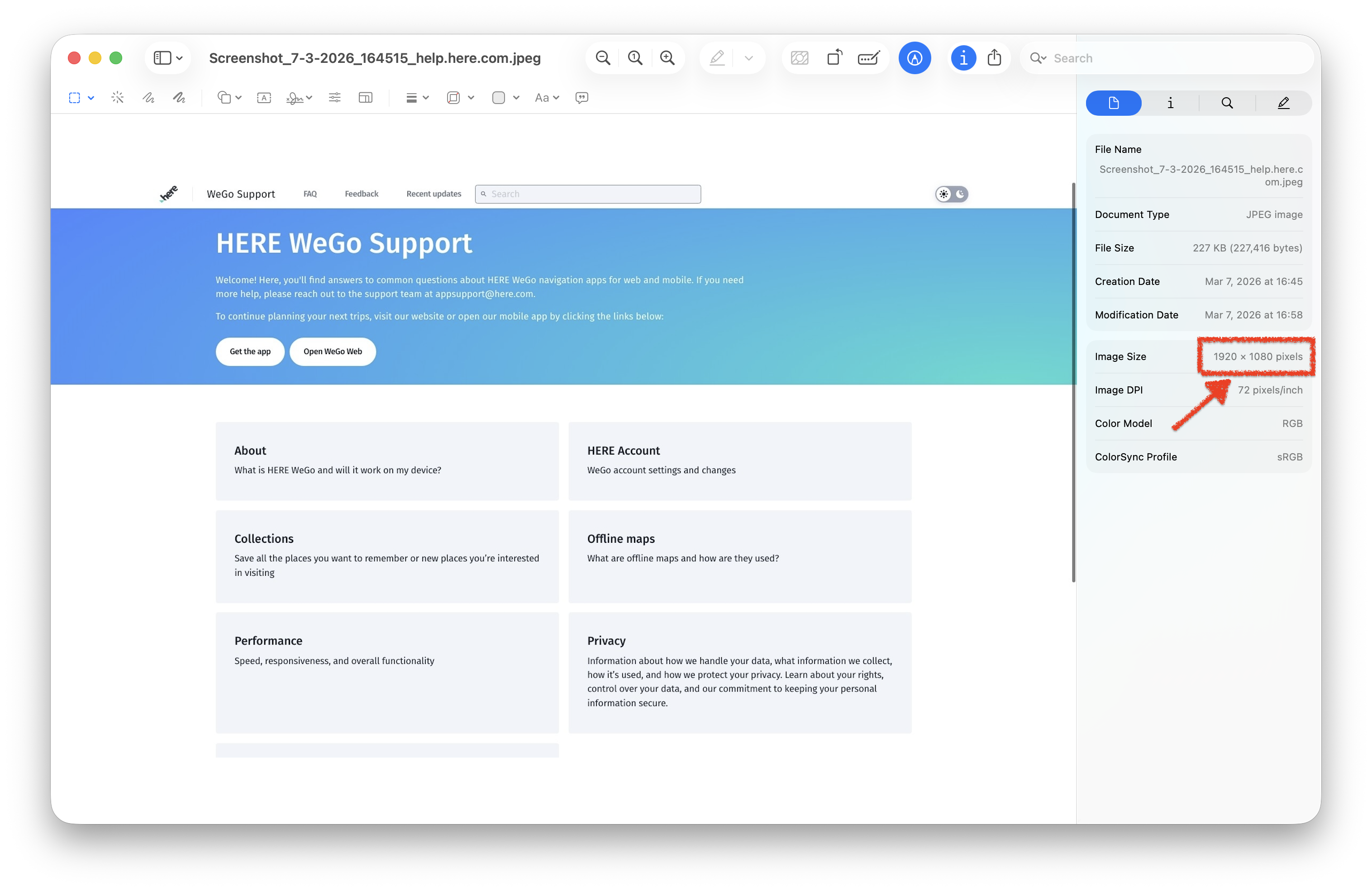


Finally, confirm the result of the cropped screenshot meets the resolution requirement.

Note that the screenshot taken this way is in JPEG format, which could be blurred and not as clear as the PNG format.