

How to use a Shared HERE SDK Module Across SDK example projects
SYMPTOMS / TRIGGERS
-------------------
You may need this article if:
You downloaded the HERE SDK Android example projects and need to configure the AAR file and API credentials separately in every project
You are running multiple sample apps (HelloMap, Navigation, etc.) and want to avoid copying the .aar file and editing credentials in each one
You want a centralized way to manage your HERE_ACCESS_KEY_ID and HERE_ACCESS_KEY_SECRET across all example projects
You searched for "share HERE SDK AAR across projects", "centralize SDK credentials Android", or "configure HERE SDK once for all samples"
You want to test different sample apps quickly without repeating the same setup steps every time
QUICK ANSWER
------------
Use the provided shared-sdk-module — a reusable Gradle module that contains the HERE SDK .aar file and your API credentials in one place. Extract it into the parent directory of your example projects, add your .aar and credentials, then run gradlew setupAllProjects. This script automatically links the shared module to every example project so you can open any one in Android Studio and build it immediately — no per-project configuration needed.
PREREQUISITES
-------------
Download and unzip shared-sdk-module.zip into the parent directory that contains all HERE SDK sample projects:<br />heresdk-navigate-android-examples-4.21.5.0/├── shared-sdk-module/ ← Extract it here<br />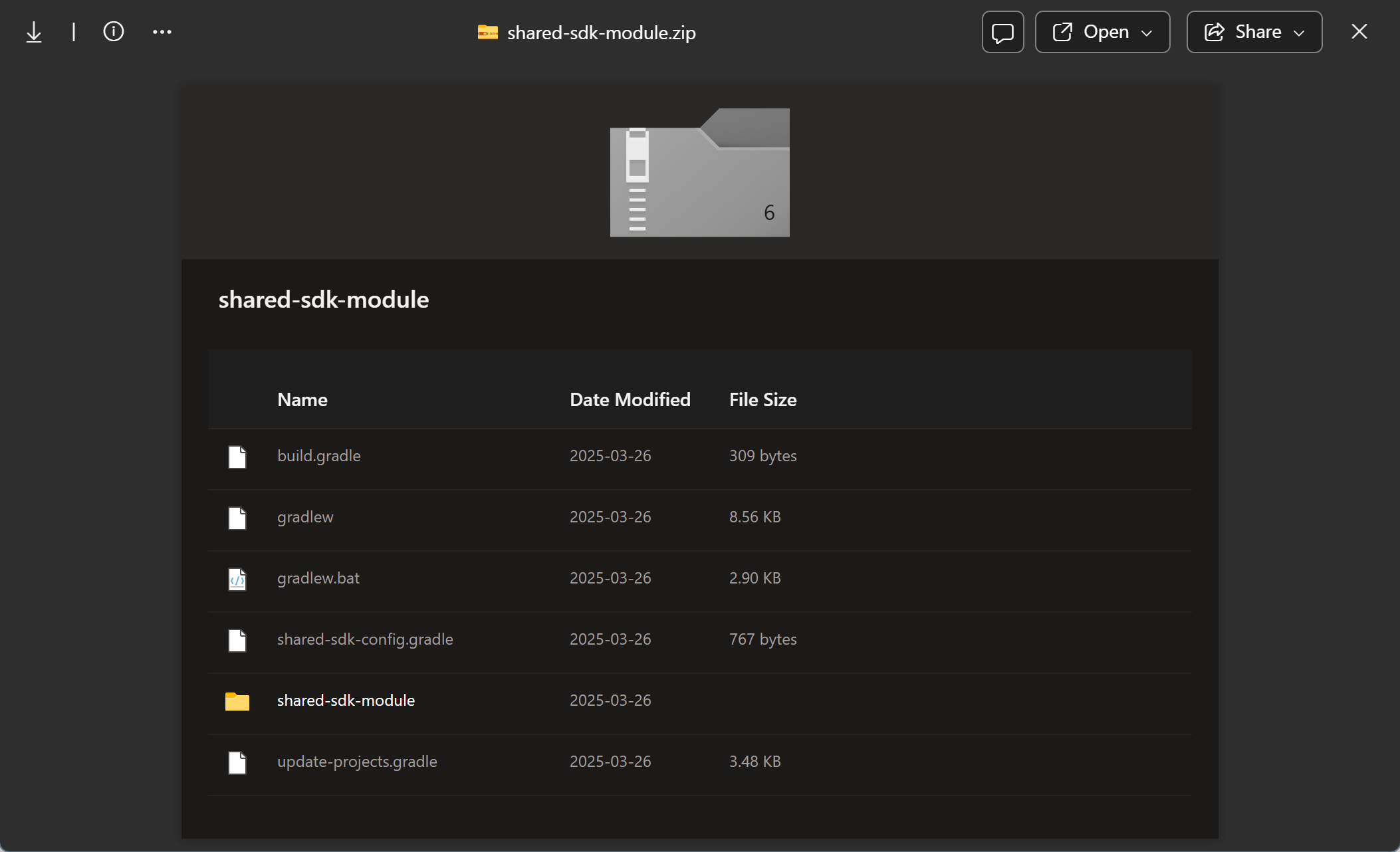
Important: Do not place it inside individual projects.
STEP 1: Verify Folder Structure
-------------------------------
Make sure your project directory looks like this:<br />heresdk-navigate-android-examples-4.21.5.0/├── shared-sdk-module/ ← Shared module├── HelloMap/├── Navigation/├── ...├── gradlew.bat ← You will run this├── build.gradle├── shared-sdk-config.gradle└── update-projects.gradle<br />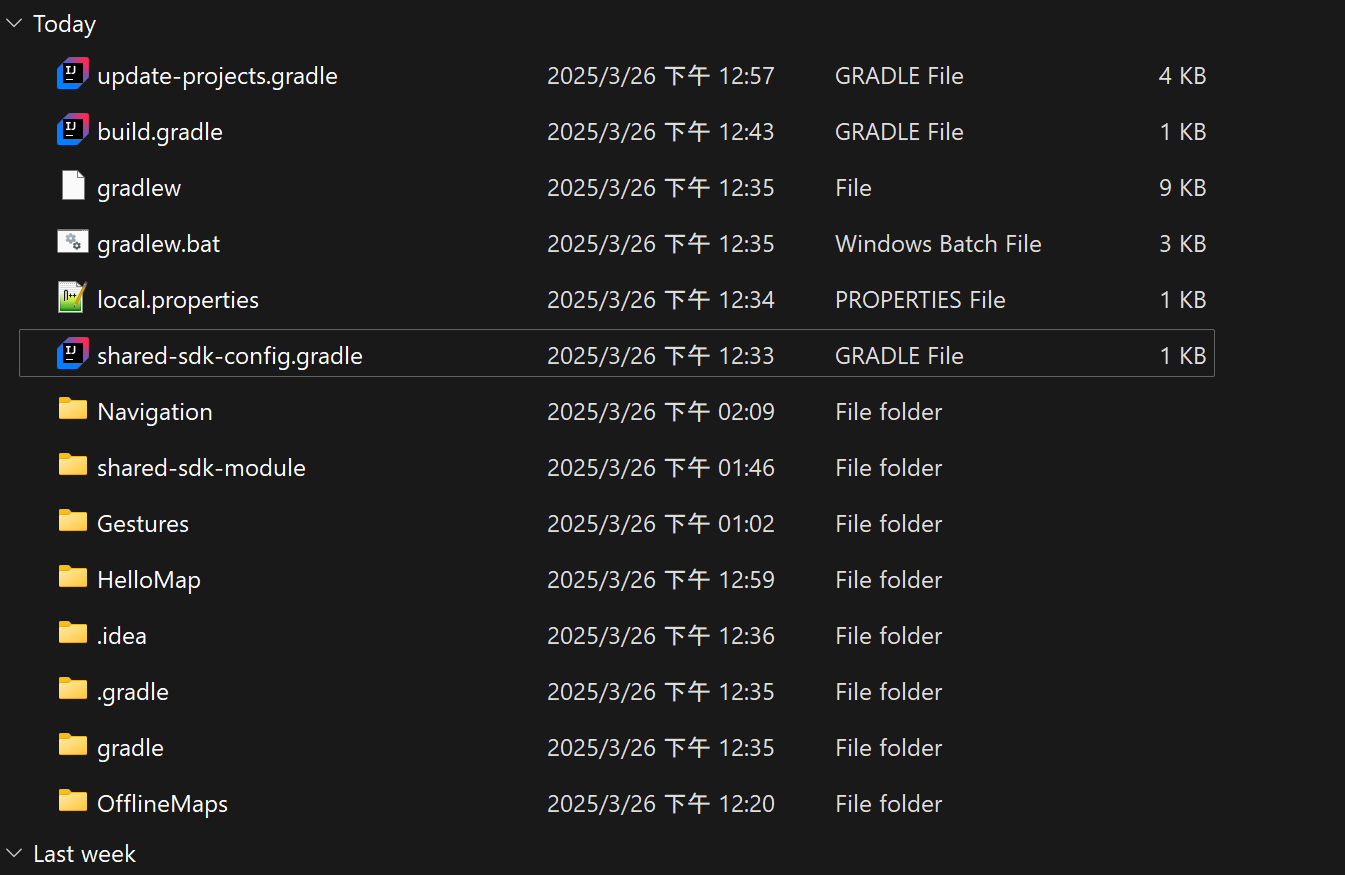
STEP 2: Add the HERE SDK AAR File
---------------------------------
Copy your HERE SDK .aar file into:<br />shared-sdk-module/libs/heresdk-.aar<br />
Example:<br />shared-sdk-module/libs/heresdk-4.21.5.0.aar<br />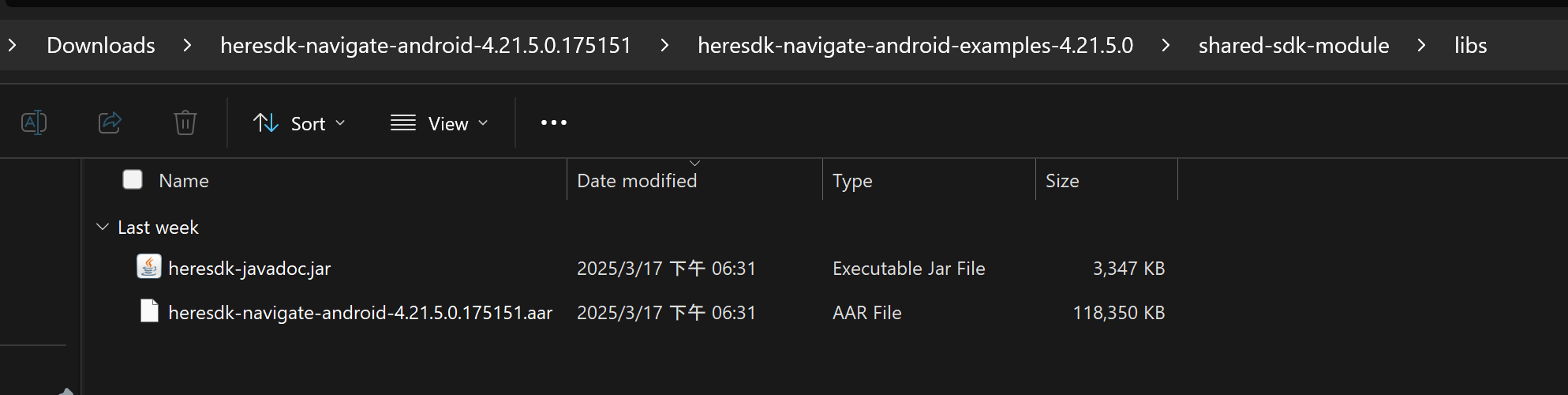
STEP 3: Configure Your Credentials
----------------------------------
Edit shared-sdk-module/gradle.properties and add your HERE credentials:<br />HERE_ACCESS_KEY_ID=your_access_key_idHERE_ACCESS_KEY_SECRET=your_access_key_secret<br />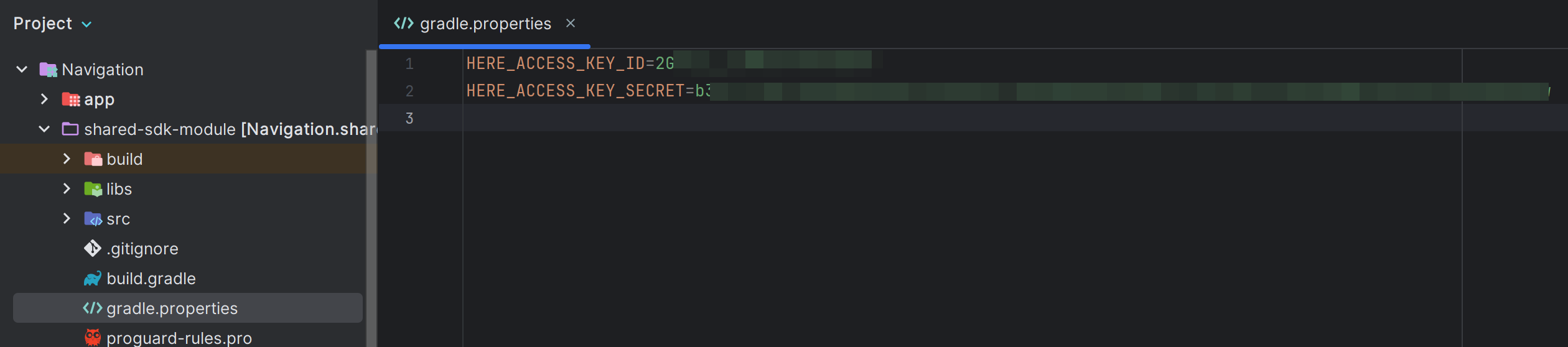
In shared-sdk-module/build.gradle, ensure these lines exist in defaultConfig:<br />buildConfigField "String", "HERE_ACCESS_KEY_ID", "\"${HERE_ACCESS_KEY_ID}\""buildConfigField "String", "HERE_ACCESS_KEY_SECRET", "\"${HERE_ACCESS_KEY_SECRET}\""<br />
Also verify buildConfig is enabled:<br />buildFeatures { buildConfig = true}<br />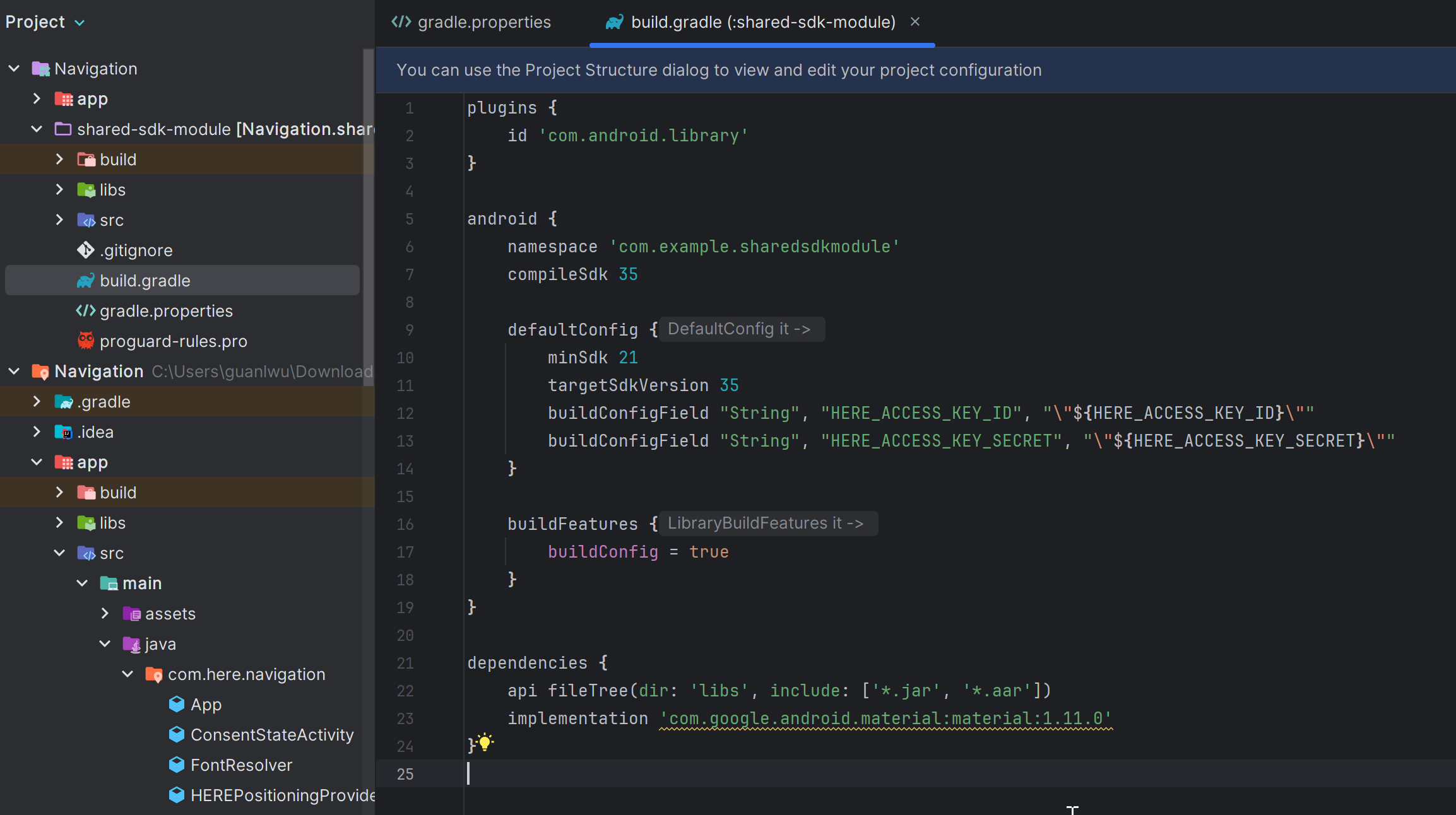
STEP 4: Run the Batch Setup Script
----------------------------------
Open a terminal in the parent folder (heresdk-navigate-android-examples) and run:
Windows:<br />gradlew.bat setupAllProjects<br />
Mac/Linux:<br />./gradlew setupAllProjects<br />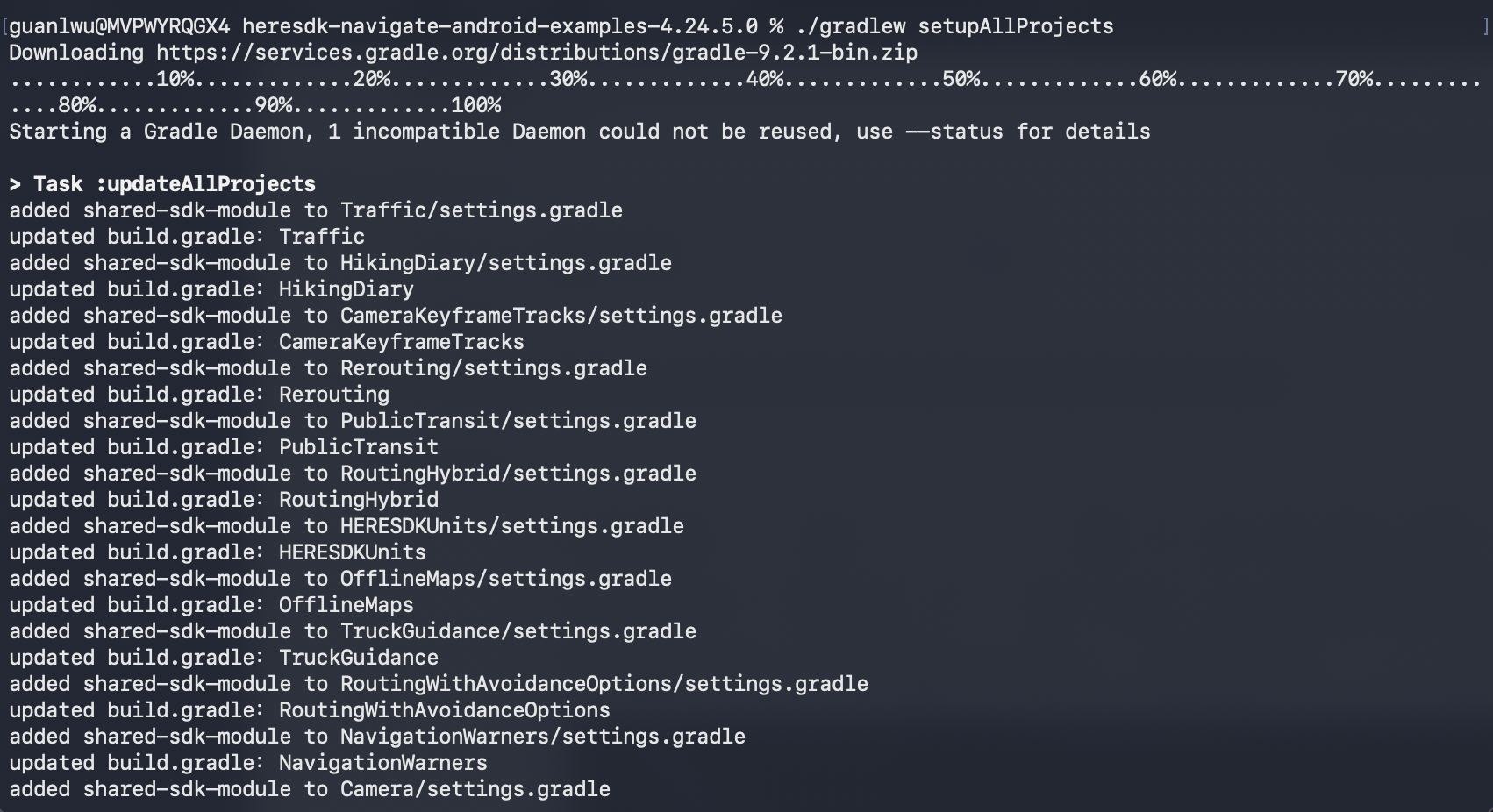
This script automatically:
Adds shared-sdk-module to each project's settings.gradle
Inserts implementation project(':shared-sdk-module') into each app/build.gradle
Replaces hardcoded credentials in Java code with:<br />String accessKeyID = com.example.sharedsdkmodule.BuildConfig.HERE_ACCESS_KEY_ID;String accessKeySecret = com.example.sharedsdkmodule.BuildConfig.HERE_ACCESS_KEY_SECRET;<br />
STEP 5: Open and Build in Android Studio
----------------------------------------
After running setupAllProjects, open any individual project (e.g., HelloMap/) in Android Studio. Before building, run File > Sync Project with Gradle Files to ensure the shared module is recognized.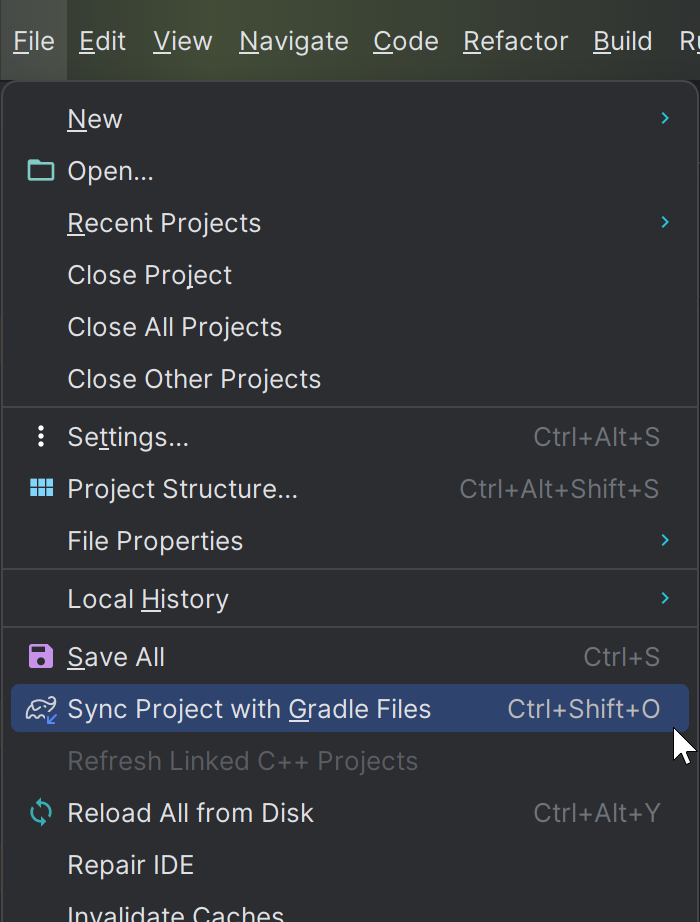
You can now switch between different sample apps without reconfiguring credentials or the AAR file each time.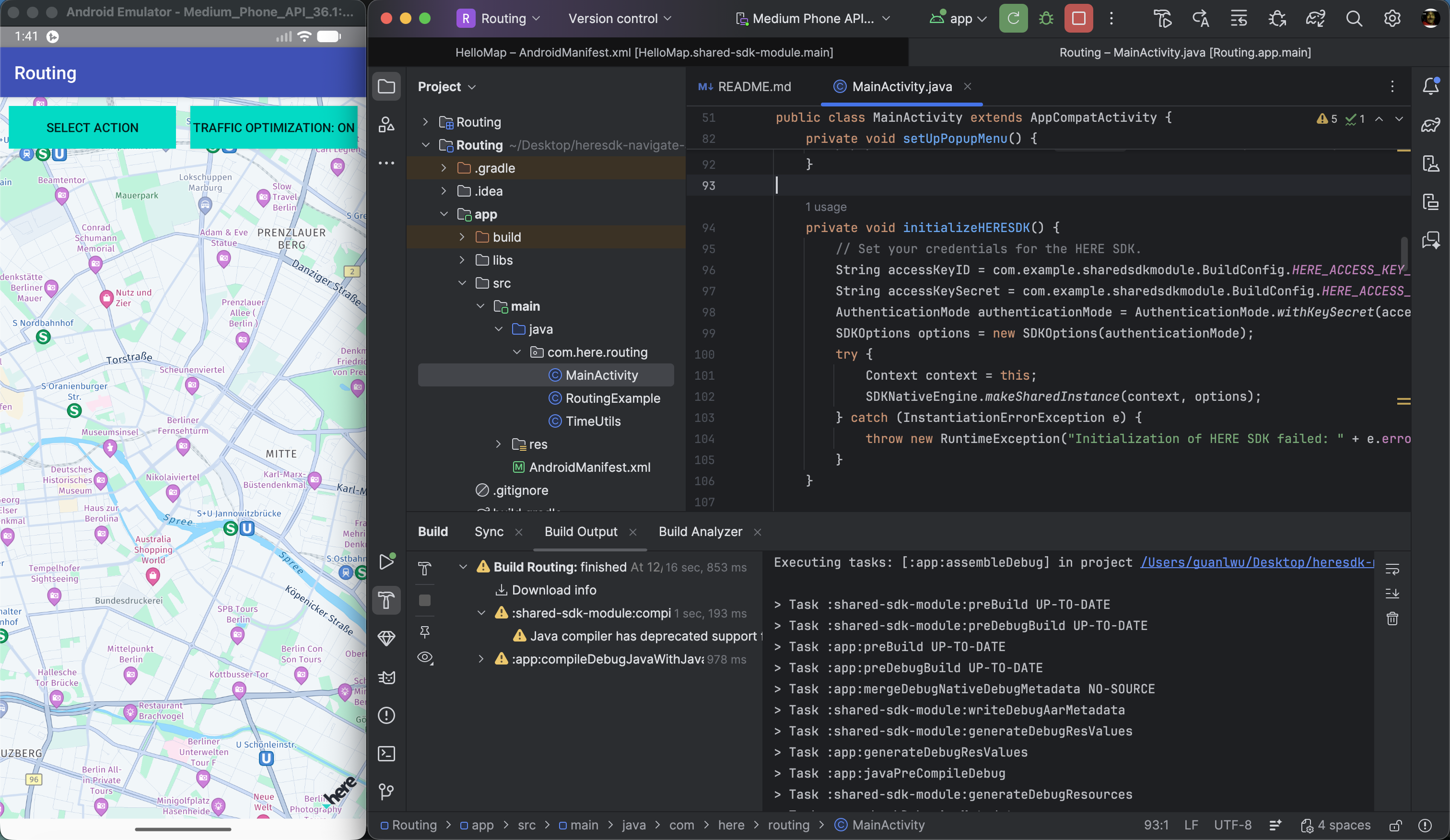
IMPORTANT NOTES
---------------
Do not open the shared module or any subproject in Android Studio before running the batch setup script — the Gradle configuration will be incomplete and cause build errors
Keep your credentials in gradle.properties but never upload this file to a public repository (add it to .gitignore)
* If you upgrade the HERE SDK version, replace the .aar file in shared-sdk-module/libs/ and re-run setupAllProjects
---
Applies to: HERE SDK Navigate for Android 4.x (tested with 4.21.5.0) | Android Studio | Gradle build system
Tags: shared SDK module, share AAR file, centralize credentials, avoid duplicate configuration, HERE SDK Android, multiple example projects, shared-sdk-module, gradle setup, setupAllProjects, HERE_ACCESS_KEY_ID, HERE_ACCESS_KEY_SECRET, BuildConfig, settings.gradle, navigate examples, SDK sample apps, one-time setup, reuse AAR across projects
Updated 3 days ago