

Map Creator FAQs, Tips & Tricks
1 What is Map Creator
---------------------
Map Creator is the crowd sourcing map editor from HERE. It enables local mapping enthusiasts to make map edits and add content to the HERE location platform to keep the data fresh. You can add, update, and delete roads, places, and many other map attributes. The desktop version can be accessed via your web browser, go to Map Creator and start editing. The mobile version is available in the stores for Android and iOS.
2 How to get started
1) Go to Map Creator
2) Click “Sign In” and set up a HERE account (if you do not have one yet).
3) Activate your account by clicking on the link in the activation email (make sure to check your spam folder if you do not see it).
4) Sign into Map Creator.
5) Zoom to the area where you want to make changes or use the Search bar to find an area.
6) Edit the area: add new roads, places or house numbers or update existing areas or report map error that cannot be fixed through the editor.
3 How to begin map editing using HERE Map Creator?
To customers connected to Map Creator for Desktop, you can edit roads, places, house number and buildings using Editing Tools and using “Feedback” section where you can report other map errors that can not be fixed through the editor.
Referring to Help pages to find details about which tools Map Creator provide for feature edition and helpful information about which toolbars can be support the edition for instance:
Search Bar: to find a location where you want to edit
Edit Toolbar: tools available for editing
Object Panel: contains all editable objects and support layers
Right Click: activated on the map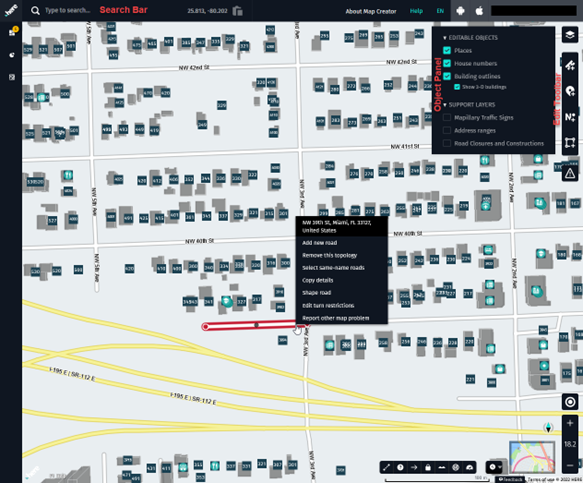
Fig.: Map Creator toolbars
Editing Toolbar: contains edit controls undo, save and cancel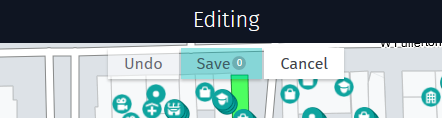
Fig.: Editing Toolbar
To report map errors using Feedback it is necessary to click the Feedback button in Footer at the right corner.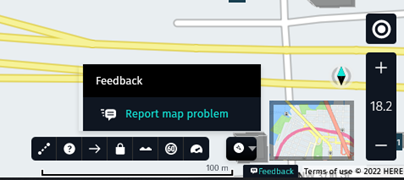
Fig.: Feedback section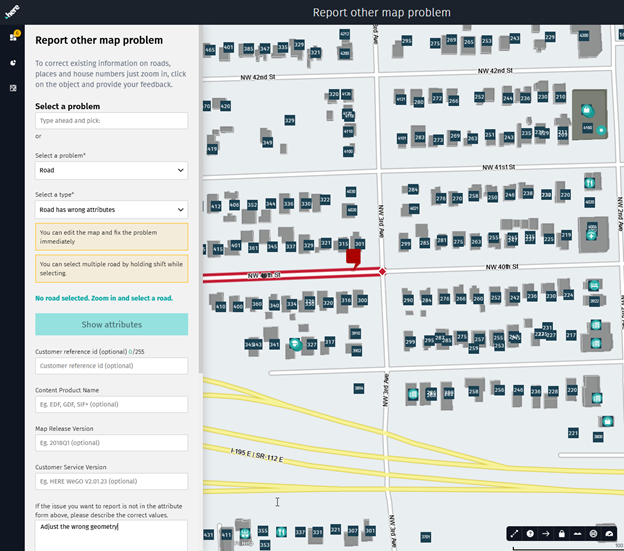
Fig.: Feedback to report other map problem
Customers connected to Map Creator mobile version (available in the stores for Android and iOS) can edit roads, places, house numbers activating the Edit tool and then touching on the object you would like to update: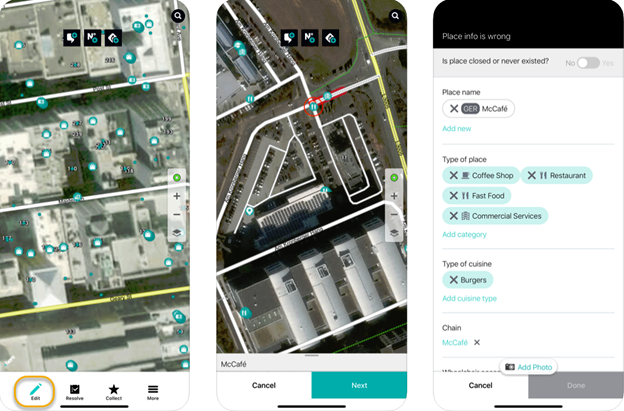
Fig.: Map edit in Map Creator mobile version
Or you can report a map error clicking on the button in the top toolbar:
1 Add place
2 Add house number
3 Add traffic sign photo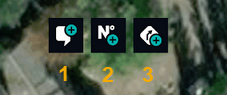
Fig.: Feedback toolbar in Map Creator mobile version
4 How can I track my edits and personal contributions in Map Creator?
In Map Creator for Desktop, there is a tool named "Your Stuff". Within “Your Stuff” button at Service Bar – black vertical bar on the left and contains the administrative sections - it is possible to find information about personal statistics and map creator contributions (refer to Statistics and Your feed respectively).
It is possible to follow up on the submitted feedback resolution (refer to Your feed).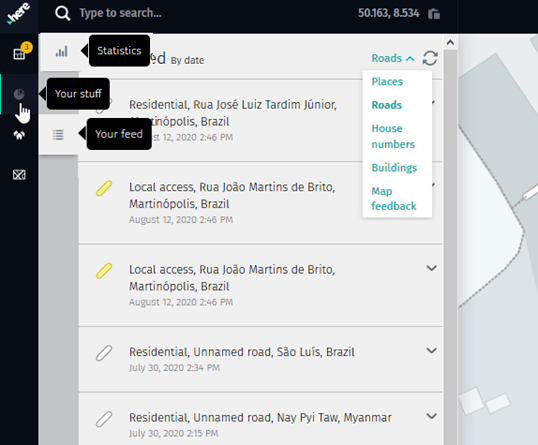
Fig.: “Your Stuff”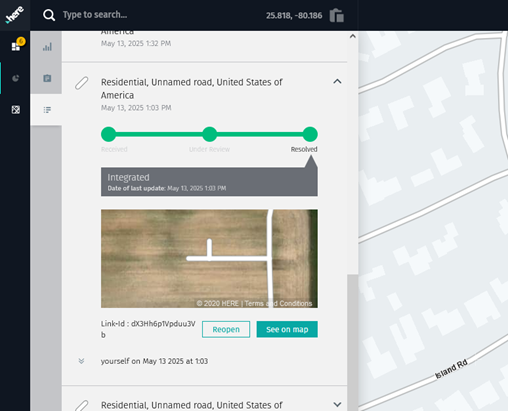
Fig.: Tracking edit of Roads on “Your Feed”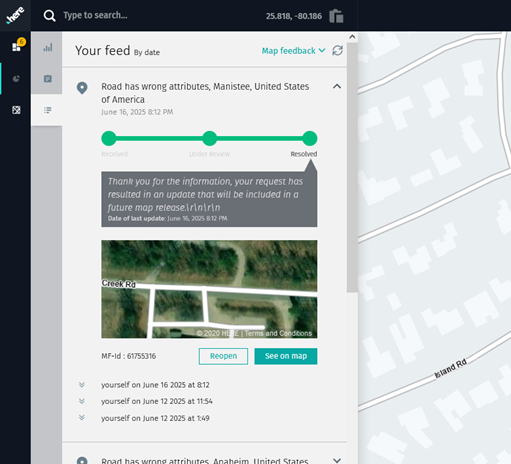
Fig.: Tracking Map Feedback on “Your Feed”
To Customers connected to Map Creator for Mobile, it is possible to track the edit list accessing “Your feed”.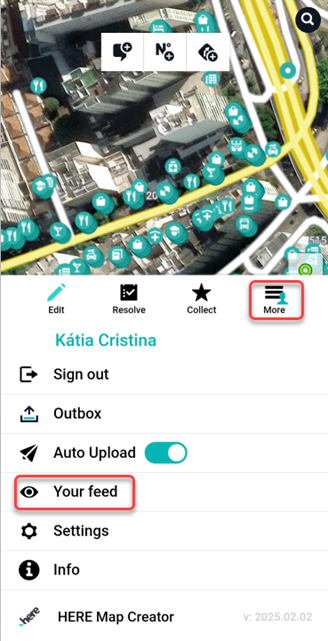
Fig.: "Your feed" in Map Creator for Mobile
5 What happens to the edits sent via Map Creator?
To ensure the highest quality, all content created or modified in Map Creator is verified before integration through automated processes and manual checks by our internal experts.
Once validated, the changes are added to the database and integrated into the next map release.
Time to visibility the updating varies depending on the attribute and the product. The integration time usually takes a few weeks.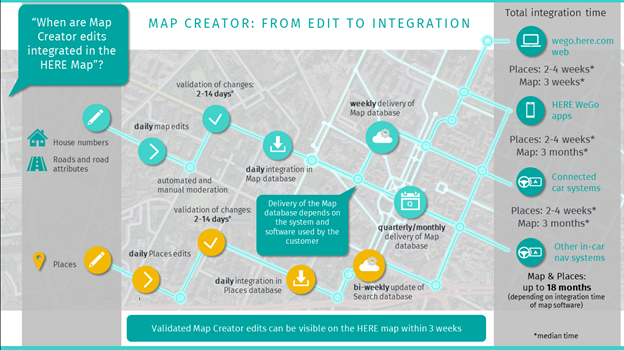
Fig.: Integration of map edits into the HERE map database
6 Support Tips
Your Geospace functionality in Map Creator desktop version
To support edits Map Creator offers the possibility to visualize your own geo files within a tool called “Your Geospace”. At the moment the following formats are supported: GeoJson, KML, GPX, Shapefile or CSV. Go to Help to find details about “Your Geospace” and at Service Bar – black vertical bar on the left – to open the functionality.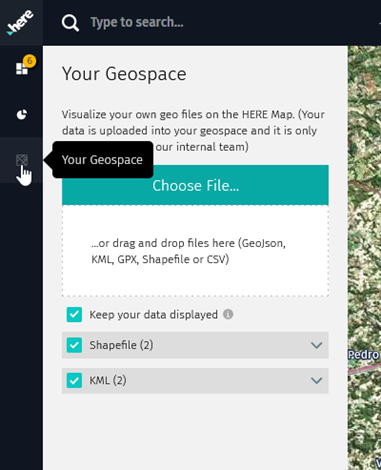
Fig.: “Your Geospace” functionality
Collection Tool in Map Creator mobile Version
Map Creator mobile version has available collection tools to improve positioning, these are: Video, Gpx, Audio and Photo. The information collected are uploaded to help us validate changes to the map. You can also find the information uploaded in Your Geospace in Map Creator for Desktop.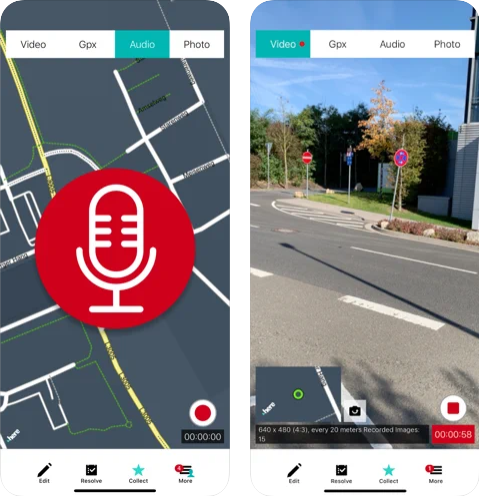
Fig.: Collect Tool
How can I report Map Creator bug?
If you have an issue submitting feedback in Map Creator create a case under HERE Support Portal.
Browsing the map
The Here Map Creator editor works best in Chrome or Mozilla Firefox. We suggest you use any of these browsers when using the desktop version.
Where do I find Map Creator tutorials?
The Map Creator tutorials are available to help you to know the HERE Map Creator possibilities and keep you up to date.
Help pages are available on Map Creator. In the Help pages it is possible to find which editing tools are offered, which features can be edited, and explore it.
The Help button is in the top Menu toolbar on the right side. If you do not see a “Help” menu, click here .
7 Legal and Copyright information
For legal reasons it is not possible to make edits or report a feedback/map problem in the following countries:
China
Japan
South Korea
Cuba
Iran
North Korea
Sudan
Syria
South Sudan
* Yemen
Copyright rules
When you edit the HERE map, you comply with the HERE “Account terms” and more specifically the applied copyright rules.
To consult those, go to “Your HERE Account” in the upper right corner of the menu bar if you are connected to Map Creator for Desktop.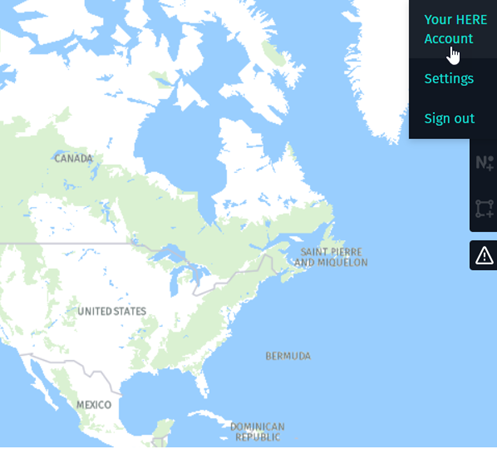
Fig.: “Your HERE Account”
After opening the account page, the “Account terms” can be found at the bottom left corner of the page – Terms of use.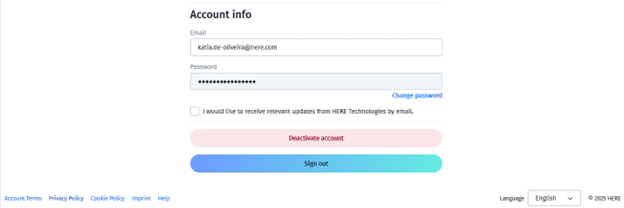
Fig.: Account terms within your HERE account
To access Map Creator Terms of use, click on the link “Terms of use” at the bottom right corner of Map Creator page.
To consult Legal and Copyright information in Map Creator for Mobile access “Info”.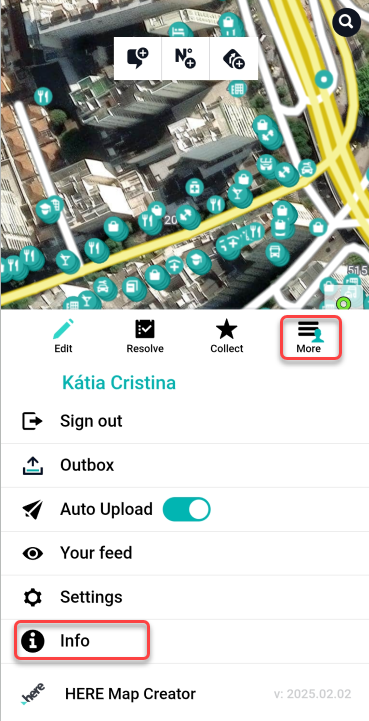
Fig.: Info in Map Creator for Mobile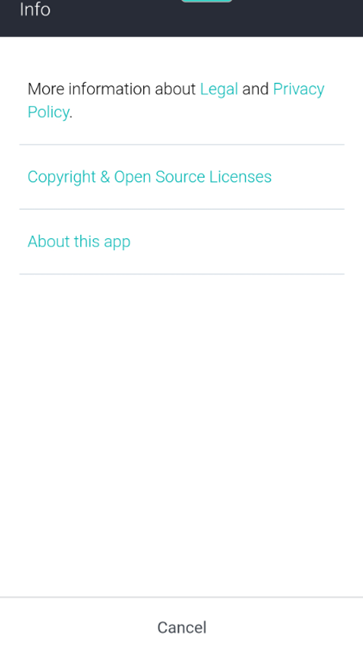
Fig.: Info on Map Creator for Mobile
...